
Why you would use this feature
You have planograms that have information in some fields, but you want to move it to different fields. Example: Products have values in Dimension fields, but the values are in the wrong fields (Correct data in the wrong place). This can move data from “where it is” to “where it should be” without lots of manual copying and pasting.Feature Options
Add Swap Field
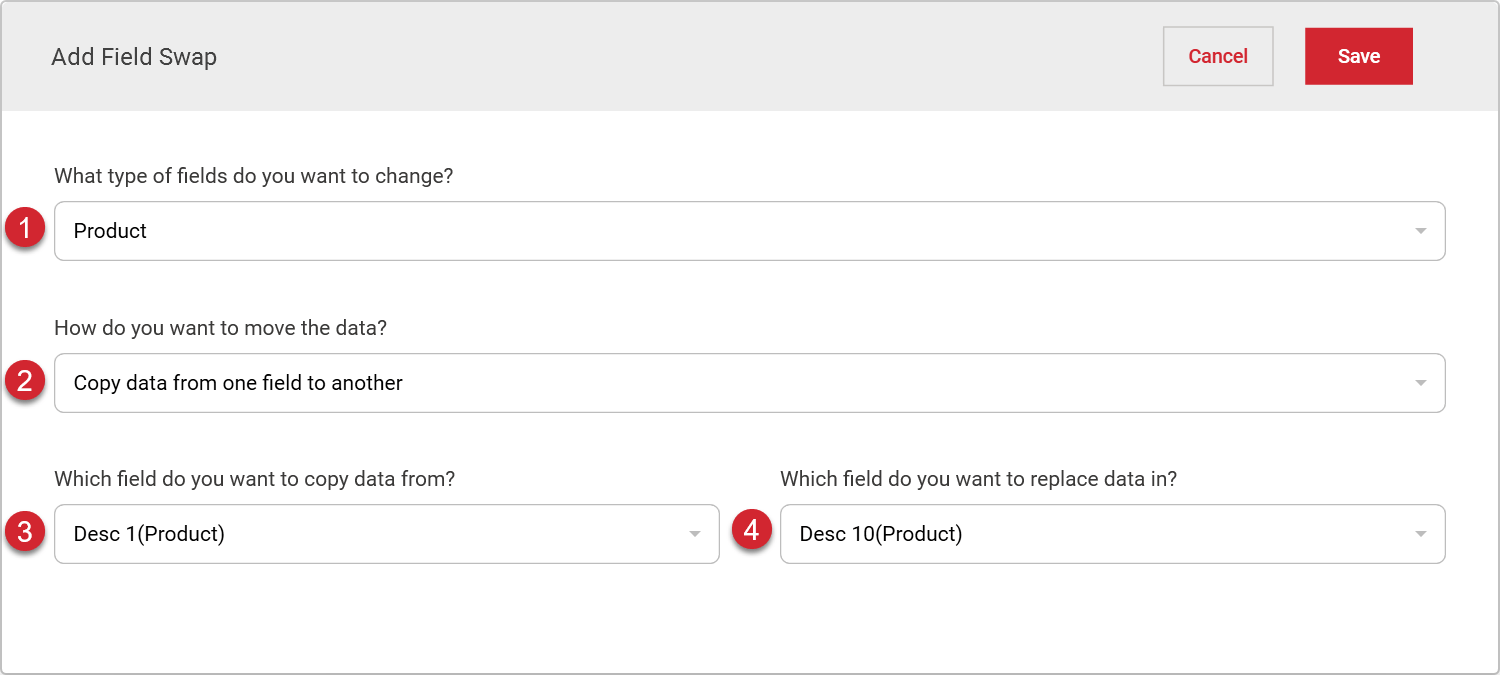

Select the object type of the fields you want to use in your swap. This will populate
all the available fields for that object into the dropdowns.

Select how you would like to perform the data swap.
Copy from one field to another - copies data from one field and places it in another. Any data
that is in the field being copied to will be overwritten by the new data.
Swap data between two fields - copies data from both fields at the same time and places it
in the other field.
Suppose you are copying from one field to another. In that case, all available fields will be available to
copy. However, only fields that can be written will be available to paste into. If you choose
to swap data, both fields will only have fields that can be written to.

This option will only be visible if you are copying data from one field to another.Select the field you want to use as the source of your copy. The data will be copied from this field for each object.
This option will only be visible if you swap data between fields.Select one of the fields you want to use to swap data. Since a swap copies data from each field and places it in another field, the order you select your swap fields is insignificant.

This option will only be visible if you are copying data from one field to another.Select the field that will have the data copied into it. Any existing data in the field will be replaced when the copy occurs.
This option will only be visible if you swap data between fields.Select one of the fields you want to use to swap data. Since a swap copies data from each field and places it in another field, the order you select your swap fields is insignificant.
Data Swaps

# | |
|---|---|
| Use the Add Swap Field button to add additional data copies or swaps. |
| Each data swap will copy or swap data from the specified field in each object of your planograms/projects. You can reorder the fields by dragging and dropping them within the list. |
| Information on the value being copied from and where it is copied to is displayed in the center. Data copied from one field to another show a single arrow, while data being swapped displays a double arrow. You can edit an existing swap by double-clicking on it. |
| Data swaps can be removed from the list by clicking on the trash can. |