
This feature allows you to split various objects (such as fixtures) into smaller pieces in your planograms.

Why you would use this feature

As you build or edit your planograms, it may be necessary to break components of the planograms (such as fixtures) into smaller pieces. For example, shelves that span multiple segments in your planograms may be split at the segment boundaries so that they can be managed independently within each segment.

Feature Options

Add Split Rule

Split Fixtures
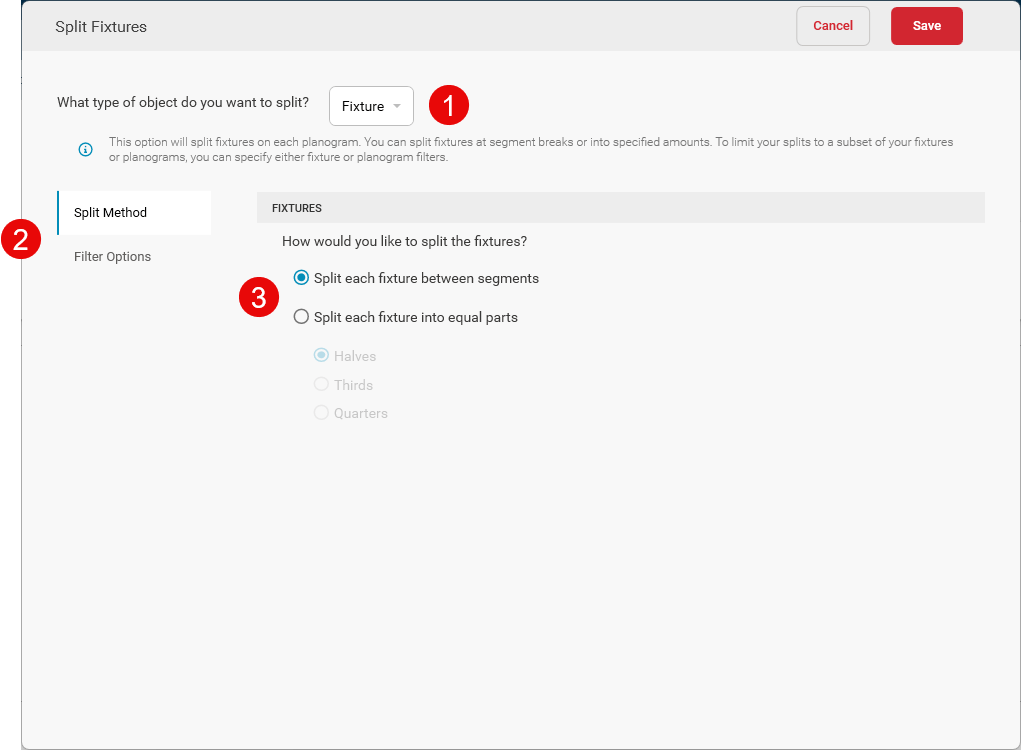
What type of object do you want to split?
To split fixtures, choose Fixture as the type of object to split.
Split Method and Filter Options
To specify the method to use when splitting the fixtures, choose Split Method. To limit the fixtures and planograms on which the fixtures will be split, choose Filter Options. The Filter Options page allows you to define a filter formula for either the fixtures to select, the planograms to process, or both. Only planograms and fixtures matching the filter formulas will be the ones to which the fixture splits are applied.
How would you like to split the fixtures?
Split each fixture between segments
Fixtures that span multiple segments within the planogram will be split at the segment boundary when the Split each fixture between segments option is selected.
Split each fixture into equal parts
To evenly divide the fixtures into equal parts (halves, thirds, or quarters), choose the Split each fixture into equal parts option. For example, if the fixture being split is 48 inches wide and the choice to split it into quarters is selected, that fixture will be divided into four equal parts with each one being 12 inches wide.

Split Anything List

Each split rule you create will be listed in the Split Anything list. You can add multiple rules by clicking the ADD SPLIT RULE button. Rules in the list can be reordered by dragging and dropping them. Use the three-dot menu on each rule to edit, copy, move, or delete the rule.