
Why you would use this feature
As you build or edit your planograms, it is often necessary to remove products, positions, fixtures, and other objects from your planograms. Delete Anything allows you to easily remove these things from your planograms using configurable options giving you control of which items to delete.Feature Options
Add Deletion Rule
Delete Fixtures
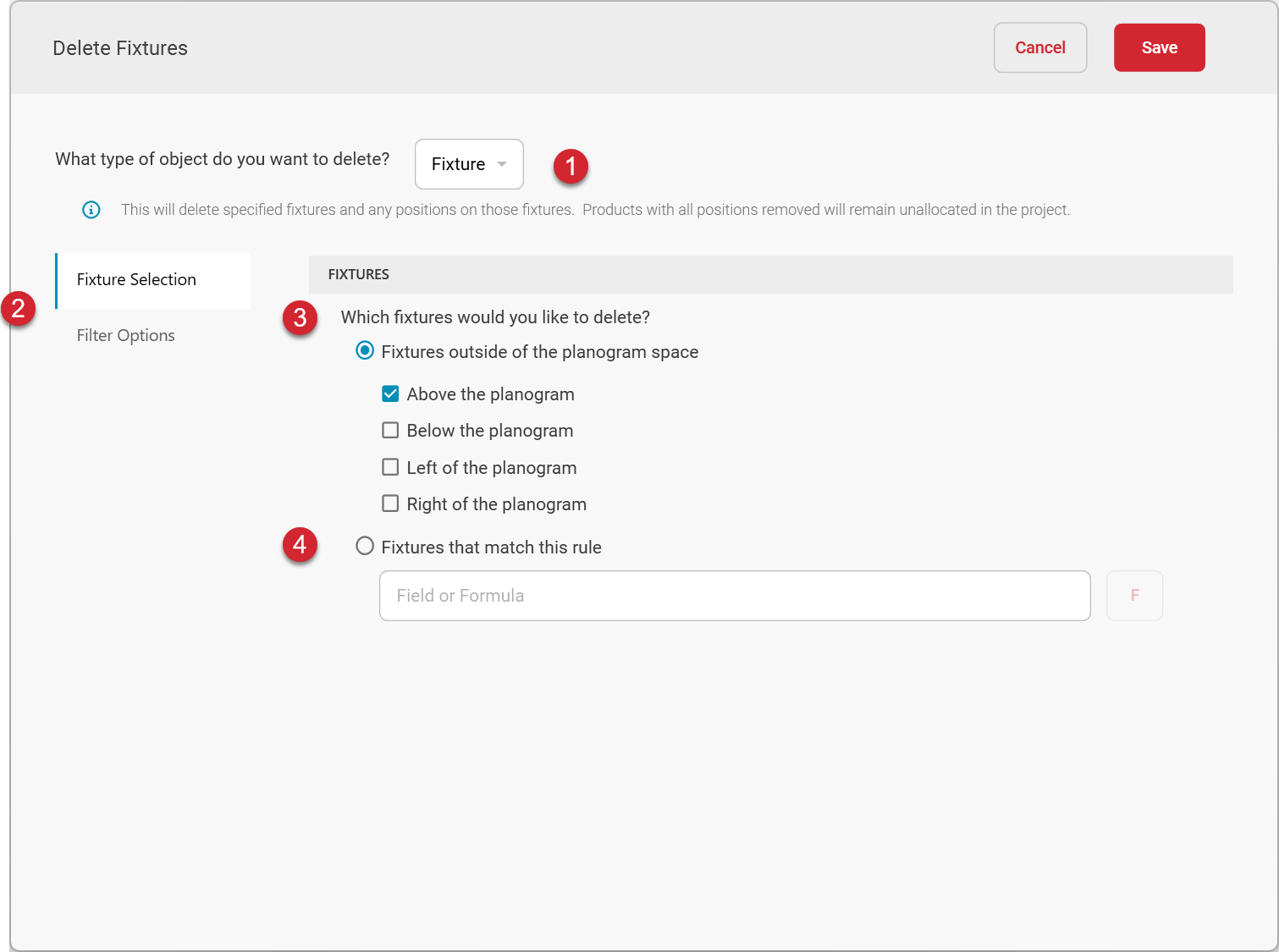

To delete fixtures, choose Fixture as the type of object to delete.

To specify which fixtures to delete, choose Fixture Selection. To limit the planograms on which the fixtures will be deleted, choose Filter Options. The Filter Options page allows you to define a filter formula. Only planograms matching the filter formula will be the ones on which the specified fixtures will be deleted.
Which fixtures would you like to delete?

If you need to remove fixtures that are outside the bounds of the planogram, you can choose any or all of the options to remove fixtures that are above, below, to the right, or to the left of the planogram.
Any fixtures that are completely outside of the planogram in the selected directions will be removed.

If you need to remove fixtures that match certain criteria, you can use the option to remove fixtures that match a rule. Use the formula builder to define the rules that identify the fixtures to be deleted.
Delete Products
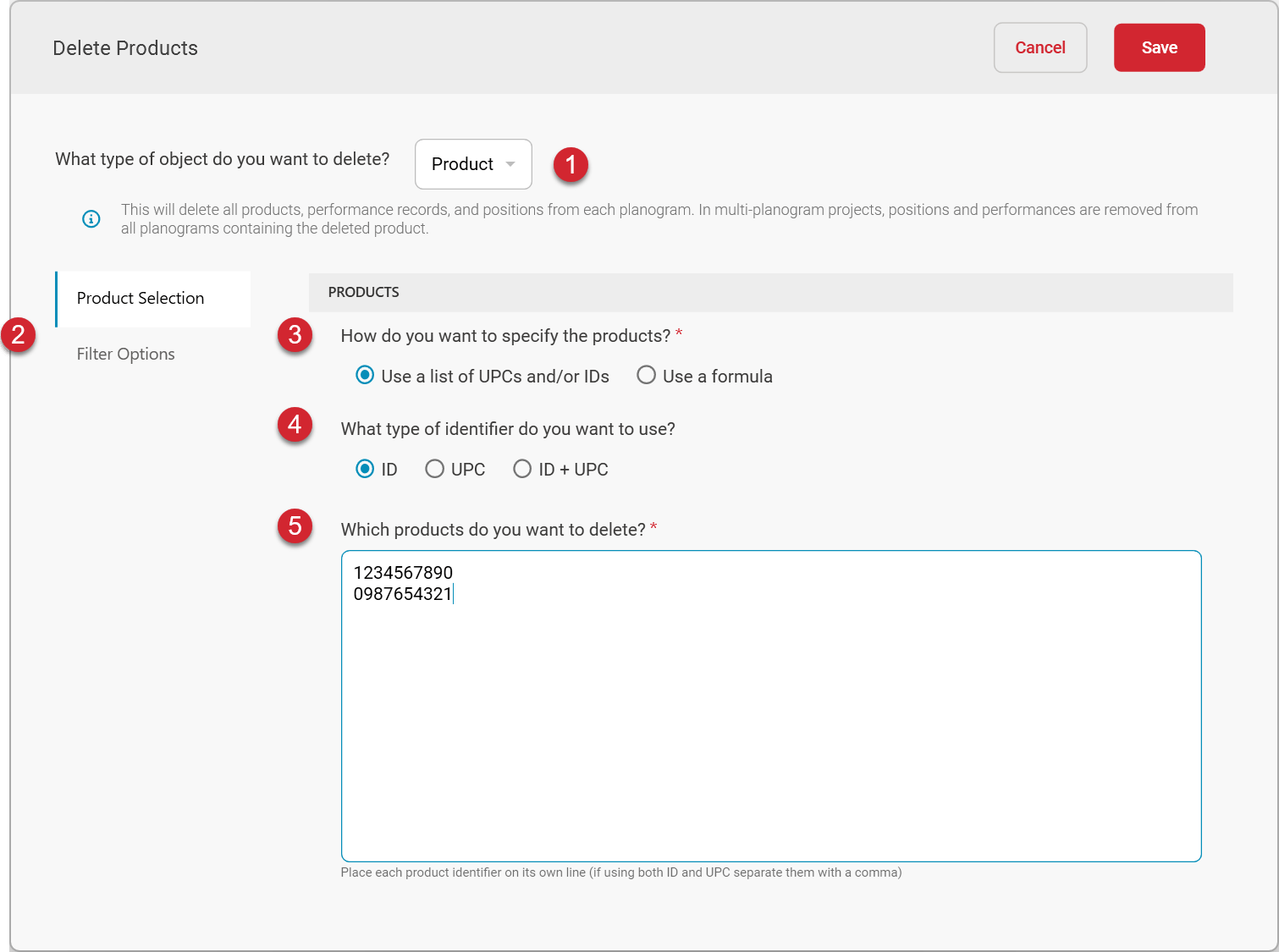
To delete products, choose Product as the type of object to delete.
This option will delete all products, performance records, and positions from each planogram. In multi-planogram projects, positions and performances are removed from all planograms containing the deleted product.
To specify which products to delete, choose Product Selection. To limit the planograms from which the products will be removed, choose Filter Options. The Filter Options page allows you to define a filter formula. Only planograms matching the filter formula will be the ones from which the specified products will be deleted.
To define the specific products to be deleted, you can either provide a list of UPCs and/or IDs of the products to delete, or you can select products based on a formula.
For example, if you wanted to remove all products belonging to a certain Brand from your planograms, you could write a formula indicating which brand has the products to be deleted. Only the products matching the formula would be removed from the planograms in the batch.
If you are specifying products to be deleted based on a list of UPCs and/or IDs, select the type of identifier you want to use to specify those products. You can select by ID, UPC, or both ID and UPC.

If you are specifying products to be deleted based on a list of UPCs and/or IDs, enter the list of product identifiers in the Which products do you want to delete? input box. Place each identifier on its own line.
If you are using both ID and UPC, list them both on the same line with a comma separating them.
Only the products listed will be deleted from the planograms in the batch.
Delete Positions
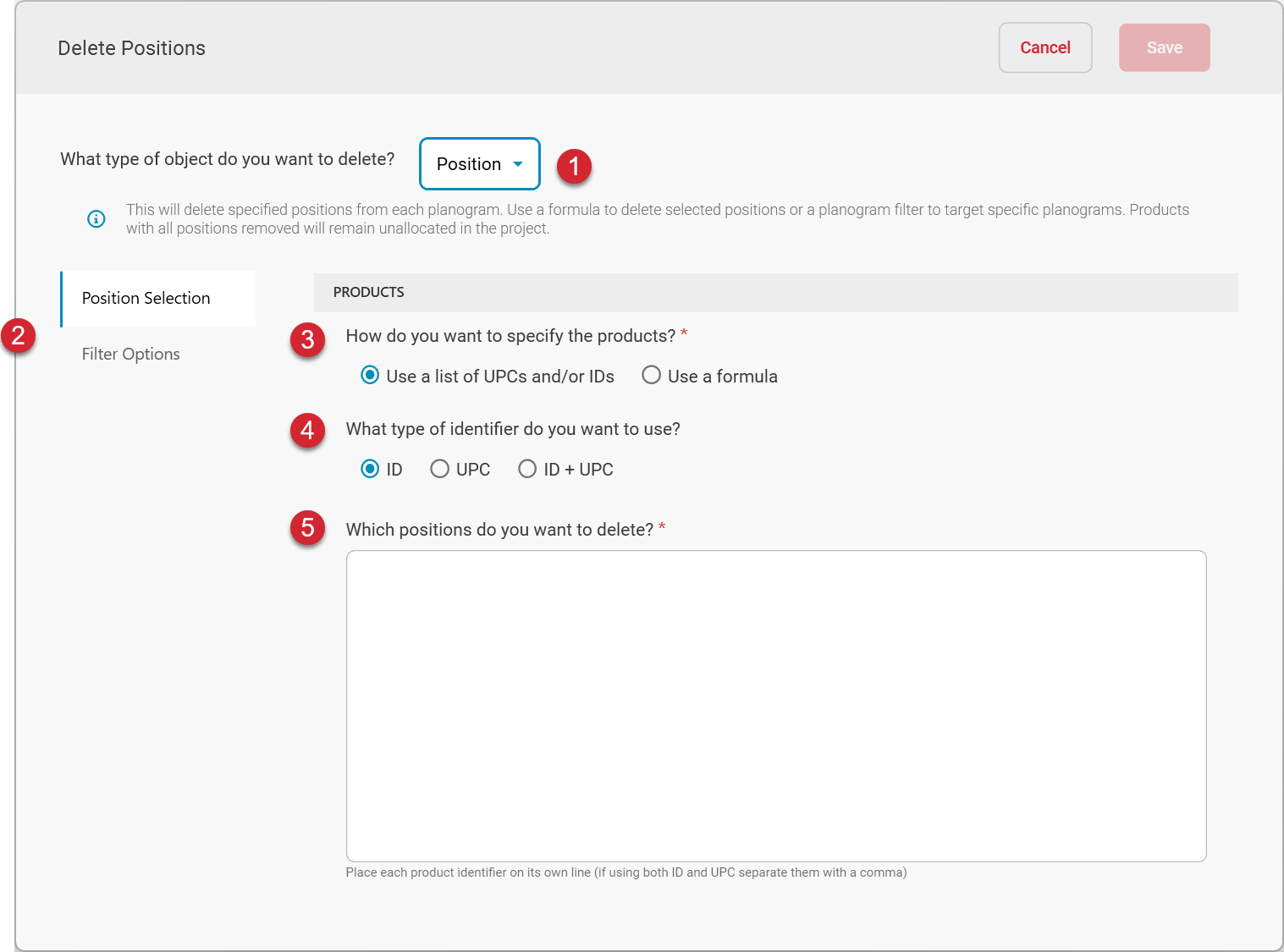
To delete positions, choose Position as the type of object to delete.
This option will delete specified positions from each planogram. Use a formula or provide a list of product identifiers to specify which positions to delete. To remove positions from a subset of planograms in the batch, specify a planogram filter to target specific planograms. Products with all positions removed will remain unallocated in the project.
To specify which positions to delete, choose Position Selection. To limit the planograms from which the positions will be removed, choose Filter Options. The Filter Options page allows you to define a filter formula. Only planograms matching the filter formula will be the ones from which the specified positions will be deleted.
To define the specific products whose positions are to be deleted, you can either provide a list of UPCs and/or IDs of the products of the positions to delete, or you can select based on a formula.
For example, if you wanted to remove all positions belonging to a certain Brand from your planograms, you could write a formula indicating which brand has the positions to be deleted. Only the positions matching the formula would be removed from the planograms in the batch.
If you are specifying positions to be deleted based on a list of their product UPCs and/or IDs, select the type of identifier you want to use to specify those products. You can select by ID, UPC, or both ID and UPC.
If you are specifying positions to be deleted based on a list of product UPCs and/or IDs, enter the list of identifiers in the Which positions do you want to delete? input box. Place each identifier on its own line.
If you are using both ID and UPC, list them both on the same line with a comma separating them.
Only the positions whose product identifiers are listed will be deleted from the planograms in the batch.