
Why you would use this feature
There are many valuable applications for this automation:- Updating product attributes
- Updating performance data
- Updating data in fields of planograms, fixtures, text boxes
- Creating text boxes
- Creating new products
Feature Options
Data File Options
Data file options allow you to select the file you will be importing and configure various settings, so it will import as expected.Where is the data file you want to import?
You can select the file you want to use as a data source for your import. CSV and all Excel format files (XLS/XLSX/XLSM/XLSB) are supported. Click on the … button to browse for the file containing the data to be imported.Which sheet do you want to import?
This will default to the first sheet in your workbook for Excel files. If you want to use a different sheet, you can select from the list of available sheets. Data will be imported from your selected sheet.Imported data has a header row
If your data has a header row, you can indicate this here. If you have a header row, you will be able to use the data automapping options.Data starts in row
By default, your data will be imported starting from the first row. If you have a title, blank lines, or anything at the top of your file, you can indicate where your header rows or first row of data starts.Target Object
Which object do you want to import data into?
Select the primary object you want to import data into. For example, if you are importing Unit Movement values into the performance records of your planogram, choose Performance. The option you select here will affect the objects shown in the Which other objects do you want to import data into section of the interface. For example, if you choose Performance, you will have the option to also import data into the Product, Planogram, and Project objects within your planograms as these objects are all related to the Performance object.Create unmatched
If the object you are importing data into is Drawing, Fixture, Performance, Position, or Product, you will be given the option of creating the object (or a related object) for any objects in the input file that don’t match existing items on the planogram. For example, if you are importing performance data and a matching product cannot be found for the performance data being imported, you will be able to have a new product record created for that performance data to match to.Unmatched records can only be made for objects you have a match on set in your data source.
Create unmatched products
Create new product records for any products not found in your planograms. This option is only available when you have selected either Match on/ID(Product), Match on/UPC(Product) or Match on/Key(Product) for a column of your data.Create unmatched fixtures
Create new fixture records for any fixtures not found in your planograms. This option is only available when you have selected Match on and any fixture field for at least one column of your data.Create unmatched drawings
Create new drawing records for any drawings not found in your planograms. This option is only available when you have selected Match on and any drawing field for at least one column of your data. Text boxes are considered drawings in Space Planning, which can be used to create new text boxes.Which other objects do you want to import data into?
Field Mapping Options
Select any objects you want to use as a matching option or an update location. Adding fields here will increase the selection options when you map fields.Field Mapping
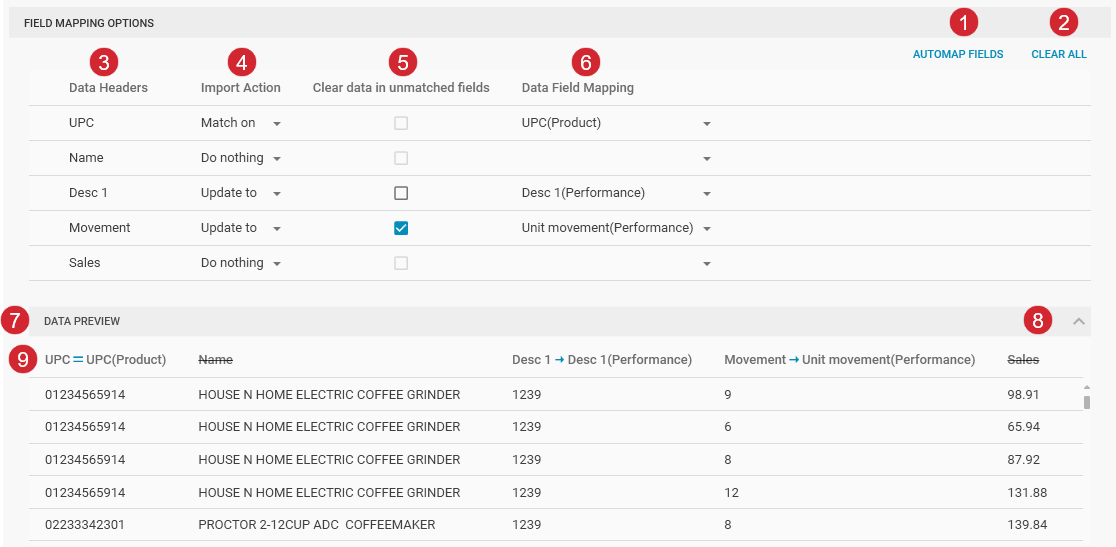
# | |
|---|---|
 | If your data source has headers, you can use the Automap Fields button to automatically match your headers with field names in the selected objects. Each matched field will be set as Update To. |
 | The Clear All button will clear any matches selected for the available columns, uncheck Clear data in unmatched fields and will set all fields back to Do Nothing. |
 | Headers from your data or the first line of your data file will be listed here so you can determine the mapping that should be used. |
 | Import action determines how that column of data should be used. Match On - Use data in this column to compare with the selected mapping field and only update records where the data matches. You can select multiple ‘match on’ fields. Update to - When a match is found, the data in this column will be copied into the specified mapped field. Do Nothing - Data in this column will be ignored. |
 | Selecting Clear data in unmatched fields clears out any values in the selected field for all records that did not have a match in the data source. |
 | Select the field you want to either match on or update to. |
 | The data preview section will show a preview of the data in the original spreadsheet format. The preview will display the first 50 rows of the file. |
 | By default, the data preview section is collapsed. Clicking on the arrow in the header of the preview will open the section so you can see a preview of the data. |
 | Visual indicators in the header row will indicate which fields are being used to match on (shown with an equal sign between the two fields), which ones are being updated to (shown with an arrow between the two fields), and which ones are being ignored (shown with a strikeout through the column name). |