
Why you would use this feature
When editing planograms during an update, a common task is to compare “Old vs. New” for metrics such as linear space, capacity, and the number of facings. By proactively storing this data from “before” planograms into fields in the “after” planogram, users can display the comparison data in property lists, tables, labels, etc., without opening both sets of planograms.Feature Options
Planogram Selection
Select Current Planograms
This option allows you to select your current planogram set, which will be stamped into future planograms. Clicking the button allows you to select as many current planograms as you’d like. The data from the current planograms will be copied into the matched future planograms you select. If you want to select more planograms, you can click the button again and select additional planograms.Select Future Planograms
This option allows you to select your future planogram set, which will be stamped with the data from their matching current planograms. Clicking the button allows you to select as many future planograms as you’d like. If you want to select more planograms, you can click the button again and select additional planograms.What do you want to use as a match in your current planograms?
This option allows you to select a field or formula that will be used to match your current planograms to your future planograms to determine which planograms should stamp data. Each planogram in your current list will compare this value against the specified compare value in the future planograms to determine if the planograms match.What do you want to use as a match in your new planograms?
This option allows you to select a field or formula that will be used to match your future planograms to your current planograms to determine which planograms should have the data stamped into them. Each planogram in your future list will compare this value against the specified compare value in the current planograms to determine if the planograms match.Suppose a new planogram matches an old planogram but doesn’t have all the products the old planogram had. In that case, any missing products will be copied over from the old planogram. The copied products will be added as unallocated products and will have the same product-level information the item had (e.g. name, dimensions) in the old planogram.
Add Performance Data Stamp
Click the button to add a field that will be copied from your current planograms to your new planograms.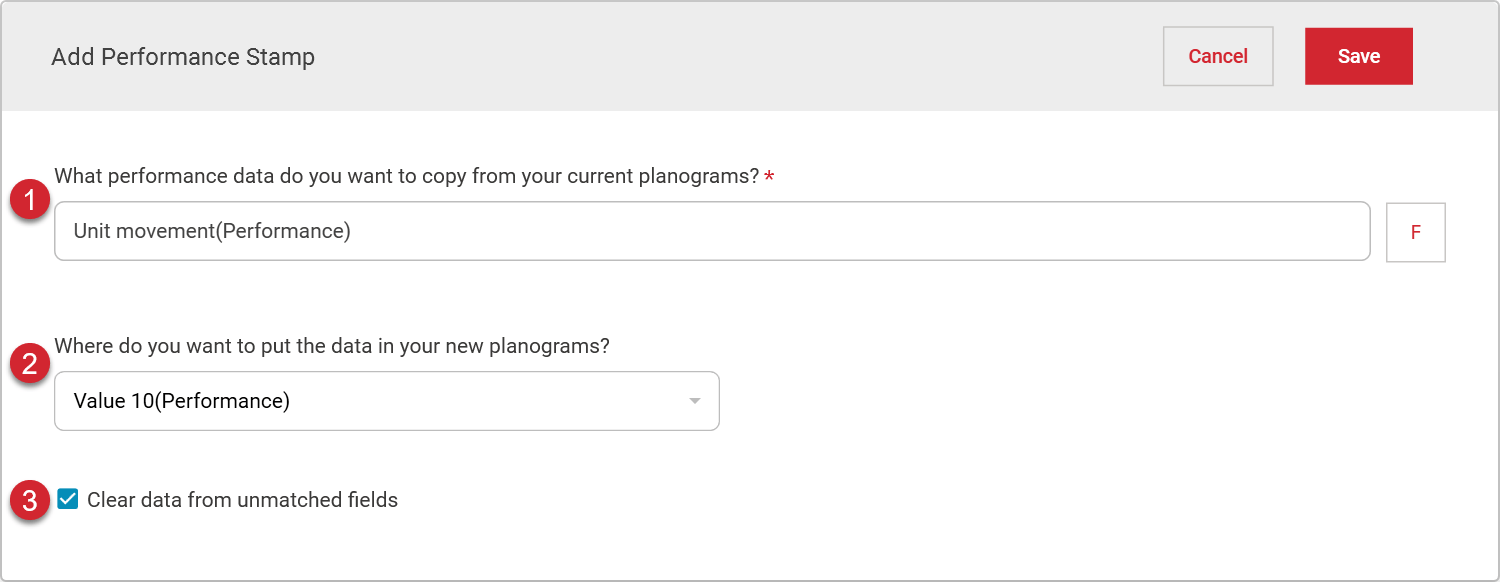

Select a field or use a formula to determine what information in the current planograms you want to copy into the future planograms. Clicking the F button will bring up a formula builder if you want guidance building your formula.

Select a performance field in the new planograms that the information from your old planograms will be copied into.

Selecting the Clear data from unmatched fields clears out any values in the selected performance field for products in the new planogram that don’t match an old planogram.
Performance Data Stamps

| # | Description |
|---|---|
| Use the Add Performance Data Stamp button to add additional stamping options. |
| Each field stamp will copy data from the specified field in the current planogram and paste it into the specified field in the future planogram. You can reorder the fields by dragging and dropping them within the list. |
| Information on the value being copied from the current planogram and where it is copied to in the future planogram is displayed in the center. You can edit an existing swap by double-clicking on it. |
 | Stamping options can be removed from the list by clicking on the trash can. |