
Why you would use this feature
Scenario 1:- Thousands of planograms exist in a folder together. A team of users intends to divide the existing files, each working on them in small batches.
- Copies can be saved and organized into subfolders by Width, Cluster, and any data in the planogram files.
- The edited files can be saved over the originals once the work is completed.
- Thousands of planograms for category X exist together in a folder.
- Cluster is stored in Desc 10(Planogram).
- Direction arrives to move store A, Category X from a 12FT Cluster 2 planogram to a 20FT Cluster 2 planogram.
- Use Copy and Organize Planograms to save copies of Category X into subfolders by Desc 10 (cluster) and subfolders by Width(Planogram).
- Looking in the created folders, find the folder created for Category X > Cluster 2 > Width: 20. The planogram needed for store A will be saved there.
- Once the necessary planograms have been copied, the copied planograms can be deleted.
- Flat-file planograms need to be imported into a CKB database.
- Use Copy and Organize Planograms with a batch of flat-file planograms and choose CKB as the destination.
- CKB planograms need to be exported from a CKB database to flat-files.
- Use Copy and Organize Planograms with a batch of CKB planograms and choose File system as the destination.
Feature Options
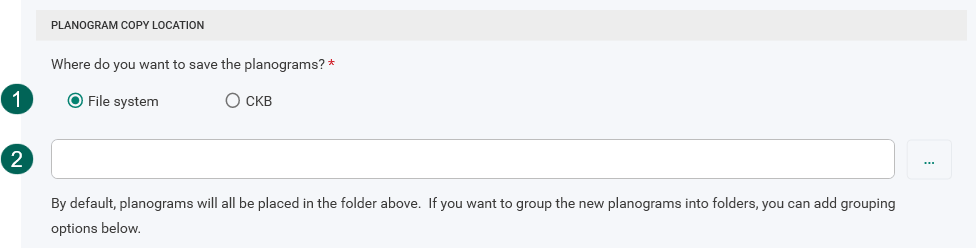
You can choose File system or CKB as the destination of the planograms being copied or organized.Planogram Copy Location - File System
# | |
|---|---|
 | Choose File system as the destination type for the planograms being organized or copied. |
 | The folder specified here will be created if it does not already exist, and all the organized planograms will be copied into the folder. If there are already planograms in the folder with the same name, they will be replaced. |
Folder Groupings
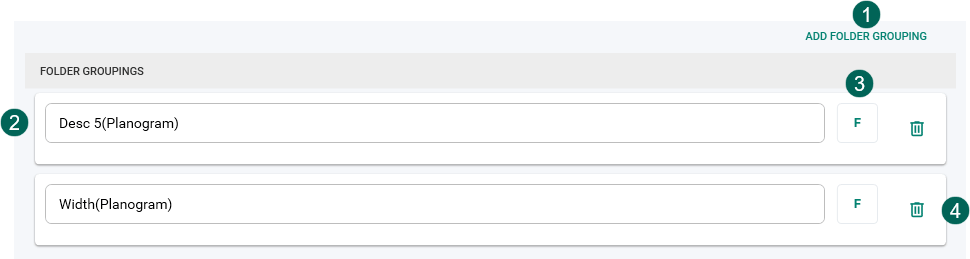
Folder groupings can be used to create subfolders within the folder you specified above.ExampleIf you enter “Desc 1(Planogram),” then whatever value is stored in Desc 1 of the planogram will be used to create a
subfolder of the same name and the planogram will be copied to that subfolder location.
# | |
|---|---|
| Use the Add Folder Grouping button to add grouping options. |
| Folders are created based on the formulas you specify, with the first formula being the topmost folder and then each formula option creating folders within. You can reorder grouping options by dragging them within the list. |
 | Use the formula button to display the Formula Builder, or you can build your formula right on the screen. A folder will be created for each evaluated value of each formula. |
 | Folder grouping options can be removed from the list by clicking on the trash can. |
Product Options
You can choose whether or not to save unallocated products in the new planograms being created during the copy and organize planograms process. If you would like to save unallocated products, make sure the Save unallocated products in the new planograms checkbox is checked.Planogram File Options
Sort planograms into new projects
This option will display the field options for the section. For example, if you want to create new projects and sort your selected planograms into those projects, choose Yes. Otherwise, if you want to keep your planograms in their existing project format, select No. If you have selected Yes for this option, the additional settings described below will be available.What value should be used to create the new projects?
The result of the specified formula will be used to generate the filenames for each new project. Any planograms that evaluate to the same value will be placed in the named project.Limit projects to a maximum number of planograms
Checking this option and entering a number for planograms will allow you to limit the number of planograms that can be placed into a single project file. The planograms will be divided into separate project files if a group exceeds the limit. A “XXX of YYY” tag will be added to the end of the project filename, where XXX is the number of the current project file, and YYY is the total number of project files for the group.Sorting planograms within projects based on
# | |
|---|---|
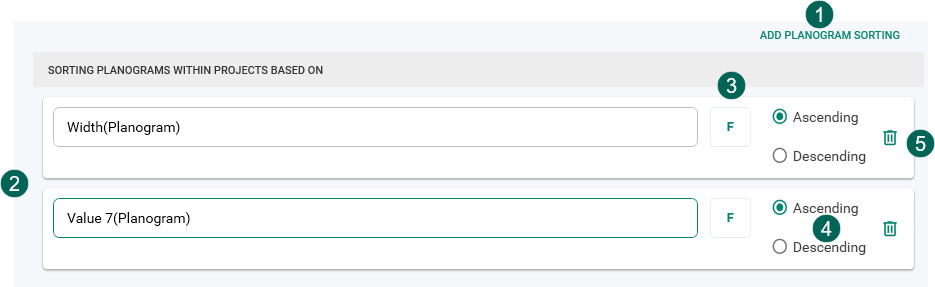
| Use the Add Planogram Sorting button to add sorting options. |
| Planograms will be sorted in their projects starting with the first option and then using each additional specified option to break any ties after the initial ordering. You can reorder sorting options by dragging them within the list. |
| Use the formula button to display the Formula Builder or you can build your formula right on the screen. The formula you enter into the formula editor will be evaluated against the planogram. The result will be used to sort the planogram within the project file. You can add multiple criteria to sort on, with planograms being sorted first on the formulas higher in the sorting list. |
| Select the option to determine how a given sort option will be ordered. Selecting Ascending will sort the planograms from smallest to largest (1, 2, 3 or A, B, C). Selecting Descending will sort the planograms from largest to smallest (100, 99, 98 or Z, Y, X). |
 | Planogram sorting options can be removed from the list by clicking on the trash can. |
Planogram Copy Location - CKB
Destination hierarchy location
Click the three-dot button and select the CKB hierarchy location to which the planograms will be copied.What status should the copied planograms have?
Select the status to be assigned to the copied planograms.Use planogram hierarchy categorization settings from CKB to stamp planogram fields
If you use the BlueYonder CKB Builder application to build your planogram hierarchy in CKB, the Builder application has an option to save the settings used to build the hierarchy. If those settings have been saved, the option to use planogram hierarchy categorization settings from CKB to stamp your planogram fields can be used. For example, if your planogram hierarchy was built based on Department and Category (and these options were saved within the BlueYonder Builder application when the hierarchy was built) and you had a “Grocery” department and “Canned Vegetables” category in your hierarchy and selected it as the destination hierarchy node, “Grocery” would be populated into the Department field and “Canned Vegetables” would be populated into the Category field of the planograms after they are copied into that node.If this option is selected but no settings were saved by the BlueYonder Builder application, an error will be displayed indicating the settings could not be retrieved. Similarly, if multiple settings are found related to the planogram hierarchy settings, an error will be displayed.