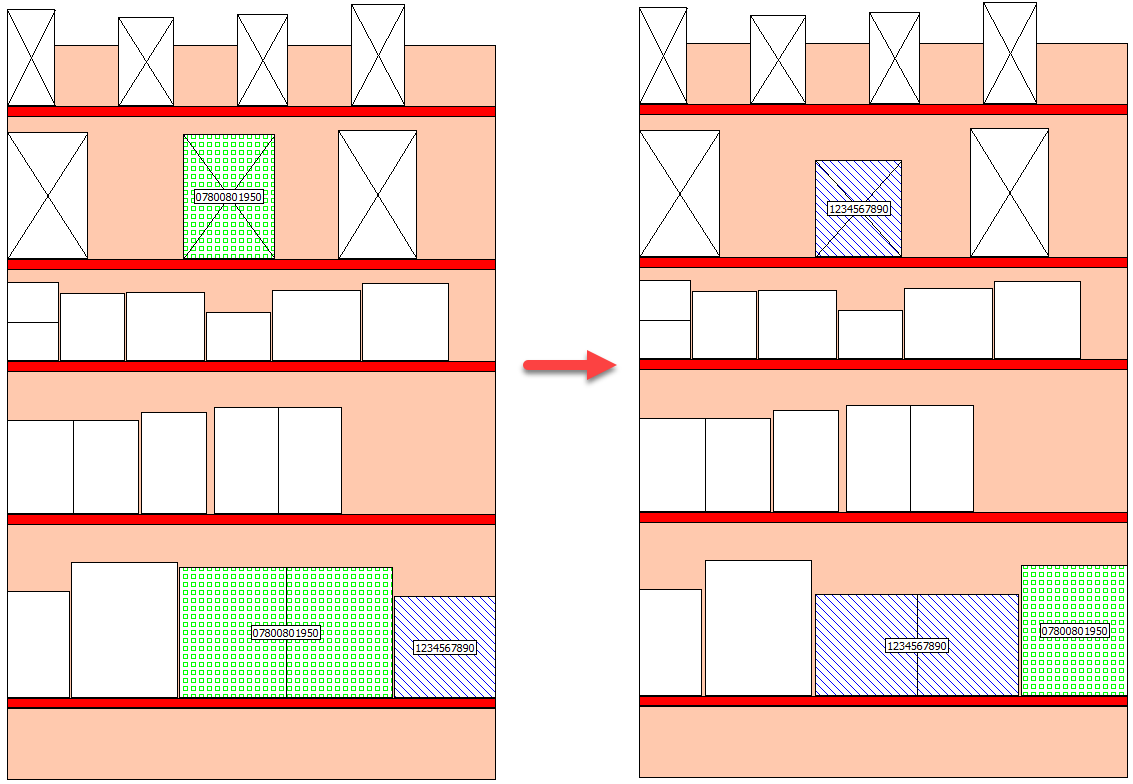
Why you would use this feature
As you build or edit your planograms, it is often necessary to replace one product with another or to transpose two positions on your planograms. Swap Anything allows you to easily swap these things on your planograms using configurable options giving you control of which items to swap.Feature Options
Add Swap Rule
Swap Products
Swap Product is used to replace all positions of one product with positions of a specified product. The product being swapped out is the one being replaced. The product being swapped in is the one that will replace the swapped out product.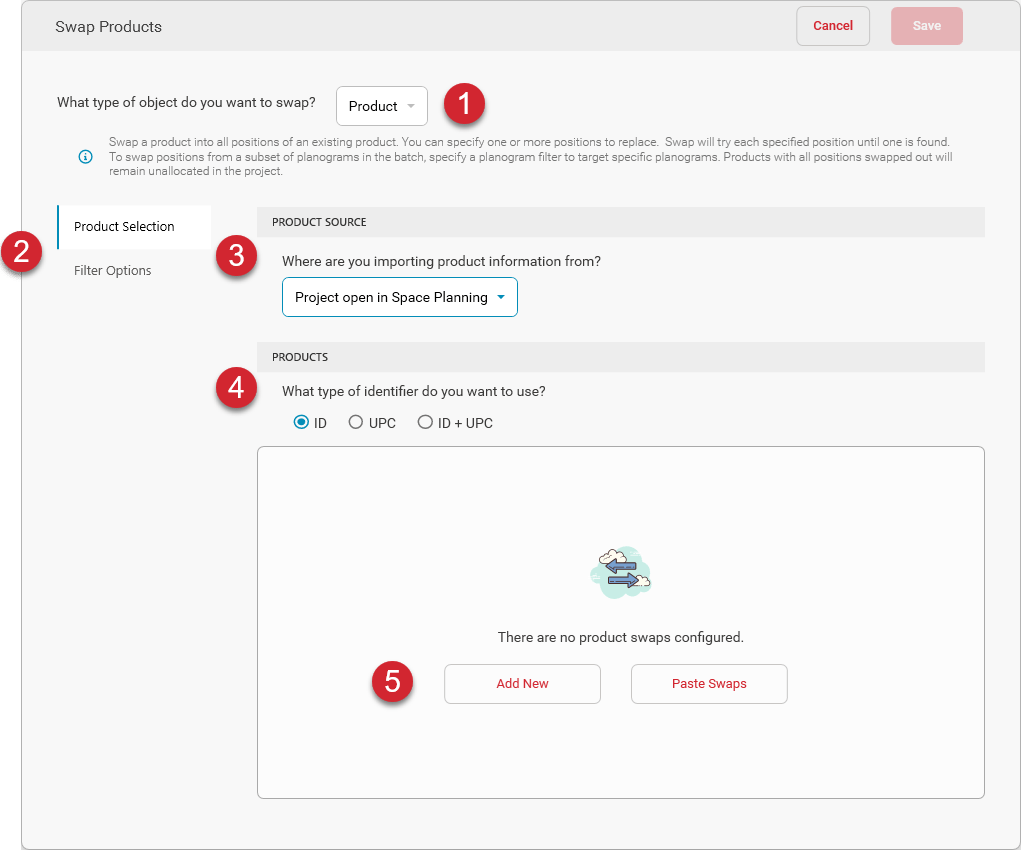

To swap products, choose Product as the type of object to swap.

To specify the source and identifiers of the products to swap in, choose Product Selection. To limit the planograms to which the products will be swapped, choose Filter Options. The Filter Options page allows you to define a filter formula. Only planograms matching the filter formula will be the ones to which the specified products will be swapped.

Select one of the available product source options.

Select the type of identifier you want to use to specify the products being swapped. You can select by ID, UPC, or both ID and UPC.

To define a new swap, click the Add New button. If you already have a comma-separated list of identifiers (IDs, UPCs, or both) copied to your clipboard, you can automatically create a swap based on that data by clicking the Paste Swaps button.
The Paste Swaps button will only be enabled if you have swap data copied to your clipboard. If there is no clipboard data, the Paste Swaps button will be disabled.
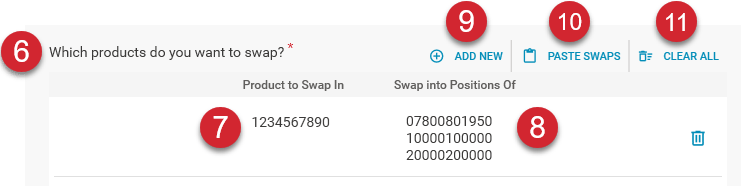

Configure the product swap by specifying the identifiers of the products being swapped.

Enter the identifier of the product being swapped into the planogram in the Product to Swap In input box. This will be the product that is coming into the planogram and replacing positions of the product whose positions are being swapped out.

Enter the identifier of the product whose positions are being swapped out of the planogram. You may enter one or more identifiers in the list. The first product found in the list within the planogram being processed will be the one selected for the swap.
Running the swap produces the result shown below.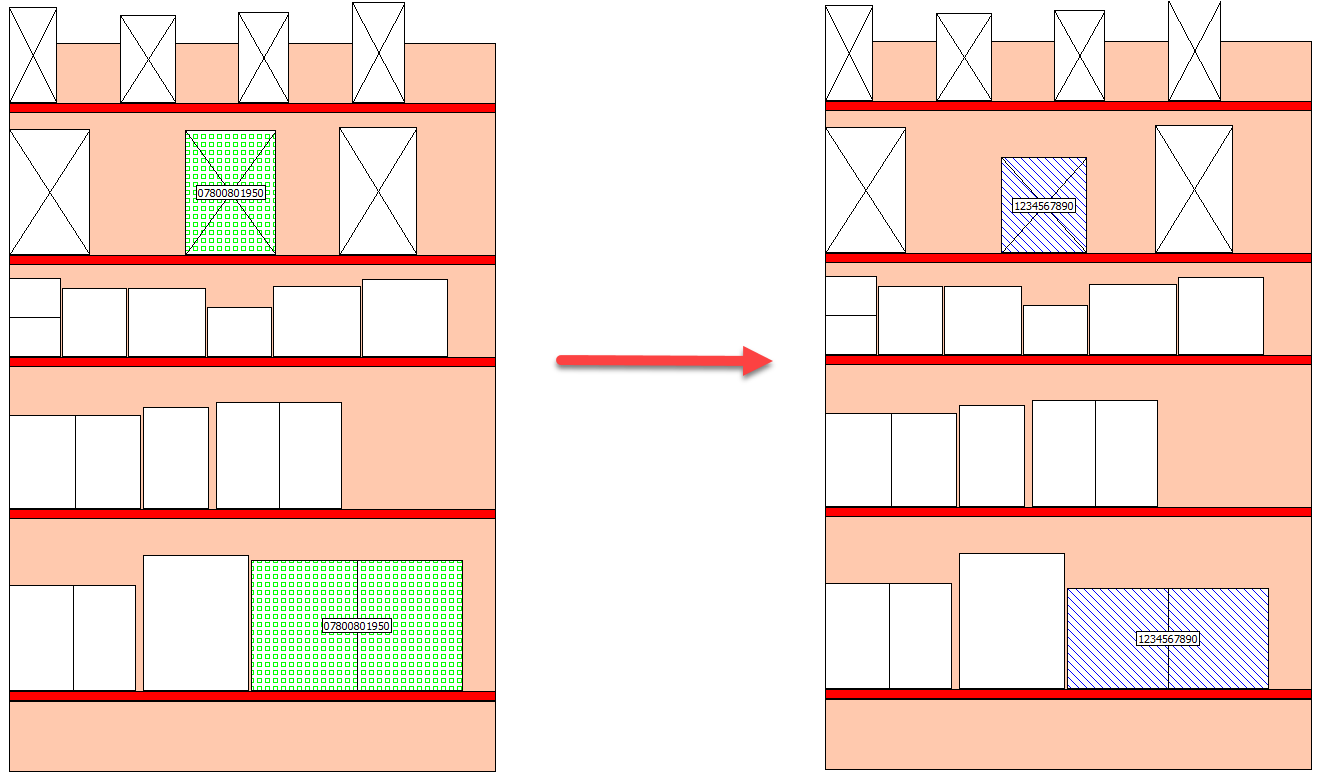
Swap Positions
Swap Position is used to transpose the locations of all positions of two products on the planogram.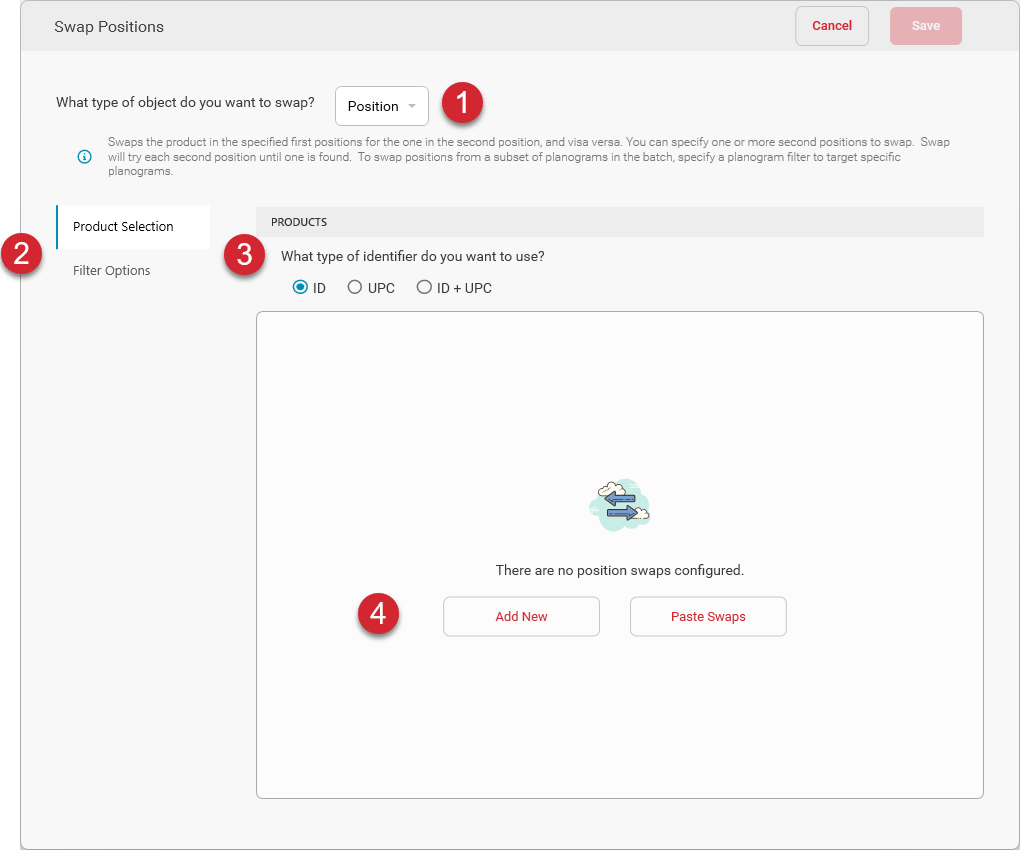
To swap positions, choose Position as the type of object to swap.
To specify the identifiers of the products whose positions need to be swapped, choose Product Selection. To limit the planograms to which the positions will be swapped, choose Filter Options. The Filter Options page allows you to define a filter formula. Only planograms matching the filter formula will be the ones to which the specified positions will be swapped.
Select the type of identifier you want to use to specify the products whose positions are being swapped. You can select by ID, UPC, or both ID and UPC.
To define a new swap, click the Add New button. If you already have a comma-separated list of identifiers (IDs, UPCs, or both) copied to your clipboard, you can automatically create a swap based on that data by clicking the Paste Swaps button.
When you add a new swap or paste swaps, a swap list appears.
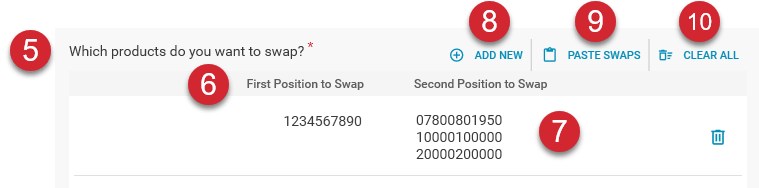
Configure the position swap by specifying the identifiers of the products whose positions are being swapped.
Enter the identifier of the first product whose positions are being swapped in the First Position to Swap input box. This will designate the first of the two products whose positions are being transposed or swapped.
Enter the identifier of the second product whose positions are being swapped in the Second Position to Swap input box. You may enter one or more identifiers in the list. The first product found in the list within the planogram being processed will be the one selected for the swap.
Running the swap produces the result shown below.