Automate common changes required during the planogram process
Allows automation of a number of common changes required during the planogram process, such as:
Swapping of ‘like for like’ products into planograms
Mass product Adds, Deletes, and Inserts to the right or left of a user determined anchor product
Transfer of unit movement from one product to another
Why you would use this feature
You need to make changes to your planograms by modifying positions to add or remove positions of products, swap a product, or even just place new products into your planograms on an add shelf.You need to create an adjustment to your planograms to modify facings based on inventory model data, change performance values to more accurately reflect planogram changes, or simply update some facings for various positions.
Feature Options
Add input file
Input files contain the automation actions to carry out. Input files are in CSV format, with each row containing a different action. Every action of an Input file is executed against every planogram selected.
#
Description
Click the Add input file button to select an Automator input file to run as the automation changes that will run as your automation.
List of the automator input files you have selected to run. The files will be run in the order you specify on each planogram you have selected. You can reorder the list by dragging and dropping them within the list.
Automations can be removed from the list by clicking on the trash can.
Click the Create input file button to create a new blank input file.
Creating your input file
There are two ways to create a new input file. The easiest way is to click the Create input file button to create a new blank input file containing the correct headers. You will be prompted for a location and name of the input file to be created.You can also manually create an input file by following these steps:
Launch Notepad from the Windows Start menu with a blank new file.
In the first row, enter this header. The header is the basic format for all automation actions.
FILTER - A formula to determine whether to apply the action or not. Formulas are written in the same format as formulas in Space Planning. Formulas that evaluate to 0 will skip applying the action. Formulas that evaluate to any other value will apply the action. If this field is left blank, the action will always be applied.
ACTION - Type of action to perform.
ACTIONITEM - Product to perform the action on/with.
ANCHORITEM/CHANGEFACTOR - For commands using an anchor product, the product related to the product the action is being performed on/with. Multiple alternate anchor products can be specified by separating each key with a forward slash.
UPDATEPCT - For commands with an update percentage, the percentage amount to adjust by.
Filter formulas are evaluated against different object types based on the ACTION specified. Just like in Space Planning, formulas may include higher level object fields.
ACTIONITEM and ANCHORITEM reference products in your planograms. Primary key(Project) in your planograms will determine how they need to be referenced. A primary key of UPC will require referencing the product UPC, ID will require referencing the product ID, and Both UPC and ID will require referencing both UPC and ID.
Microsoft Excel may be used instead of Notepad to edit the CSV document. When using Excel, the commas separating each value will be transformed into separate columns. Be careful to format all cells as Text and include leading zeros when necessary.
Input file actions - Assortment changes
Automator supports the following Input file actions:
ADD - Adds the product to the planogram if it doesn’t already exist
BACK - Adds ACTIONITEM behind ANCHORITEM
BOTTOM - Adds ACTIONITEM below ANCHORITEM
DELETE - Removes the ACTIONITEM’s positions from a planogram
FRONT - Adds ACTIONITEM in front of ANCHORITEM
LEFT - Adds ACTIONITEM to the left of ANCHORITEM
RIGHT - Adds ACTIONITEM to the right of ANCHORITEM
SWAP - Swaps in ACTIONITEM positions in place of all ANCHORITEM positions
TOP - Adds ACTIONITEM on top of ANCHORITEM
Input file actions - Facing changes
DECREASE - Decreases the number of facings for all of ACTIONITEM’s positions by the number specified in CHANGEFACTOR
INCREASE - Increases the number of facings for all of ACTIONITEM’s positions by the number specified in CHANGEFACTOR
FACINGS - Changes the number of facings for all of ACTIONITEM’s positions to the number specified in CHANGEFACTOR
Input file actions - Merchandising changes
MERCHSTYLE - Changes the merchandising style for all positions of ACTIONITEM to the style specified in CHANGEFACTOR
ORIENTATION - Changes the orientation of ACTIONITEM to the orientation specified in CHANGEFACTOR
Input file actions - Performance changes
ADJUST - Applies a Unit movement field adjustment to the ACTIONITEM at the percentage noted in UPDATEPCT
UPDATE - Changes the Unit movement field on the ACTIONITEM based on the update percentage specified
Product Source
Products added to planograms may not be built already, so a source of that information is necessary to accurately construct the product.
Option
Description
From a product library
Select a Space Planning product library that contains any required products.
From a planogram file
Select a Space Planning planogram file (.psa file) that contains any required products.
CKB project library
Use the product library associated with a CKB database to source any required products.
Project open in Space Planning
Use the project currently open and active in Space Planning when the automation is run to source products.
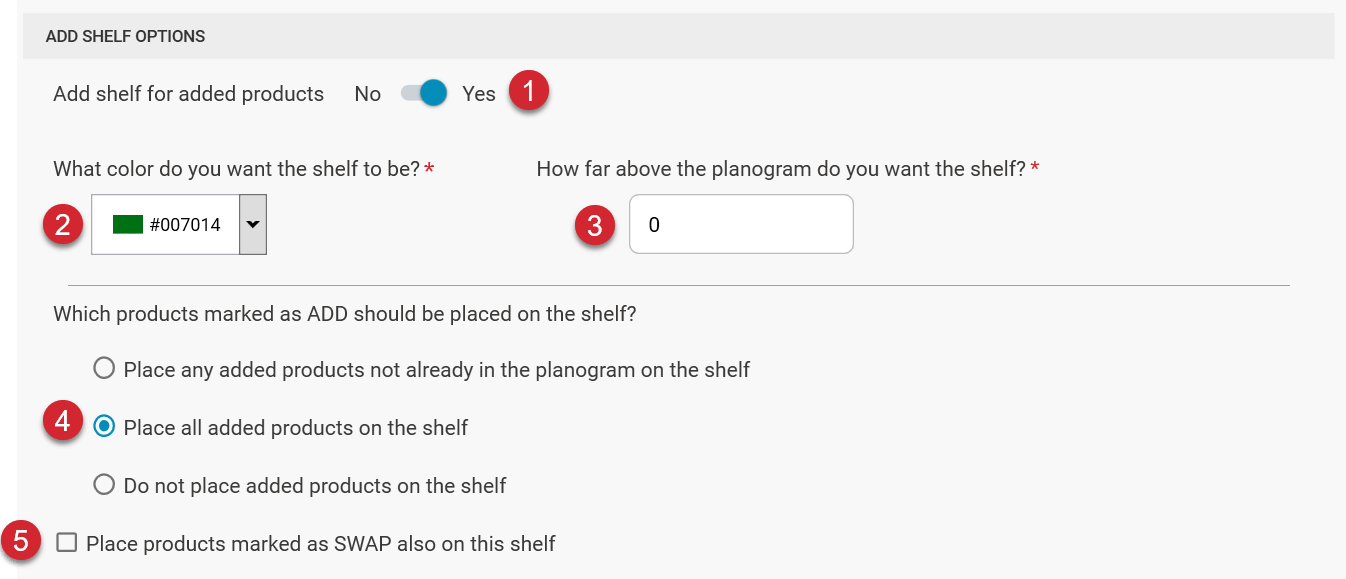
Add Shelf Options
#
Description
Add shelf for added products? - Select Yes to add an Add shelf to each planogram that has an added product.
What color do you want the shelf to be? - Select a color for the add shelf.
How far above the planogram do you want the shelf? - Enter a value in minor units (inches or centimeters).
Which products marked as ADD should be placed on the shelf? - Choose placement options for added products.
Place products marked SWAP also on this shelf? - Select this to place swapped products on the Add Shelf as well.
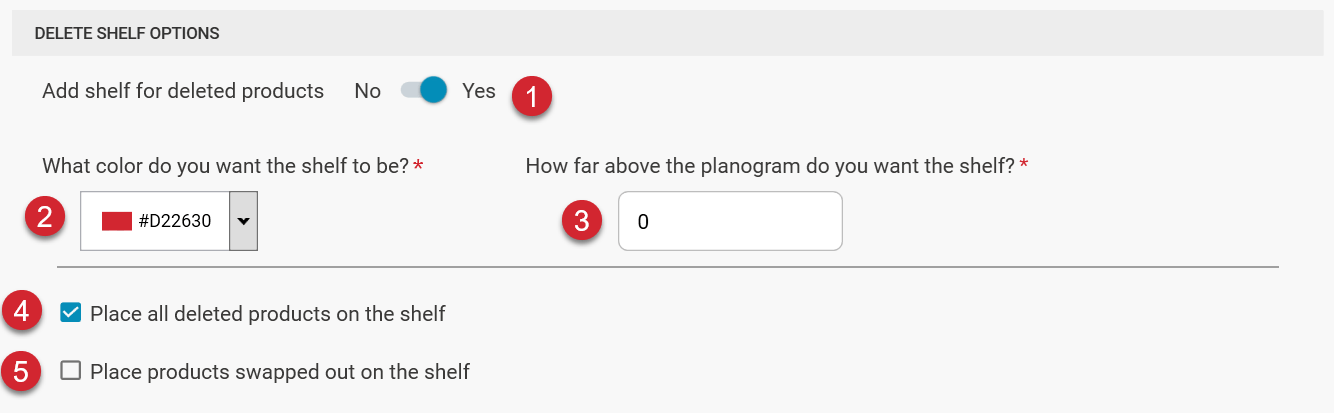
Delete Shelf Options
#
Description
Add shelf for deleted products? - Select Yes to add a Delete shelf to each planogram that has a deleted product.
What color do you want the shelf to be? - Select a color for the delete shelf.
How far above the planogram do you want the shelf? - Enter a value in minor units (inches or centimeters).
Place all deleted products on the shelf - All products marked as DELETE that were found will be placed on the delete shelf.
Place products marked SWAP also on this shelf? - Select this to place swapped-out products on the Delete Shelf.
Assortment Actions
#
Description
Apply Automation ACTION to Assortment Action - Select this to copy the action from the input file into Assortment Action(Performance).
Do not swap items on existing float shelves - Select this to ensure SWAP actions ignore any matching products on the floating shelves.
Was this page helpful?
Assistant
Responses are generated using AI and may contain mistakes.