
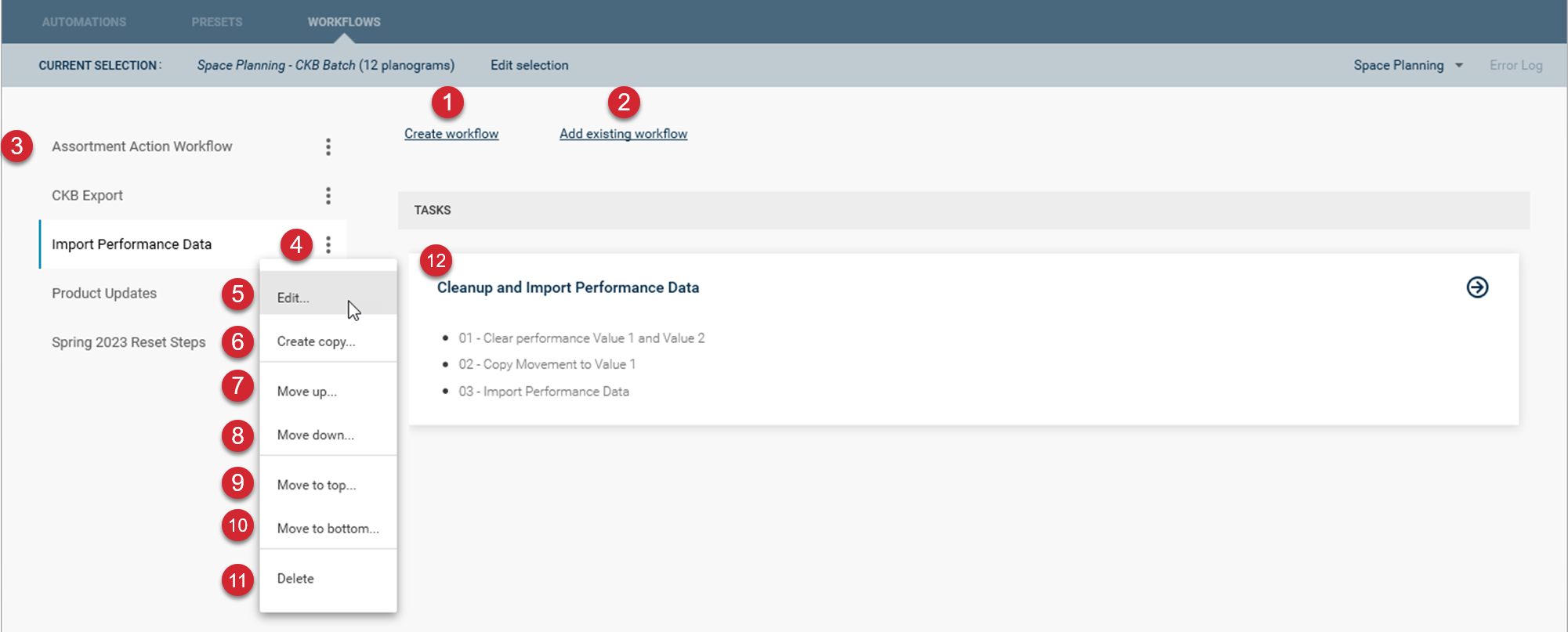

Click the Create workflow button to create a new workflow.

Click the Add existing workflow button to add a workflow that has been shared with you to your list of available workflows.

The workflows you have available are listed here. To select and work with a workflow, you can click on the name of the workflow you want to work with to list its tasks in the task selection window.

The workflow menu can be accessed by clicking on the three-dots icon. This will display the menu for the actions available for workflows.

Edit will allow you to make changes to the base workflow. You can modify existing tasks, add, or remove tasks, or change the name of the workflow.

Create copy will create a copy of your existing workflow. This will allow you to take an existing workflow that you have already configured, make a copy, and then make modifications to it.

Move up will move the selected workflow up one position in the workflow list. This is helpful when you want to change the order of the workflows in the workflow list.

Move down will move the selected workflow down one position in the workflow list. This is helpful when you want to change the order of the workflows in the workflow list.

Move to top will move the selected workflow to the top of the workflow list. This is helpful when you want to change the order of the workflows in the workflow list.

Move to bottom will move the selected workflow to the bottom of the workflow list. This is helpful when you want to change the order of the workflows in the workflow list.

Delete will delete the workflow. There will be a confirmation message before the workflow is actually deleted.

Once you have selected a workflow, the list of tasks along with their completion status will be displayed in this area. Completed tasks will be indicated with a checkmark while incomplete tasks will be indicated with an arrow.
To select a task, click on the task and the task view will be displayed.