
Title Bar
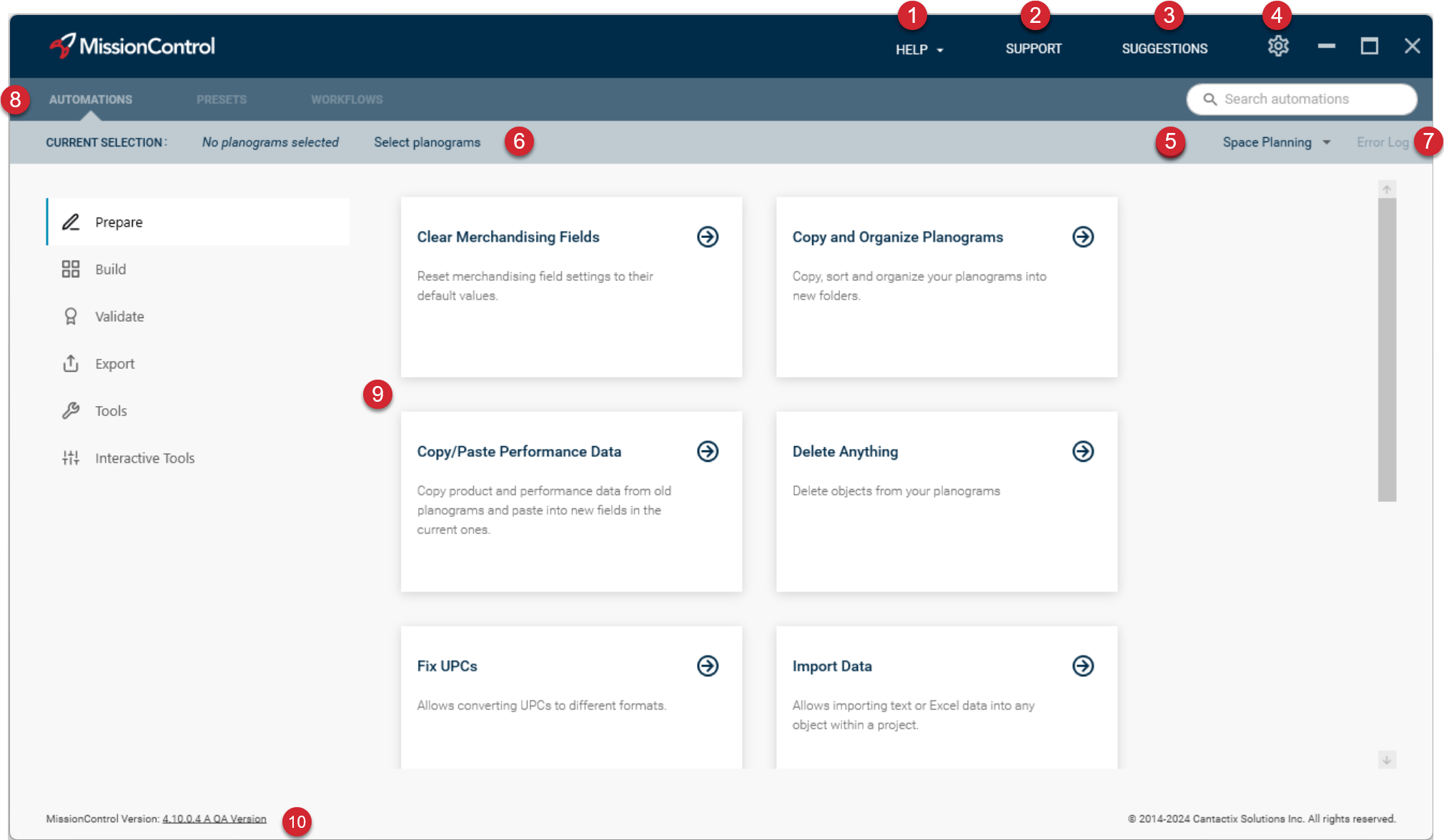
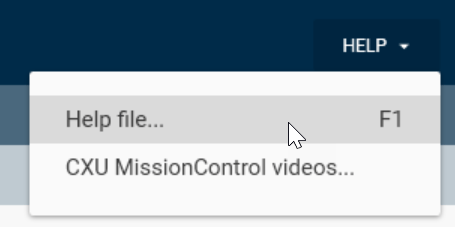
The MissionControl title bar contains most of the application level access as well as the main window controls to maximize, minimize, and close the application.

The Support button will open up a form on the Cantactix website to allow you to submit support questions to our support team.

We want nothing more than to hear your suggestions! Clicking the Suggestions button will open up a form to submit your suggestions and ideas to our product team.

There are many ways to customize MissionControl to make it work exactly how you need it to. Clicking the Settings gear icon will display the settings dialog and allow you to access the application customization options.
Current Selection Bar
The current selection bar gives you information about your current selection of planograms or floorplans. The bar will indicate that nothing is selected if there is no current selection. Once a selection has been made, the bar indicates how many planograms or floorplans are selected. It will also indicate what type of selection you have: Active Items in Space Planning, Floor Planning Files, DB Keys, or a saved Batch.If you only have activation for accessing one option (only planograms or only floorplans), you will only see that option on the access bar.

If no planograms are currently selected, the Select Planograms or Select Floorplans button will be displayed. Clicking on this button will allow you to select a selection method and make a planogram or floorplan selection depending on your Access Bar selection type.

If you have an active planogram or floorplan selection, the Edit Planograms or Edit Floorplans button will be displayed and will allow you to edit the selection of planograms or floorplans, change your selection method, or clear the current selection of planograms or floorplans completely.

The Error Log button is only enabled if the last automation, preset, or workflow in MissionControl generates an error message. Clicking the Error Log button will allow you to view the error messages from the last run again.
Error logs are cleared each time the application is run or shut down.

The selector bar allows you to select the automation actions you want to work with. Selecting an option will display the selection windows for each action type.
Automations - All the available automation actions. These actions are not preconfigured and can be run one at a time.
Presets - Actions preconfigured within MissionControl to have specific settings. These actions can be renamed to give them meaningful names, descriptions, and specific settings that will save with the command so that it can be rerun the same way each time.
Workflows - Preconfigured workflows which can be a collection of presets that will run a series of automations together, or guide someone through multiple sets of automations or even manual tasks.

The selection window is updated as you select different action types in the Selector Bar. This area is used to select an item to confirm or configure your selected item.

The version number shows the current version of MissionControl that you are running. Clicking on the version number will display a popup window with details of the latest release of MissionControl. From that popup dialog, you can also click a link to view the version history for previous releases.