
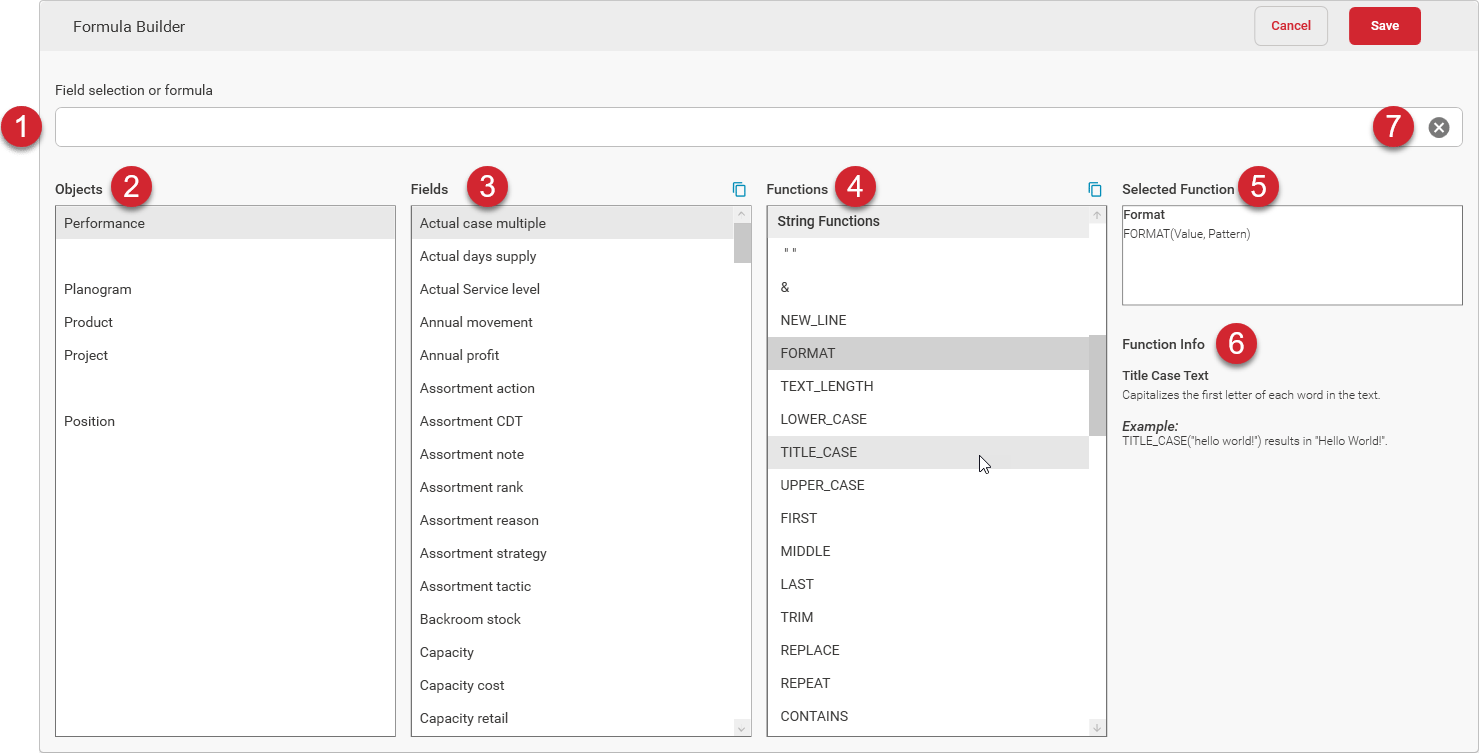

This is where you build your formula. You can either type your formula directly in this field and use the included autocomplete options, or you can use the fields and formula selectors to build your formula.

Select one of the available objects from the list to populate the fields for that object in the Field selector. You can select an object by clicking on it.

The fields are populated once you select an object from the object list. All available fields will be listed in the field selector. You can add fields to the formula bar by double-clicking on them or by clicking on them and then clicking the Copy button.

All the available functions are listed in the function selector. You can add functions to the formula bar by double-clicking on them or by clicking on them and then clicking the Copy button.

When you select a function in the function list, information about the selected function will appear here. This is handy for when you need to refer to the syntax of a specific function while you’re entering or editing the function in the Formula bar.

As you mouse over functions in the function list, information about the function will appear here. If you do not have your mouse over any function in the list, this section will show information about the currently selected function.

The Clear button will clear the contents of the formula bar. If you want to start fresh with your formula, this is a quick way to reset the formula bar.