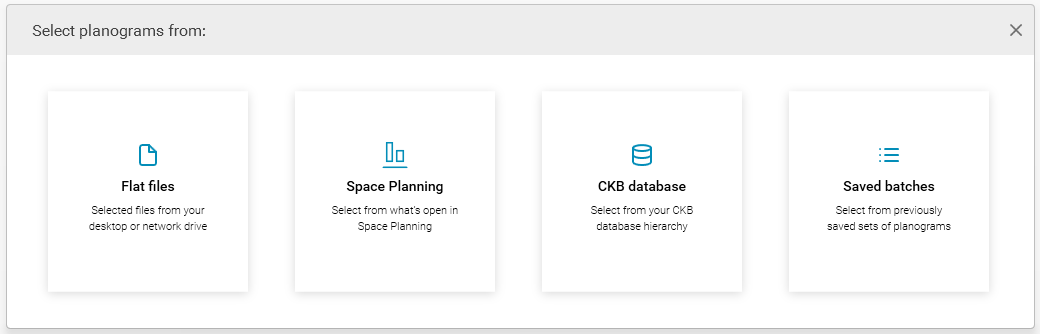
The steps to follow remain consistent regardless of the application chosen by the user.
Flat Files
Choosing Flat Files enables you to pick files from your desktop or network drive. After clicking on Flat Files, you can then specify how you’d like MissionControl to access the files: either within a folder or as individual files.Choose folders
This option will open the Selection Folder, allowing you to navigate to the folder containing all the flat files you want MissionControl to process. Ensure that only the files you want processed are located in that folder; MissionControl will process ALL files within it.Choose files
Selecting this option will open the Selection Folder, enabling you to individually select the files you wish to process.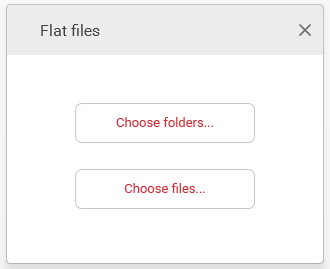
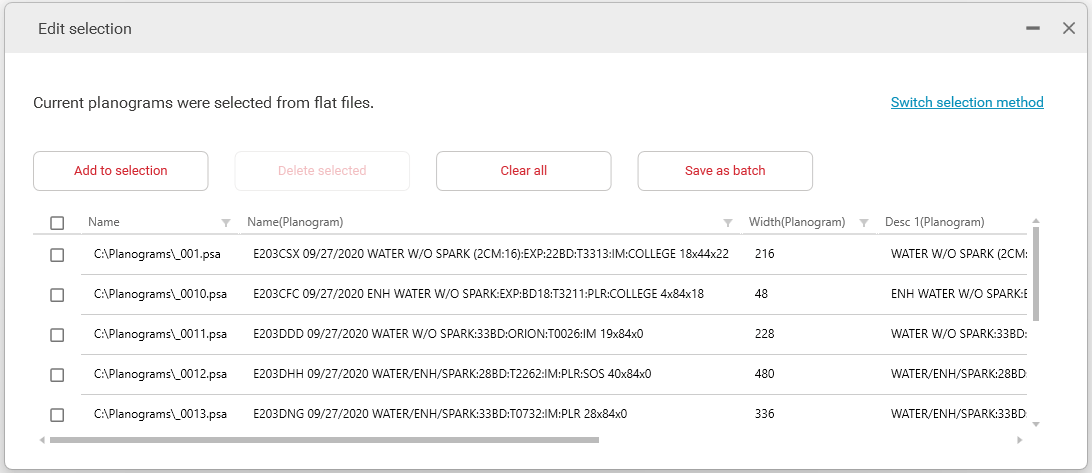
- Add to selection will enable you to include extra files or folders to your current selection.
- Delete selection will remove the files from your selection.
- Clear all will remove all files/folders.
- Save batch allows you to save this group of files/folders as a batch. You can assign it a name and recall this batch of files to process at any time.
- Switch selection method will reset your selection, allowing you to choose another method to process your files.
Space Planning / Floor Planning
Selecting Space Planning or Floor Planning (depending on the application you are using) will enable you to once again process MissionControl with the currently active selection you have open. This can be either a Planogram/Floorplan or the entire Project itself.- Active Planogram creates a batch list that includes the active planogram.
- Active Floorplans creates a batch list that includes the active floorplans.
- Active Project creates a batch list that includes only the active project.
- All Projects creates a batch that includes all open projects.
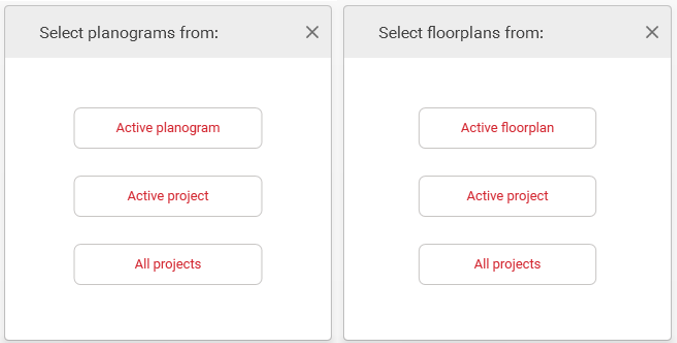
If an active planogram has been added to the batch list and a different planogram is made active in Space Planning, the initially added planogram will be used for processing. This also applies to floorplans.
CKB database
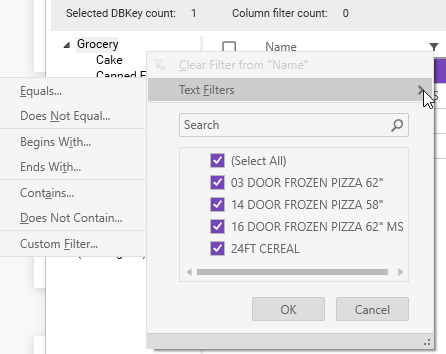
If you are working within a CKB environment, you have the option to utilize the planograms or floorplans stored in CKB. Once you click on CKB database, the database login screen will be displayed. Enter your user credentials, server name, database name, and click OK to proceed. From there, the Select database planograms window will appear. Navigate the hierarchy, and select those files that you want to process.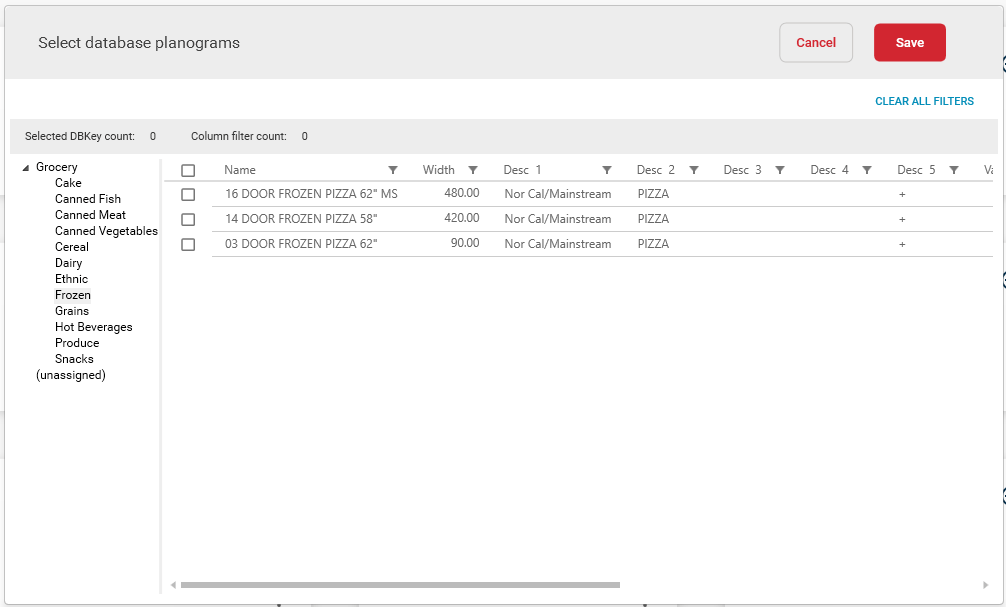
Saved batches
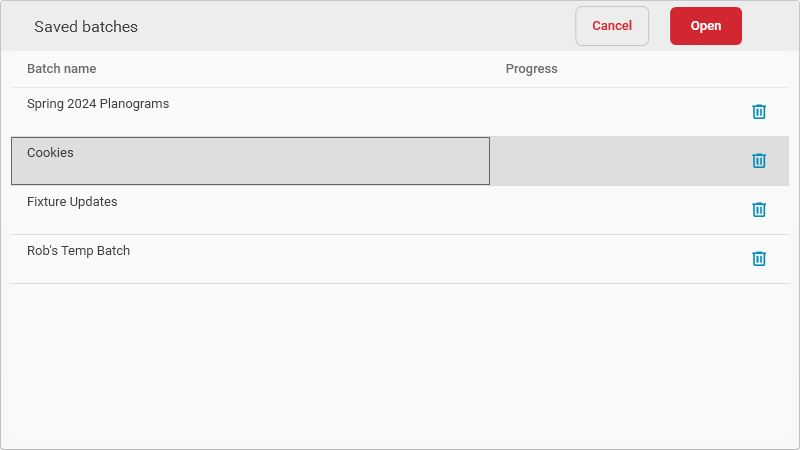
You can access batches that you have saved by clicking on the Saved Batches button. This will display a list of all your saved batches. You can select a saved batch and click the Open button to load those files as the current batch in MissionControl. You can delete a saved batch by clicking the trashcan icon. Deleting a saved batch does not physically delete the planograms or floorplans, it just removes the batch reference to them.