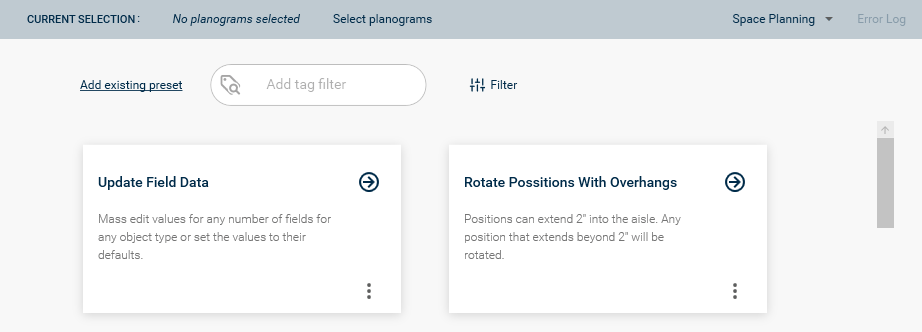

Each preset is displayed on a card showing the selected name and description. When you have decided which preset you want to use, you can click on the card to load it, so any additional configured settings can be added and the command can be run.

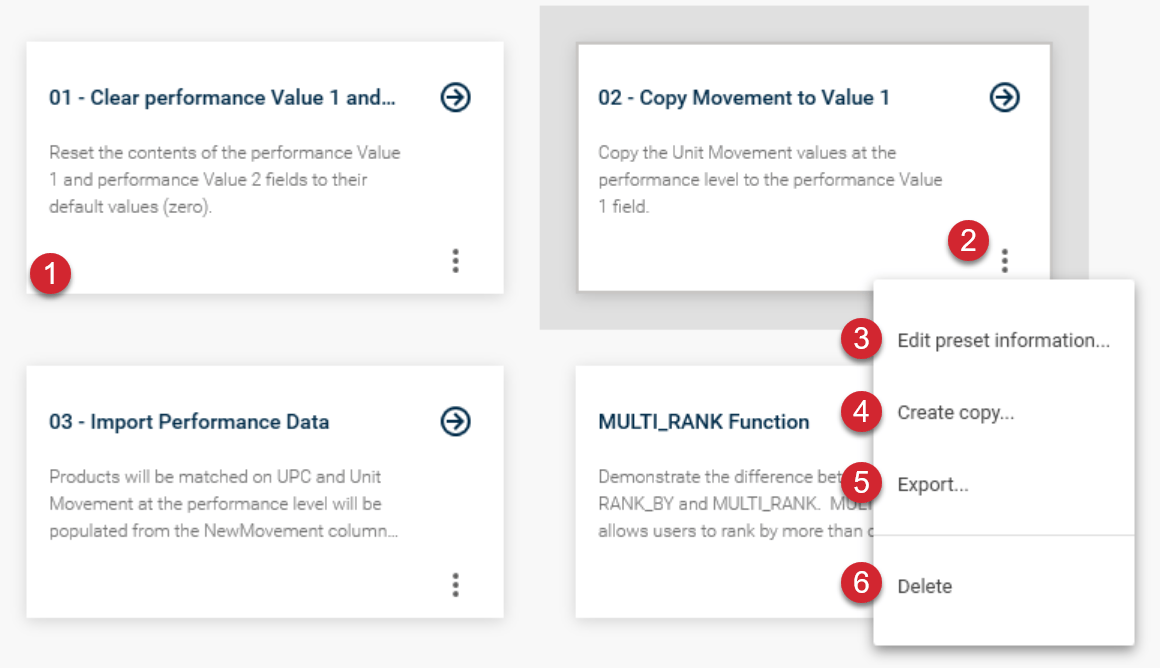
The preset menu can be accessed by clicking on the three-dots icon. This will display the menu for the actions available for presets.

Edit preset information will let you view or change information about the preset. When editing the preset information, you can view or edit the title of the preset, its description, and manage or create tags assigned to the preset.

Create copy will create a copy of your existing preset. This will allow you to take an existing preset that you have already configured, make a copy, and then make modifications to it.

Export will allow you to save your preset out to a file. Preset files can then be imported into MissionControl by selecting the Add existing preset link on the Presets page.

Delete will delete the preset. There will be a confirmation before the preset is actually deleted.
Add An Existing Preset
Clicking on Add existing preset enables users to effortlessly load an existing preset they may have or a shared preset. This provides a convenient and efficient method to load presets. Once clicked, your windows menu will appear, where you can navigate to where your presets have been stored. Presets will always be the file extension .JSON.