Steps
- Go to Reporting → Script Manager.
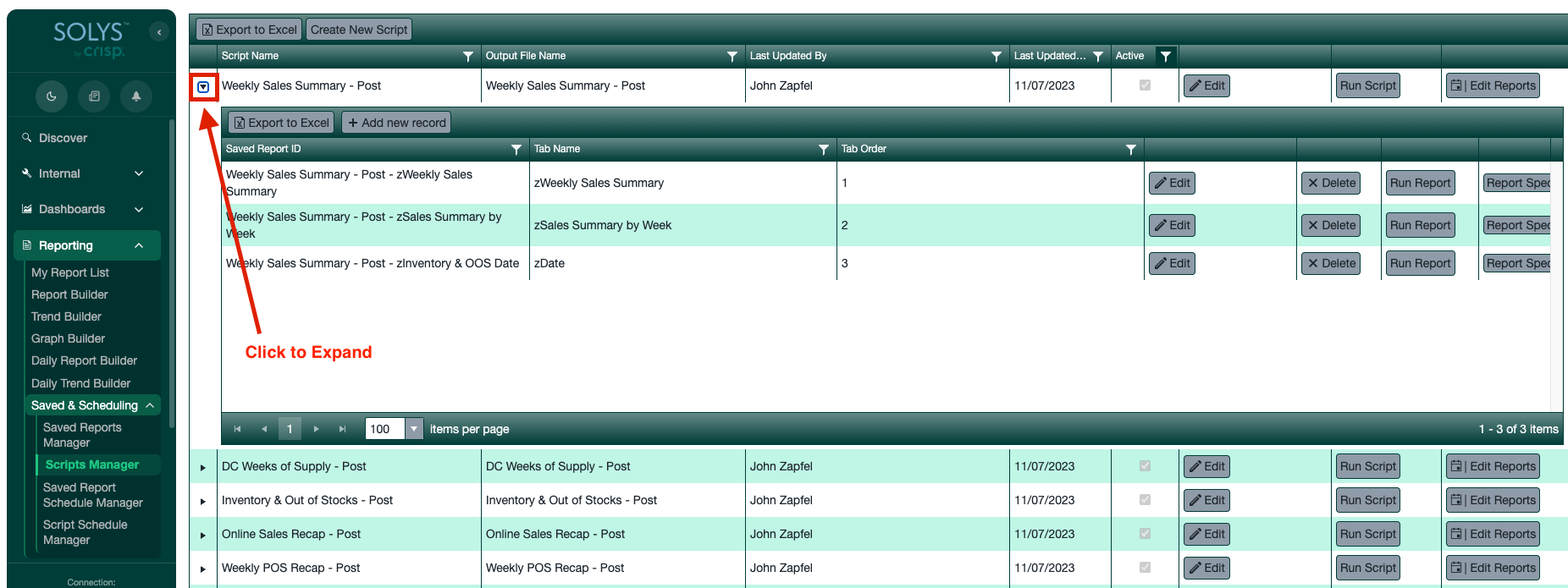
- Find the script you want to add a report to and click the small triangle to the left of the script name to expand it.
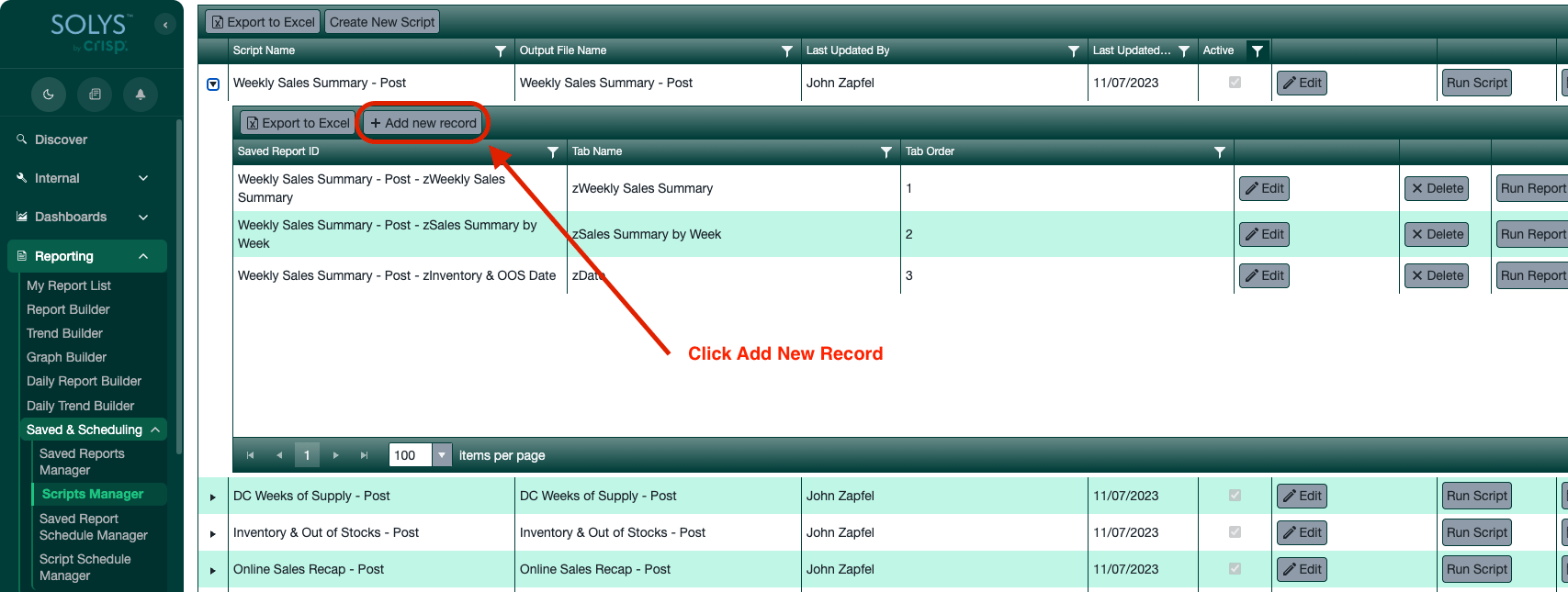
- Click Add New Record.
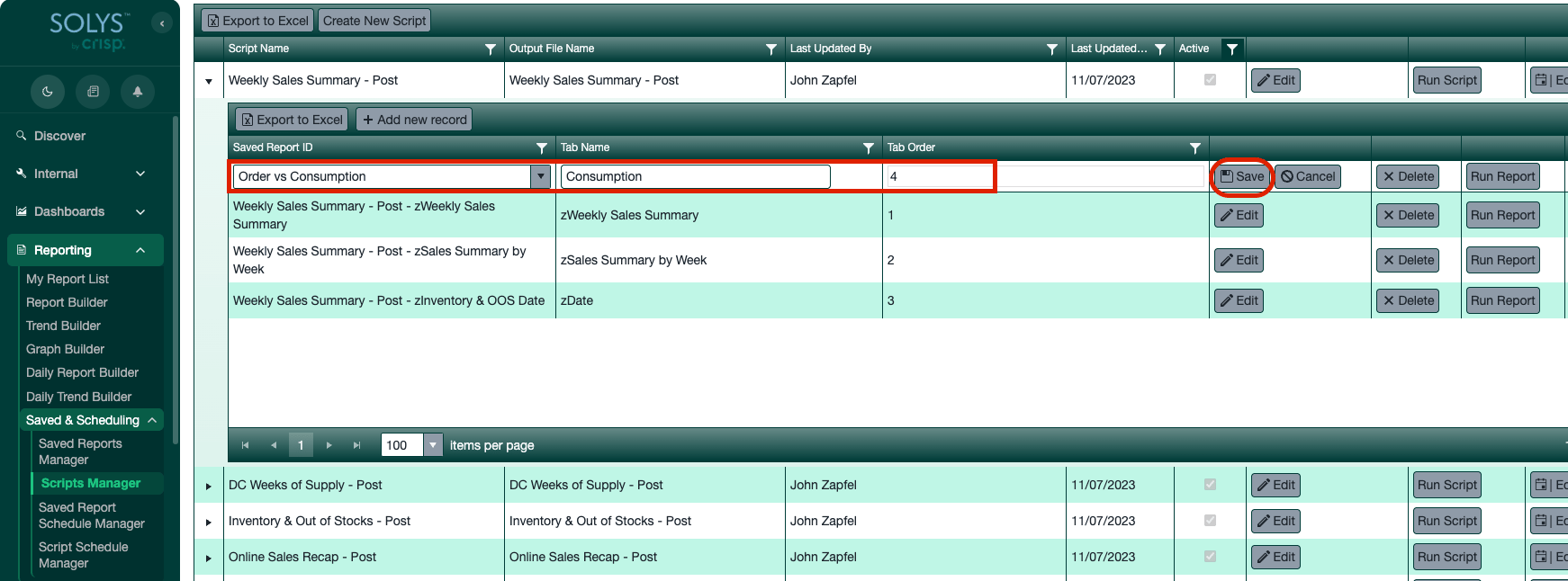
- Select the supplemental report you want to include.
- Name the tab.
- Set the Tab Order to the last number in the list so it appears at the end of the script.
- Click Save, then run the script.