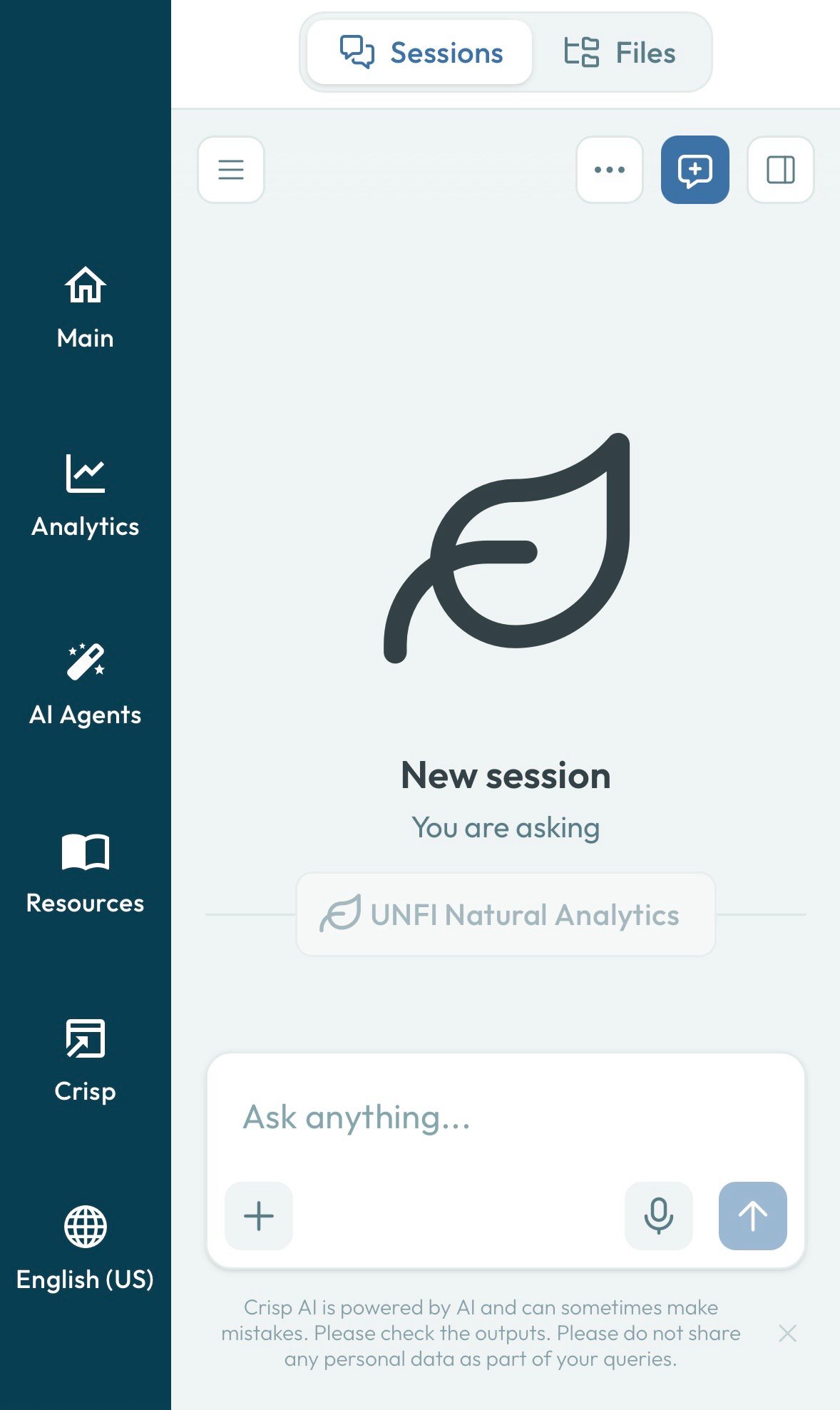
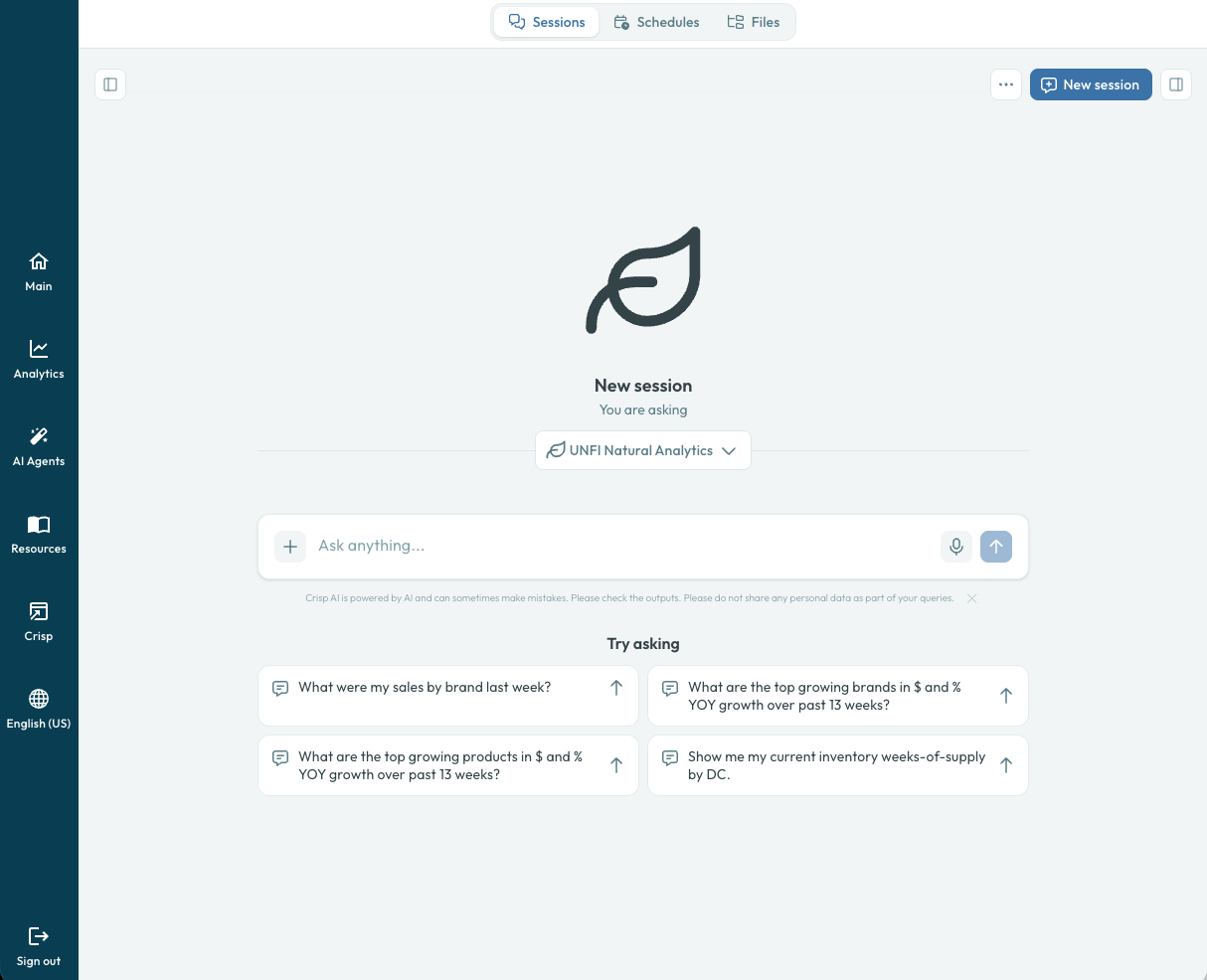
The AI Agents home page — pick an agent and start asking questions.
What you can do
Ask questions
Start a conversation with a specialized agent. Ask about sales trends, inventory levels, promotional lift, or any metric in your data.
Visualize data
Agents create interactive D3 charts — bar, line, map, waterfall, and more — styled for both light and dark mode.
Generate reports
Turn insights into polished PowerPoint decks with data tables, charts, and executive summaries.
Schedule recurring runs
Automate any analysis on a cron schedule and receive results via email.
Manage files
Upload data, browse generated artifacts, and reference files directly in your conversations.
Core concepts
Session — A single conversation with an agent. Sessions persist your messages, generated files, and context so you can pick up where you left off or share the results with a teammate. See Sessions. Agent — A named configuration tuned for a specific domain. You pick an agent when you start a session, and you can switch agents at any time. See Agents. File — Agents create and consume files through a virtual file system (VFS). Charts, CSVs, markdown reports, and PowerPoint decks all live in your file explorer and can be referenced in follow-up messages with@ mentions. See Files.
Schedule — A recurring or one-off run of a prompt that delivers its results to a chosen channel. See Schedules.
Skill — A pre-built knowledge module (for example, store clustering or diff-in-difference) that gives an agent domain expertise and specialized tool instructions.
Tool — A capability the agent uses behind the scenes — querying data, analyzing files, creating charts, or sending a scheduled result. Every response includes an expandable activity feed so you can see what the agent did.
Artifact — Anything the agent produces: a chart, a table, a markdown document, a PowerPoint deck. Artifacts live in your files and can be refined through the chat-based Artifact Refinement editor.
Getting started
1
Log in and access AI Agents
After logging in to myUNFI, select UNFI Insights to enter your platform homepage. From there, select AI Agents in the toolbar. Each UNFI Insights account has its own agents, files, and data access.
AI Agents is rolling out gradually between now and September 1st. When your access is turned on, you receive an email from UNFI and see an in-app message in UNFI Insights.If you have seen the in-app message but AI Agents is still not in the left-hand navigation, hard refresh your browser.
2
Start a session
From the home page, choose an agent and type a question in the message input. You can also go to Sessions and click New Session. See the Quick Start Onboarding Program in the Gallery for a walkthrough.
3
Explore your results
The agent responds with text, tables, charts, and files. Click any chart to expand it, or open the file explorer to browse everything the agent created.
4
Save and automate
Save useful prompts to your library for reuse, or set up a schedule to run the analysis automatically on a recurring basis.
Navigation
The navigation bar provides quick access to the main areas of the application:Mobile support
AI Agents works in mobile browsers. Log in to myUNFI, select UNFI Insights, and access AI Agents in the toolbar. You can read past sessions, ask follow-up questions, review files, and check scheduled work from your phone.