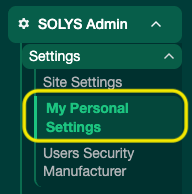
Report Formatting
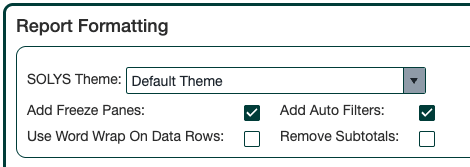
- SOLYS Theme: Choose from 3 Crisp-designed themes. The Default Theme is applied if none is selected.
- Add Freeze Pane: Freezes panes below the header row and to the right of your last Group By column.
- Add Auto Filters: Adds filter dropdowns to your header row.
- Use Word Wrap on Data Row: Ensures full text is visible in description columns.
- Remove Subtotals: Hides the subtotal rows that appear for each Group By.
LY Comparison Options
- Normal (Compare by Week): Matches the closest date to the prior year.
- Fiscal Retailer Week: Matches by fiscal month and week number on the retailer’s calendar.
- # Week to Offset: Shifts the LY comparison by a set number of weeks — useful for Easter shifts, ad shifts, or holiday timing differences.

Data Filtering
- Show Active Items Only: Limits results to items with at least 1 unit of non-clearance sales, or items tracked in at least 1 store, in the most recent week. Use with caution — this can unintentionally omit items from prior periods.
- Filter by Sales Dollars: Omits items below a specified dollar threshold. Requires Sales $ to be in your report. Note: subtotals and totals will still include the omitted items.

Additional Options
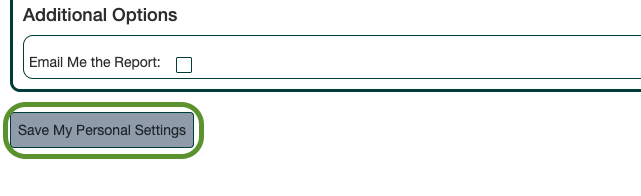
- Email Me the Report: Sends the report to your email every time you click Run Report or Run Report in Background.
Saving Your Settings
Click Save My Personal Settings at the bottom of the page. Your selections will be automatically applied each time you use Report Builder and Trend Builder.