Steps
- Log in at https://solys.lumidata.com.
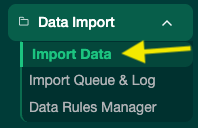
- Go to Data → Import Data.
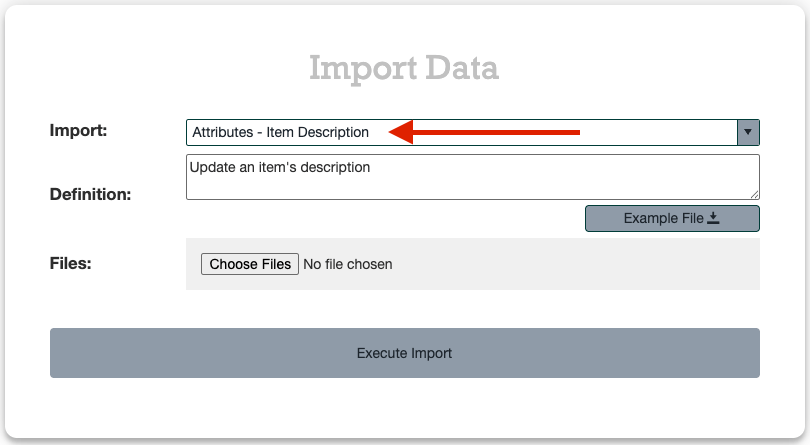
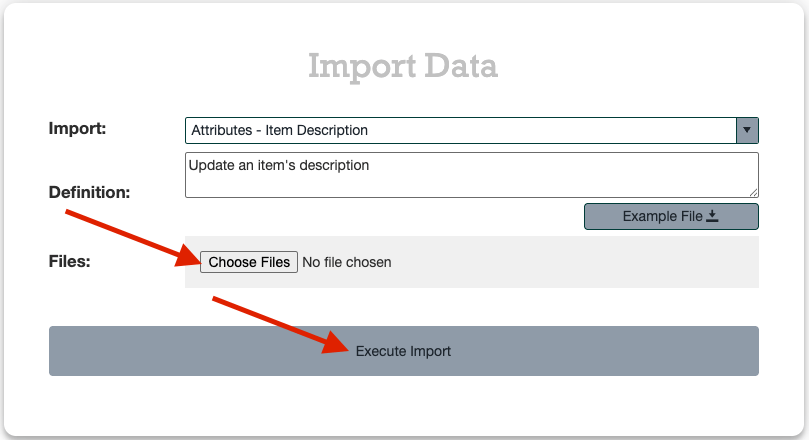
- In the Import dropdown, type item description and select Attributes – Item Description.
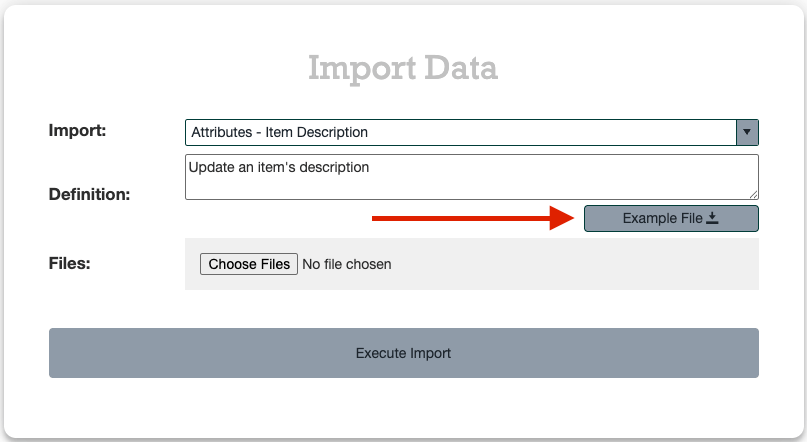
- Click Example File to download the import template.
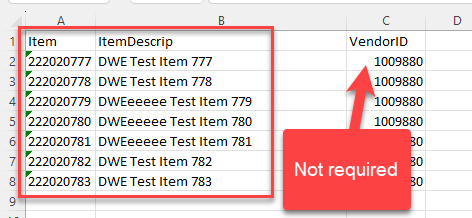
- Fill out the template:
- Do not change headers or column order.
- If pasting from another document, use Paste Values only — no formatting.
- No dashes in Item IDs. Make sure leading zeros are preserved.
- VendorID is not required.
- Click Choose Files, select your completed file, and click Execute Import.
Tracking Your Import
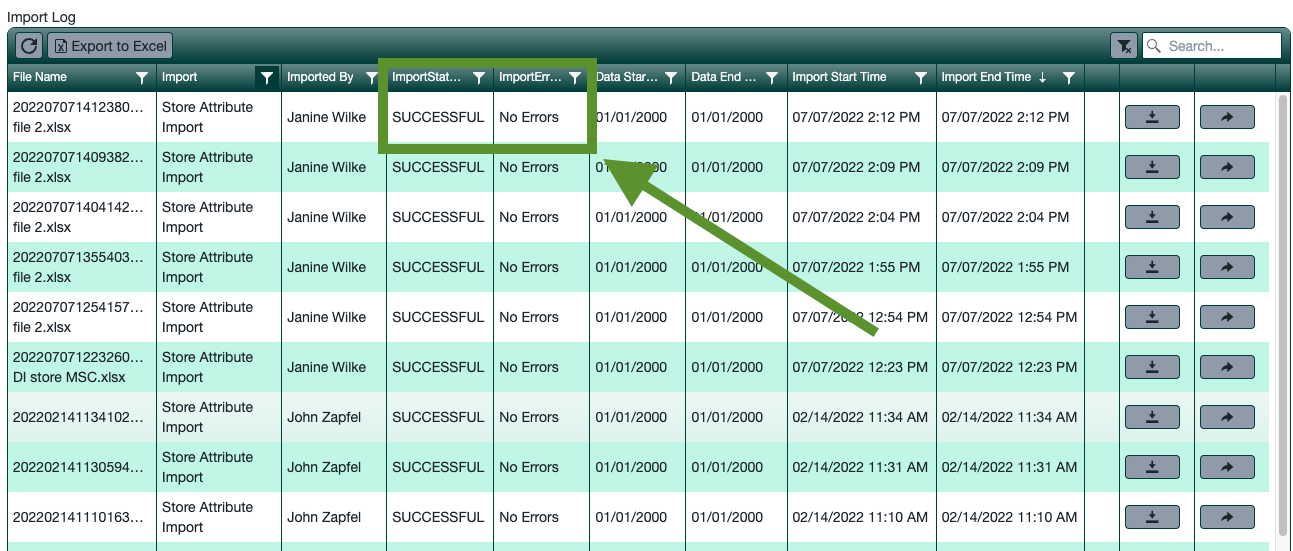
After submitting, you’ll be taken to the Import Queue & Log. Imports process every 30 seconds and move through three stages: Import Waiting Queue → Import Processing → Import Log A SUCCESSFUL status means your item descriptions are now live in the system.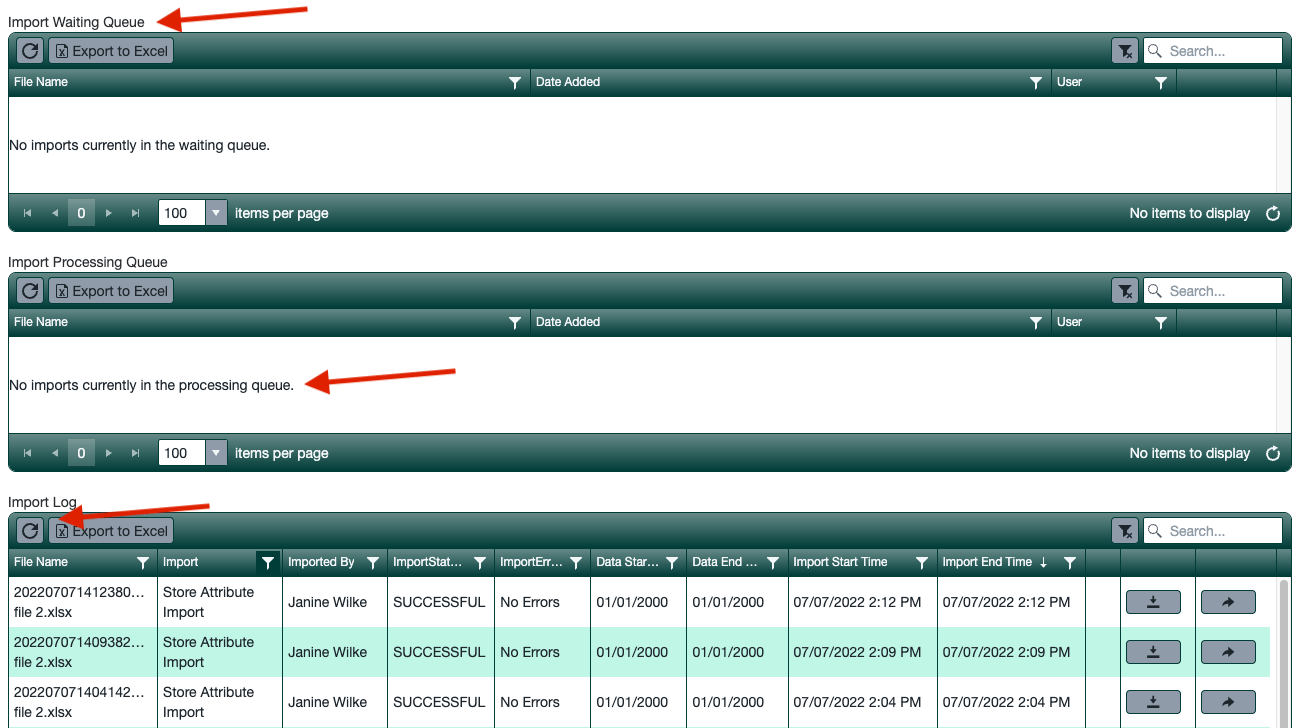
Troubleshooting