
Change Batch
This automation allows you to change a batch within a workflow so that subsequent steps within the workflow process against the changed batch.Why you would use this feature
While processing steps within a workflow, it might be necessary to switch the files the workflow tasks are processing against. For example, if you had a batch of CKB database planograms and you used Copy and Organize Planograms to export those database planograms into flat files, you may wish to perform some data updates to those flat files using Update Field Data. After the planograms were exported from the database into a file folder, you would use the Change Batch automation to switch the batch from being the CKB planograms batch to being the batch of PSA files in the folder.Feature Options
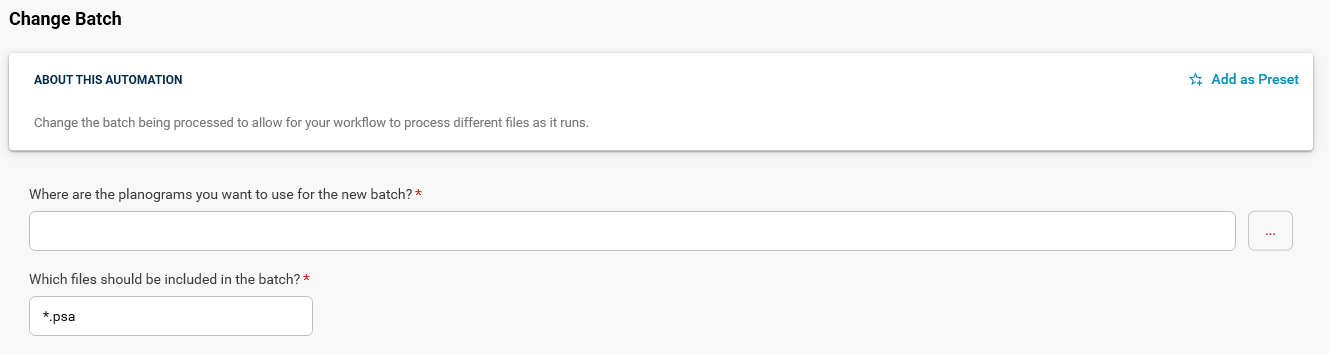
Where are the planograms you want to use for the new batch?
Browse for the file folder containing the files to include in the new batch.Which files should be included in the batch?
Specify the file criteria for determining which files within the specified folder are to be included in the batch. For example, to include all PSA files, you could use *.psa as the criteria in the Which files should be included in the batch? field.The Change Batch automation is intended to be used within a workflow. Running the automation on its own will have no effect.Once the workflow has been completed, the batch will revert back to the original batch that was used at the start of the workflow. This ensures that the proper batch is in place at the start of the workflow if the workflow needs to be run again.