Automatically print PDF files with multiple layouts and the ability to merge PDFs
The Print PDF feature provides flexible options to print one or many planograms, use one or more layouts, add external PDF documents and place them all in the desired order.
Why you would use this feature
Publishing planogram output is often only part of the process for creating PDF documents that can be shared with stores or other parts of your organization. Cover letters, supporting documents, and other information may need to be combined with the planogram information into a single document for publication. The Print PDF automation allows you to perform these tasks.
Feature Options
JDA PDF Writer must be installed and named “JDA PDF WRITER” for the batch PDF creation process to work. Batch File operations that launch Space Planning (regardless of whether it is already running or not) will load Space Planning with its last-saved configuration settings. When a Batch File process launches a new instance of Space Planning, it uses the configuration settings last saved when Space Planning was closed.
How many PDFs do you want to make?
Space Planning project files may contain one or more planograms. This option gives you the choice as to whether to generate a single PDF for each project or to create individual PDFs for each planogram within the project.
Where do you want to save the PDFs?
Click the browse button to select a folder where the PDFs being created should be saved.
How do you want to name the PDFs?
For the name of each PDF being created, you have several options.If you are printing one PDF for each project, you can use the project’s name as the name for the PDF, or you can derive the name based on the results of a formula.If you are printing one PDF for each planogram, you can choose to use the project and planogram names as the name of the PDF, use only the planogram’s name, or to derive the name based on the results of a formula.
How do you want to group the PDF sections?
The PDFs being created are comprised of one or more sections (which are defined using the Add PDF Section option).If you are creating one PDF per project, you can choose either to group all the sections together by planogram or to keep the planogram information grouped by section.
Add PDF Section
You can choose to either insert layouts that get printed based on layout file options specified, or you can insert existing PDF documents.
Printed layout using the project’s layout file
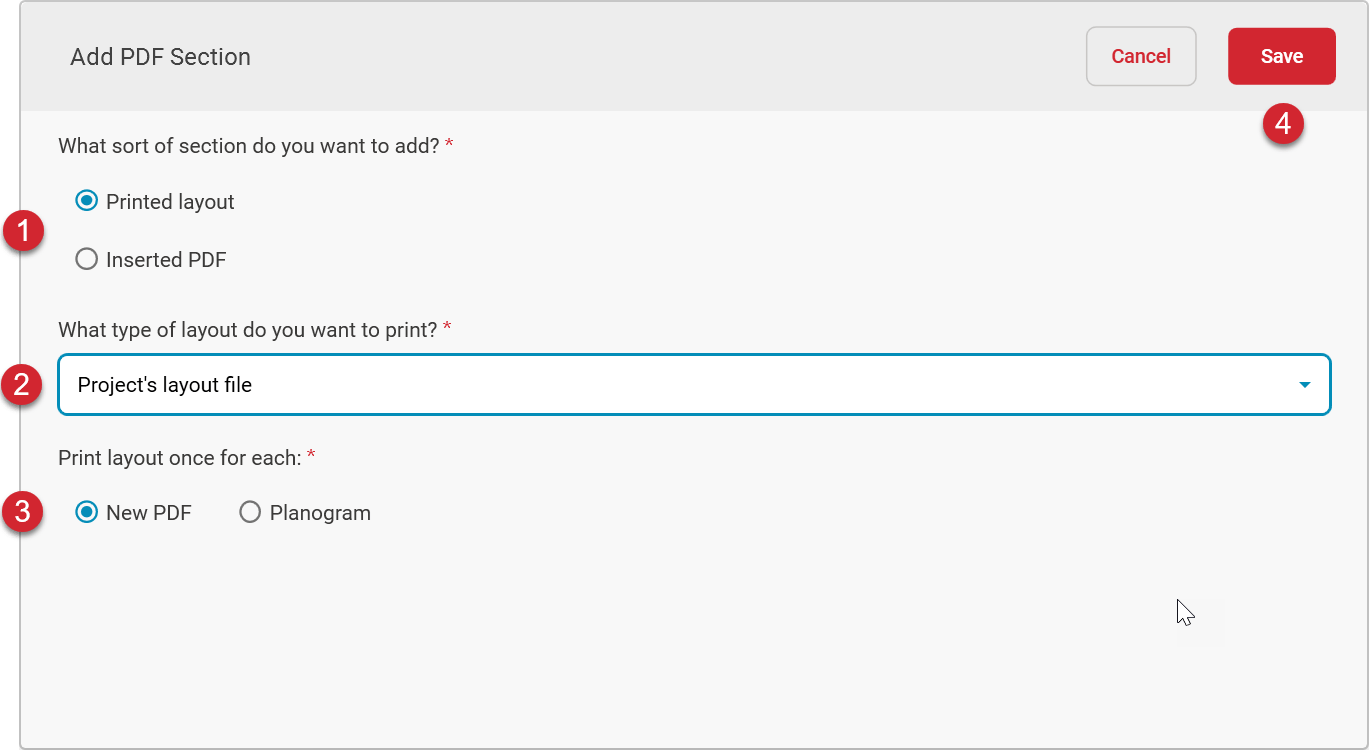
To create a PDF Section which generates PDF output using the layout file assigned to the Space Planning project, use the options shown below. The layout file can be used once for the entire project or individually for each planogram within the project.
#
Description
Use the Printed layout option.
Select the Project’s layout file option from the dropdown list.
To use the layout once for each PDF being created, select the New PDF option. To print using the layout for each planogram within the project, select the Planogram option.
Use the Save button to save the PDF Section options.
Printed layout using the planogram’s layout file
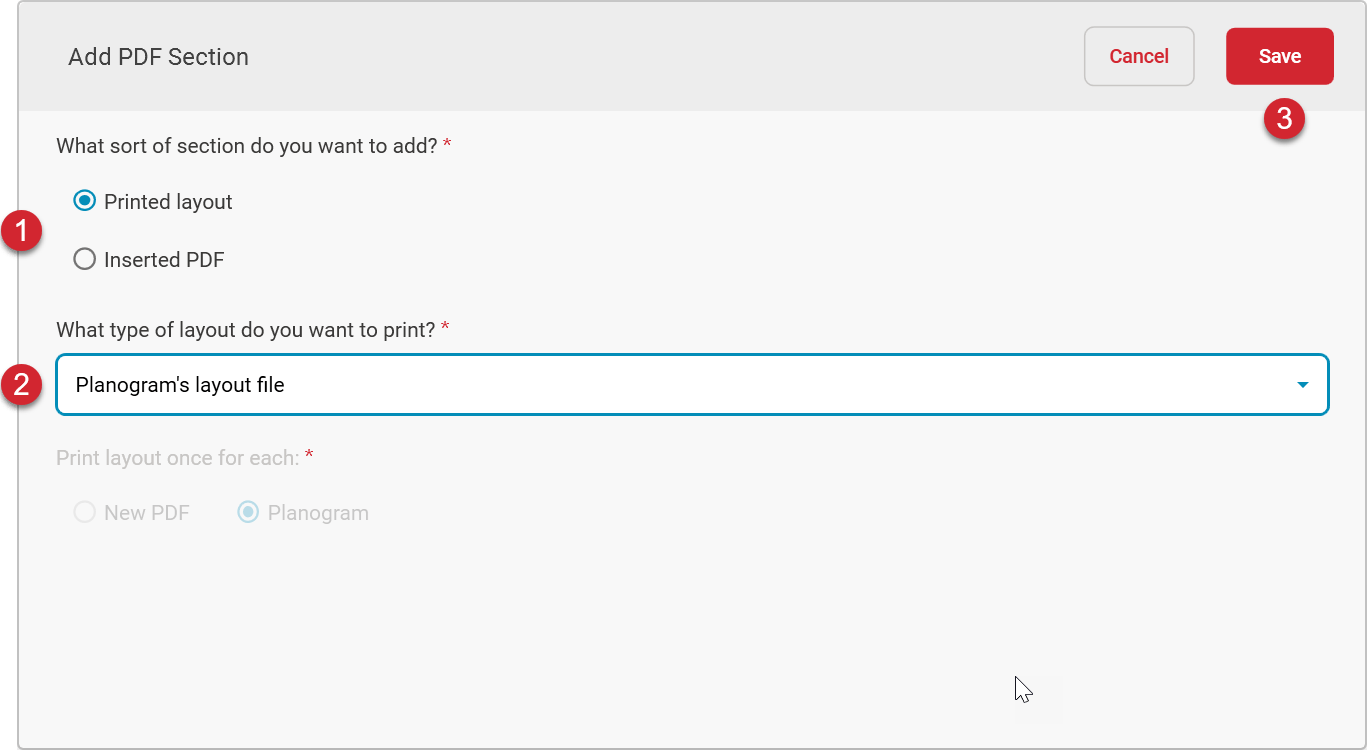
To create a PDF Section which generates PDF output using the layout file assigned to the Space Planning planogram, use the options shown below.
#
Description
Use the Printed layout option.
Select the Planogram’s layout file option from the dropdown list.
Use the Save button to save the PDF Section options.
Printed layout using a selected layout file
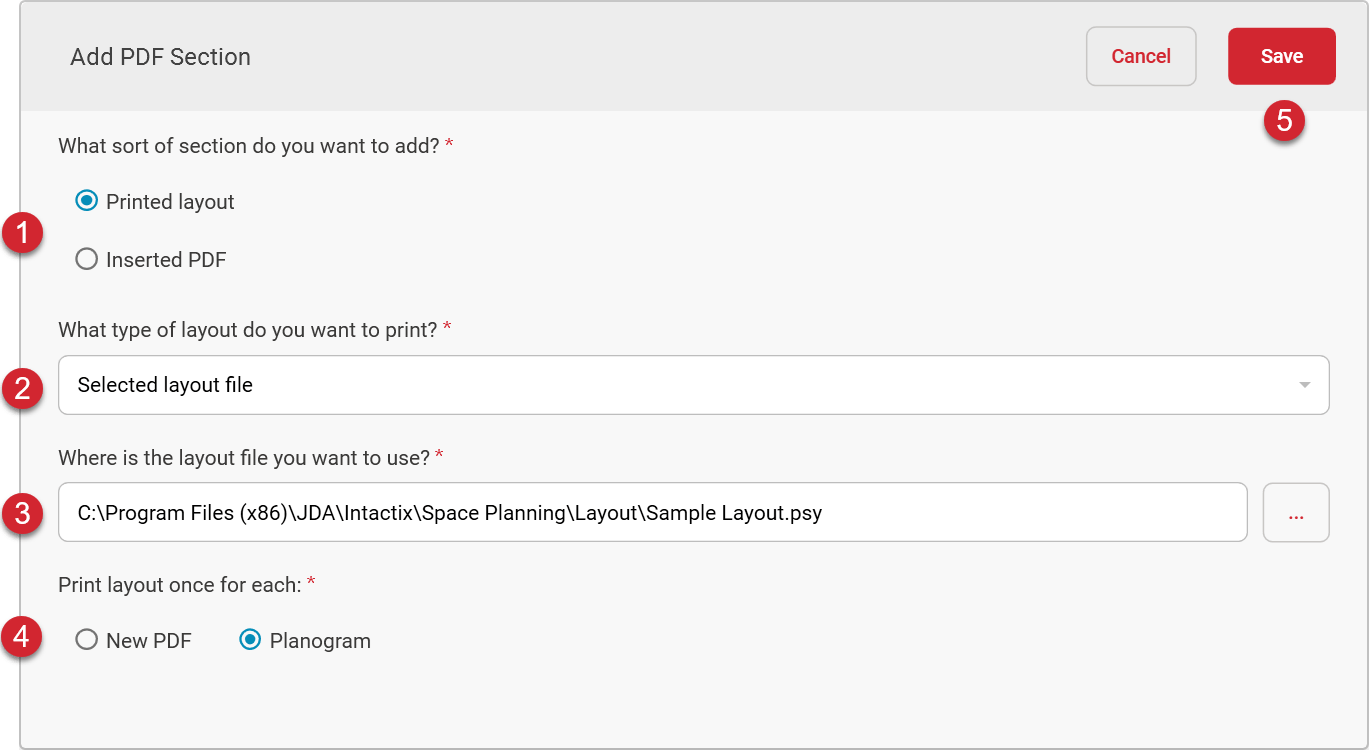
To create a PDF Section which generates PDF output using a specified layout file, use the options shown below.
#
Description
Use the Printed layout option.
Select the Selected layout file option from the dropdown list.
Use the file browse button to locate and select the layout file to be used to create the PDF output for this section.
To use the layout once for each PDF being created, select the New PDF option. To print using the layout for each planogram within the project, select the Planogram option.
Use the Save button to save the PDF Section options.
Printed layout using a layout file found using a formula
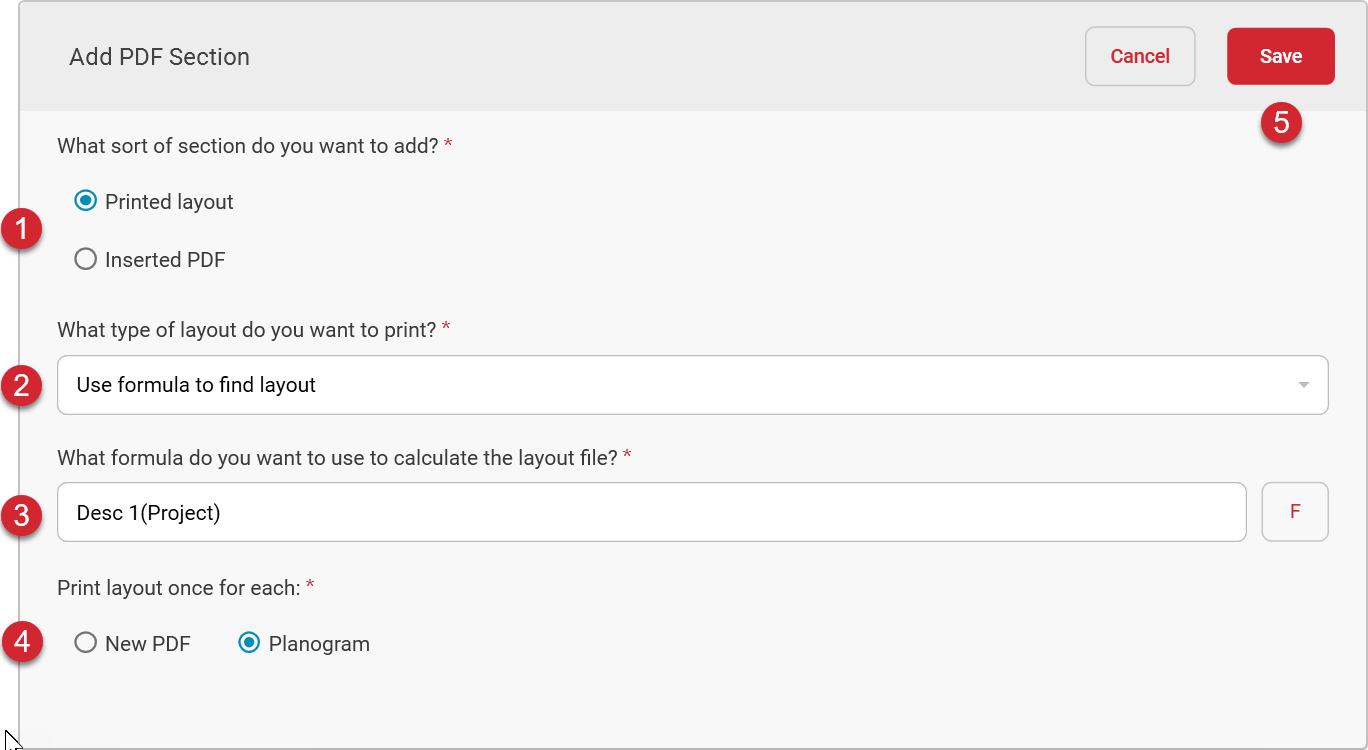
This option uses the formula builder to determine what layout file will be applied to print.
#
Description
Use the Printed layout option.
Select the Use formula to find layout option from the dropdown list.
Use the formula button to create the formula to be used to determine the layout file.
To use the layout once for each PDF being created, select the New PDF option. To print using the layout for each planogram within the project, select the Planogram option.
Use the Save button to save the PDF Section options.
The formula does not need to evaluate to a single layout file name. However, each file name must be separated by semicolons. If the formula does not evaluate to a file, the print item will be skipped.
If you are using this option for a multi-planogram project and the print option is “Project”, you need to use an aggregate function (LIST_UNIQUE, MINIMUM, MAXIMUM, etc.) when looking at any fields lower than the Project object so the data can be accessed.
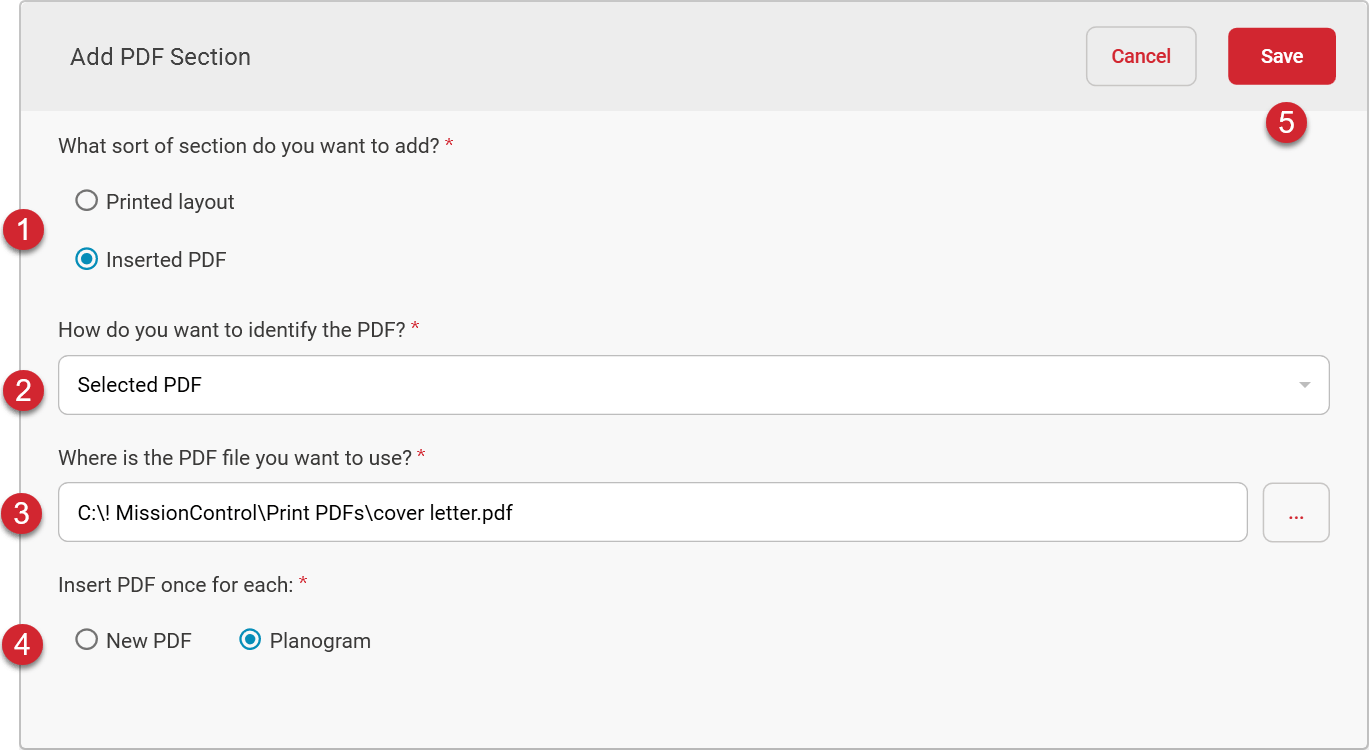
Inserting a selected PDF
This option will allow you to insert an existing PDF file into your final output by specifying the location and name of the PDF file to be inserted.
#
Description
Use the Inserted PDF option.
Select the Selected PDF option from the dropdown list.
Use the file browse button to locate and select the PDF file to be inserted.
To include the selected PDF for each new PDF being created, select the New PDF option. To insert the selected PDF for each planogram within the project, select the Planogram option.
Use the Save button to save the PDF Section options.
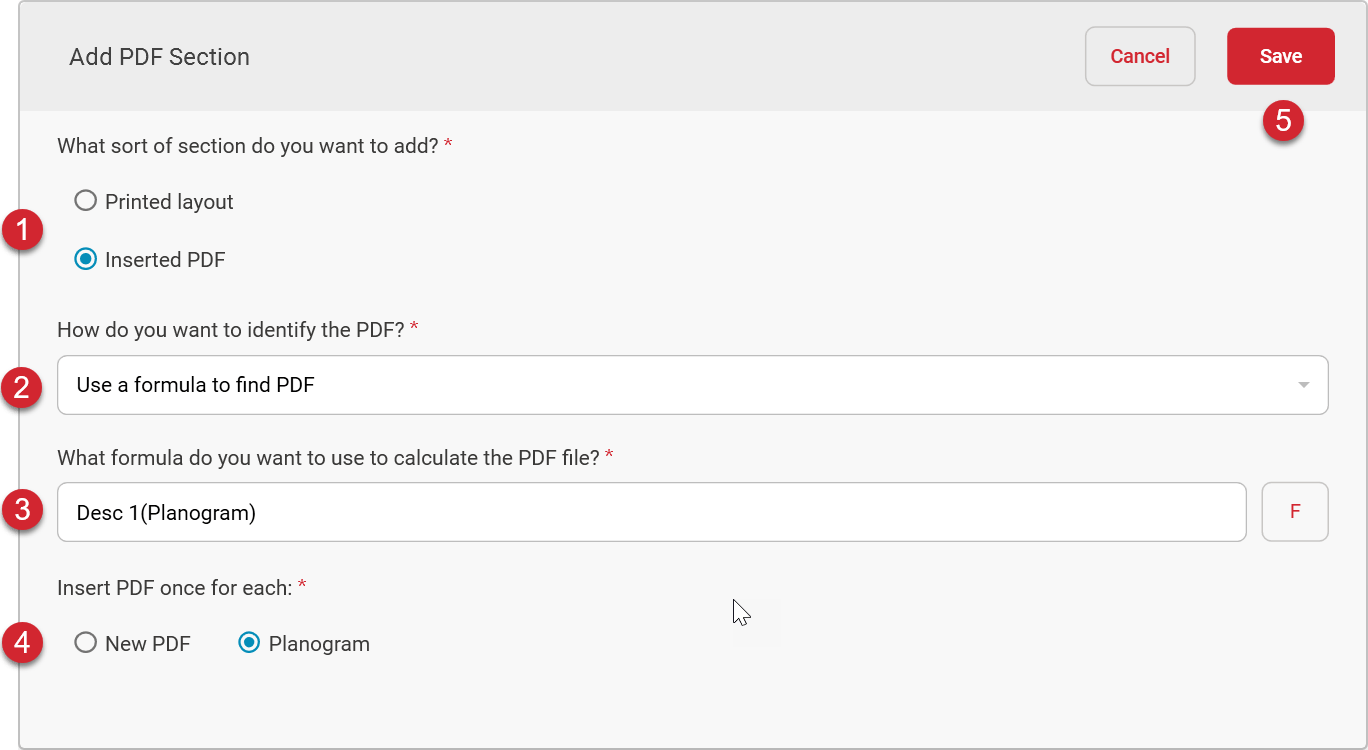
Inserting a PDF found using a formula
This option will allow you to insert an existing PDF file into your final output by using a formula to derive the location and name of the PDF file to be inserted.
#
Description
Use the Inserted PDF option.
Select the Use a formula to find PDF option from the dropdown list.
Use the formula button to create the formula to be used to determine the PDF file to be included for this section.
To include the selected PDF once for each new PDF being created, select the New PDF option. To insert the selected PDF for each planogram within the project, select the Planogram option.
Use the Save button to save the PDF Section options.
If you are using this option for a multi-planogram project and the print option is “Project”, you need to use an aggregate function (LIST_UNIQUE, MINIMUM, MAXIMUM, etc.) when looking at any fields lower than the Project object so the data can be accessed.
Was this page helpful?
Assistant
Responses are generated using AI and may contain mistakes.