
Why you would use this feature
This feature is helpful if you need to create a comparison report between your current set of planograms and a new set to show the changes by planogram/store.- Displaying assortment and distribution changes in products between sets of planograms
- Choosing identifiers for planograms and products to enable like-for-like comparisons
- Displaying usage changes of planograms between sets
- Attaching store assignments to calculate Total Points of Distribution (TDP) and changes in planogram store
- Determining which products have multiple facings in planograms
- Retrieving additional product or planogram fields that are needed in the report data
Feature Options
Comparison File Setup
Where is your planogram/store configuration file?
MissionControl needs a data file with information not generally found in planogram files to create this report. This data file is in a particular format and contains a list of the stores the planograms are assigned to. If you have already created a file that contains your planogram/store assignments, you can select that file using …. If you need to create a file containing your planogram/store assignments, click on New Template… to create a copy of the template file you can use to designate your store/planogram assignments. Once you have created this file, you can reuse it for future runs of this feature.Select Current Planograms
Click this button to select any current planograms you want to be included in the analysis. If you need to add more planograms after you have already added some, you can click the button again to add more.Select Future Planograms
Click this button to select any future planograms you want to be included in the analysis. If you need to add more planograms after you have already added some, you can click the button again to add more.Product Options
A key field must be set for products. The key field is a unique identifier for the product in the analysis. Additional product fields may also be included in the report and added as additional columns.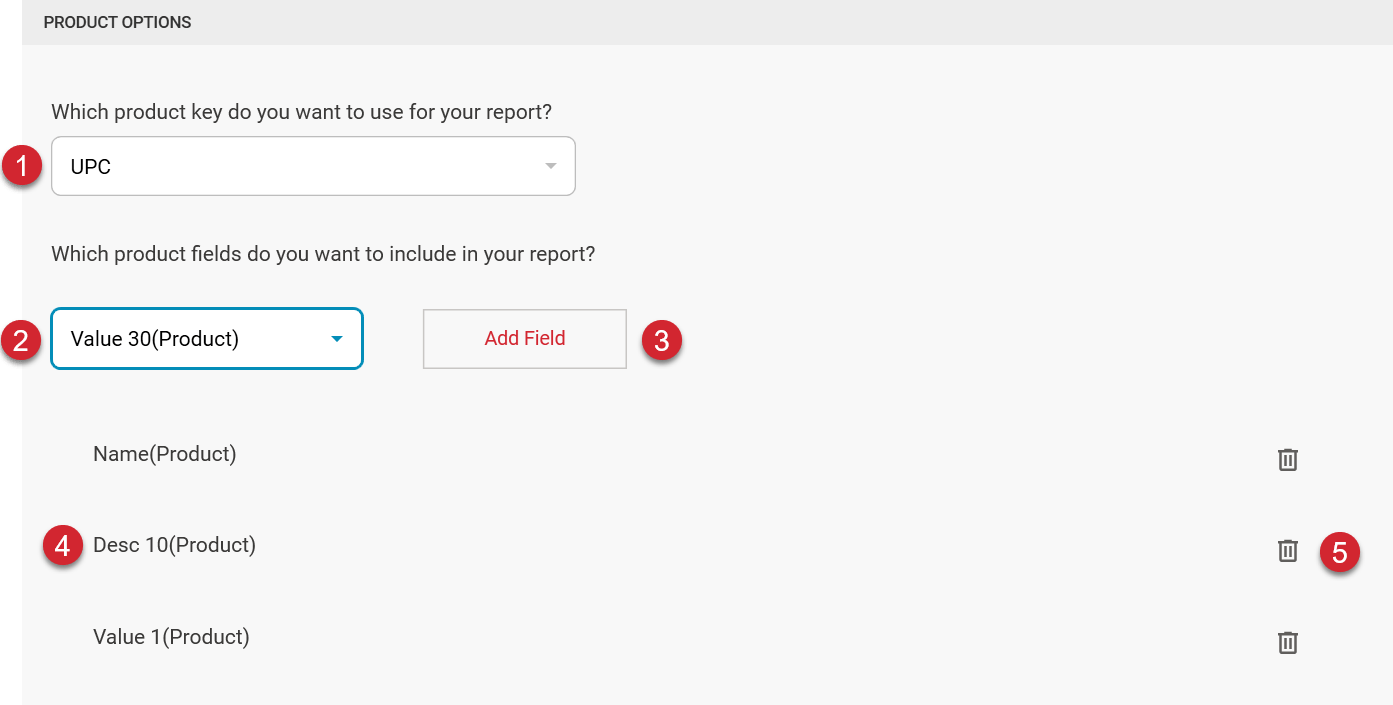

Select the primary product key you want to use. Products that match the primary key in current and future planograms will be considered to match. Supported options are ID, UPC, and Both UPC and ID.

Select from the list of available product fields to include in your report.

Once you have selected a field to include in your report, click Add field to add the field to the list of product fields that will be included in the report.
Each field can only be included once in the report. If you select a field already included in the report, the button will be disabled.

Once a field has been selected to be included in the report, it will be listed here. You can reorder the field list by dragging and dropping the fields within the list.

To remove a field you have included in the report, click the trash can, and it will be removed from the list of fields and will not be included in the report.
Planogram Options
A key field must be set for planograms. The key is used as a unique identifier for the planograms in the analysis. Additional planogram fields may also be included in the report, which will be added as additional columns.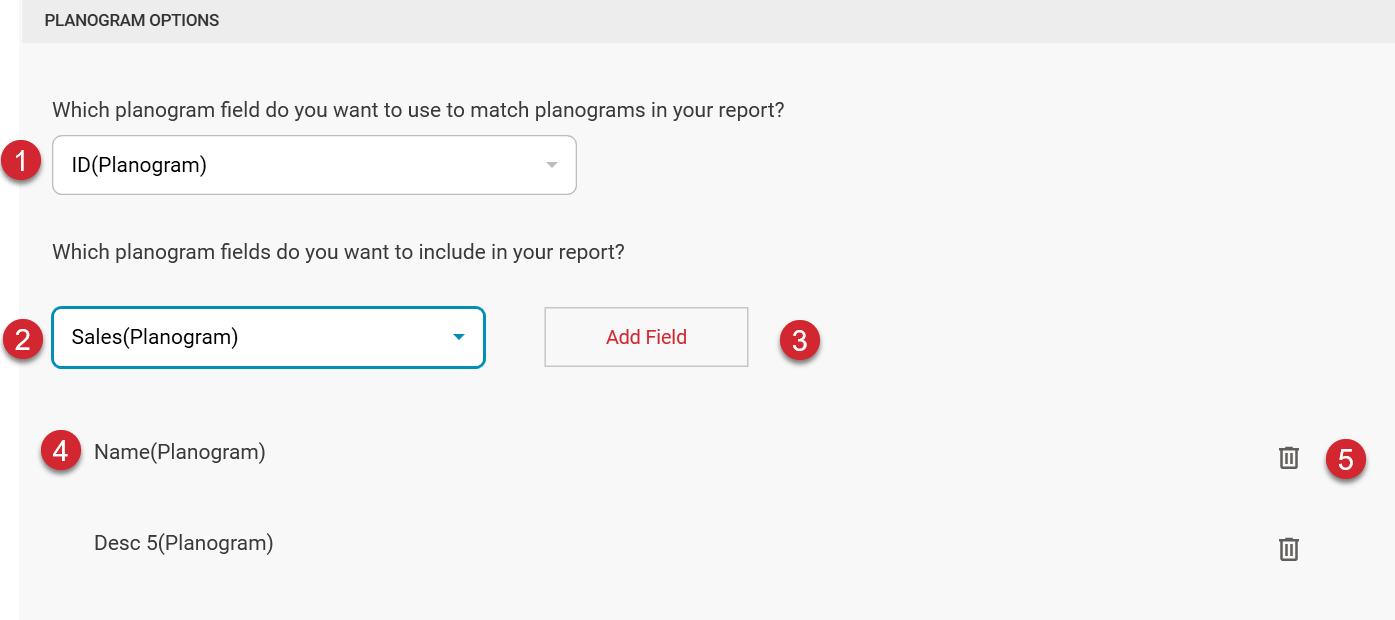
Select the field that will be used to determine if a planogram in the current planogram set matches a planogram in the future planogram set. Planograms that match will be compared in the report.
Select from the list of available planogram fields to include in your report.
Once you have selected a field to include in your report, click Add field to add the field to the list of planogram fields that will be included in the report.
Each field can only be included once in the report. If you select a field already included in the report, the button will be disabled.
Once a field has been selected to be included in the report, it will be listed here. You can reorder the field list by dragging and dropping the fields within the list.
To remove a field you have included in the report, click the trash can, and it will be removed from the list of fields and will not be included in the report.