
Create New Traits
This automation is used by Walmart vendors to create new modulars from templates using an input file as a guide. The input file contains the matching criteria used to locate the templates as well as any values that need to be updated into fields of the modulars being created.Why you would use this feature
Locating the appropriate templates, creating the correct modular size, updating attributes of the new mod, and loading in positions to start with can be a time-consuming process. This automation helps streamline that process.Feature Options
Generated Modular Location Options
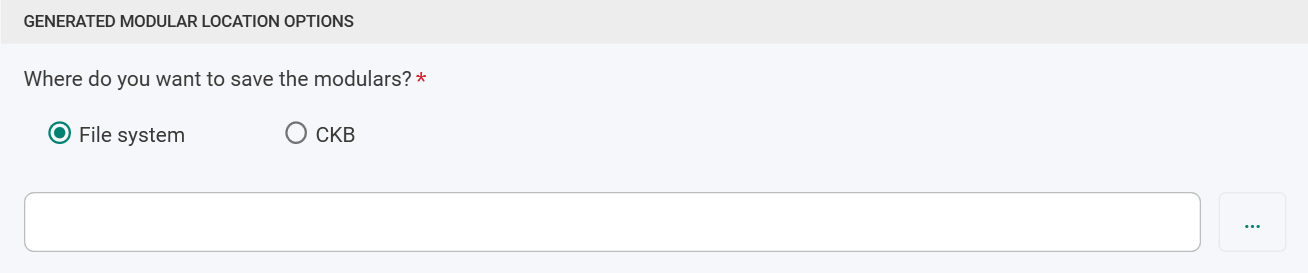
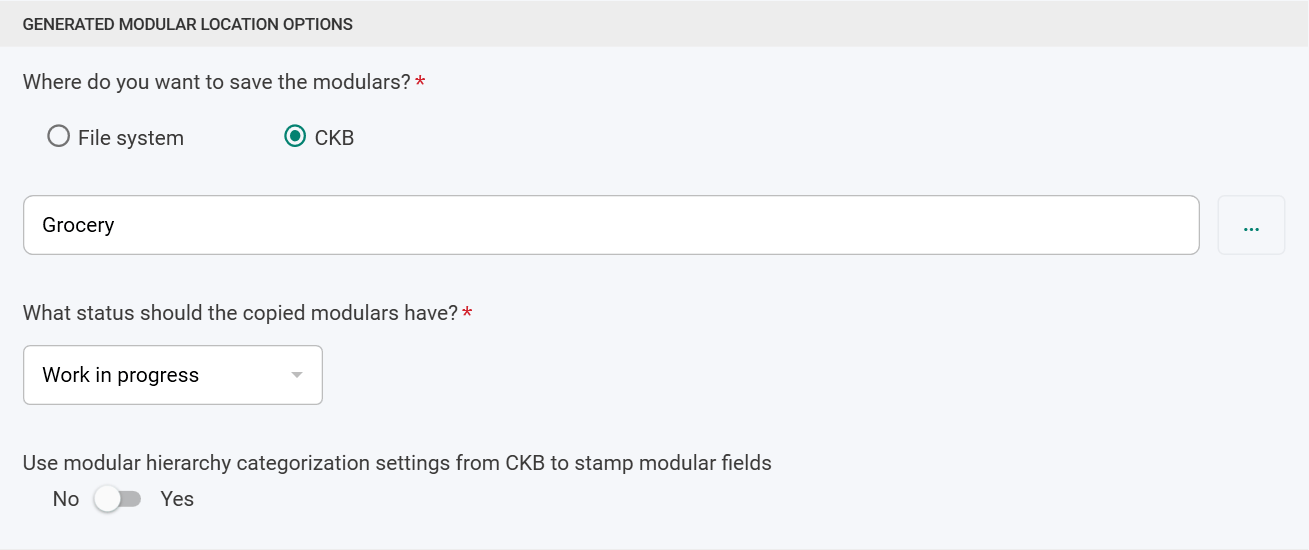
Where do you want to save the modulars?
You can choose File System or CKB as the destination of the new modulars being created.- File System
- CKB
Assortment Modular Options
Sometimes it can be helpful to copy the positions (and optionally fixtures) from an existing modular and float them around the new modular being created. That way, positions and fixtures that are being kept can easily be dragged into the proper location on the new modular.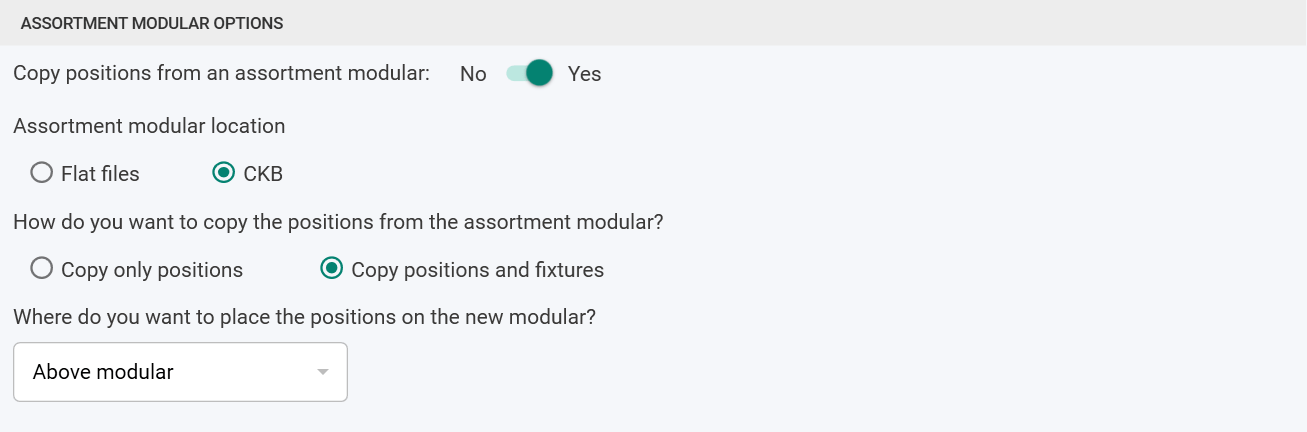
Copy positions from an assortment modular
If you would like to copy positions from an assortment modular, set this toggle to Yes.Assortment modular location
This allows you to specify the location type of the assortment modular containing the positions and fixtures to be copied onto the new modular. The assortment modular containing positions and fixtures to copy in must be referenced in a column of the data input file. The mapping and use of that column is described below in the Input Data File Mapping section.If Flat files is selected,
the path to the file containing the assortment modular must be specified. If CKB is selected,
the DBKey of the assortment modular must be specified.
How do you want to copy the positions from the assortment modular?
You can choose whether to copy in only the positions or both the positions and fixtures from the assortment modular.Where do you want to place the positions on the new modular?
For positions and fixtures being copied in from the template, choose where those positions and fixtures should be floated in the modular being created. Choices are Above modular, Below modular, Left of modular, and Right of modular.Input Data File Options
The data file is used to list the criteria to be used in locating the template modulars to use in creating the new modulars. The input file can also include data that needs to be copied into the new modulars being created.Where is the file with the modulars you want to create?
You can select the file you want to use as a data source for your modular creation. CSV and all Excel format files (XLS/XLSX/XLSM/XLSB) are supported. Click on the three-dot button to browse for the file containing the data to be used for locating the templates and creating the new modulars.Which sheet do you want to use to create the modulars?
This will default to the first sheet in your workbook for Excel files. If you want to use a different sheet, you can select from the list of available sheets. Data will be used from your selected sheet to drive the modular creation process.Data file has a header row
If your trait file has a header row, you can indicate this here. If you do have a header row, you will be able to use the data automapping options.Data starts in row
If your input file has a header row, you can indicate which row the header is in. If your file does not contain a header row, you can indicate which row your data starts in.Input Data File Mapping
Data Headers
If your trait file contains a header row, the header names will appear in this column. If there is no header row, column numbers will be displayed.Create Action
For each column in the input file, you can decide what to do with that column by choosing one of the options in the Create Action dropdown list. The options are:- Match on (required): The data in this column must match the value in the specified trait field of the template modulars for that template to be selected as the one to use in creating the new modular. Multiple columns can be designated as required matching columns.
- Match on (optional): The data in this column ideally will match the value in the specified field of the template modulars but the match is not required. Multiple columns can be designated as optional matching columns. The order of the optional matching columns is important. The process will attempt to match on all required and optional matching columns. If no match is found, the rightmost optional column will be ignored, and the matching process will be tried again. Optional matching columns will be ignored from right to left until either a match is found, or all optional columns have been ignored. If no match can be found with only the required matching columns, an error will be logged.
- Update to: The value in this column will be used to update the specified field in the modular being created if a matching template can be found.
- Copy Assortment Modular: If the Copy positions from an assortment modular option has been selected, the data specified in this column will be used to define which assortment modular to copy positions and/or positions plus fixtures from to the new Trait. For flat file assortment modulars, you must list the full file path. CKB assortment modulars must be specified by listing an ID or DBKey.
- Do nothing: To ignore this column in the trait file, choose the Do nothing option.
- Create new file name: If Generated modular location options is set to File System, this field is required in the Input data file. A new modular will be created with the value in this column used as its file name.
Trait Field
This column designates the fields to be used in the template modulars when attempting to find a match (based on the required and optional matching fields), or the field to update with a value from the trait file for the columns with the Update to action.If the Create Action is Create new file name or Copy Assortment Modular,
then the Trait Field selection option will be disabled.