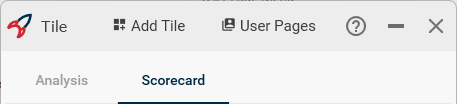
Organize tiles into collections for different workflow stages
User Pages are collections of tiles. They allow Tiles to be separated onto pages that can be used to group Tiles into different workflow stages, or any other grouping.
Selecting Pages
To select a User Page, click on the name of the User Page at the top of the Tile window. The Tiles contained on that User Page will be displayed.
You can move Tiles between User Pages by dragging them to the name of the User Page you want to move them to and dropping them there. The Tile will be added to the first open location on its new User Page.
User Page Menu
New
New will create a new User Page in the existing Tile window.Enter the name of the User Page you want to create and click Accept to create the new page.
Export current page
To export the current User Page and all of its tiles, choose Export current page….You will be prompted to browse for a location to save the page and the name to give to the exported file.
Export all pages
To export all User Pages and their Tiles, choose Export all pages….You will be prompted to browse for a location to save the page and the name to give to the exported file.
If any Tiles support a double-click action, the file opened with the double-click will need to be present on any system the Tiles are shared with for the double-click action to work.
Load
Exported pages and tiles can be imported by you or other users by choosing the Load option.This option imports all the User Pages and their Tiles from the selected User Page file.
Load will remove all User Pages and Tiles that are currently in your Tile window. If you want to keep your current User Pages and Tile settings, export them before loading in new settings.
Was this page helpful?
Assistant
Responses are generated using AI and may contain mistakes.