
Why you would use this feature
This is a quick, easy way to modify data in the Floor Planning fields. For example, if you had data in two fields that you wanted to merge and save in a third field, this automation would allow you to do that.Feature Options
Add Update Field
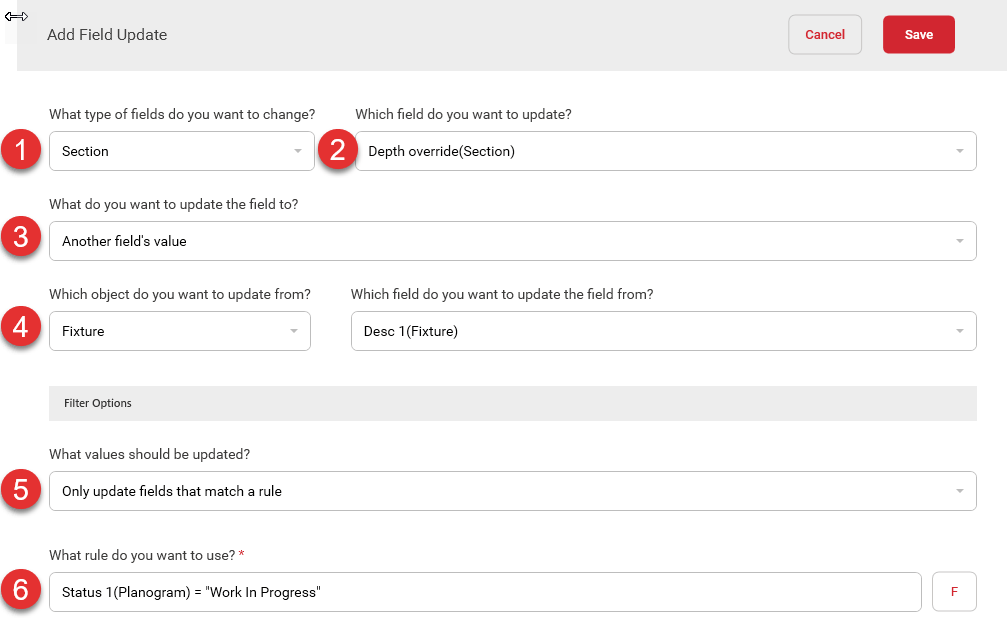

Select the object type of the fields you want to update. This will populate
all the available fields for that object into the update field selection dropdown.

Select the field you want to update. Only fields that are writable of the object type specified in the field type
selection will be listed here.

Select one of the available update options.

What value do you want to use?
Enter the value you want to be stored in this field. The specified value will be saved into the field being updated.The value you enter here will automatically be converted to the value type expected for the specified field. So a number
will be converted to text if you update something like a description field. For case fields, you can enter either the
numeric value of the case option you want to update or the option’s name.If the value you specify here cannot be converted (e.g. setting a text value into a numeric field), the field will be
updated to its default value.
Which object do you want to update from?
Select an object type to populate the list of available fields.Only objects that can be copied will be available here. Objects that can be copied are the same or at
a higher level than the object type selected for the update. See the Floor Planning help file for more information on
the object hierarchy.
Which field do you want to update the field from?
Select the field you want to copy the value from. The current value of this field will be copied into the field being updated.The value of the field selected here will automatically be converted to the value type expected for the field you
specified. So a number will be converted to text if you update something like a description field. For case fields, you can use either the case option’s numeric value or the name of the option.If the value you specify here cannot be converted (e.g. setting a text value into a numeric field), the field will be
updated to its default value.
What formula do you want to use?
Specify a field or formula, and the value of that formula will be stored in the field you selected to be updated. You can launch the formula builder to get assistance with building your formula by clicking the F button.
Select an option here to determine if the updates should update all objects within your project or floorplan or should
filter objects before applying the update.

Enter a formula that will be used to check each object before updating the data. Only objects that evaluate true
for the specified formula will be updated.
Field Updates

# | |
|---|---|
| Use the Add Field Update button to add additional update options. |
| Each field update will copy data into the specified field based on the method you selected. You can reorder the fields by dragging and dropping them within the list. |
| Information on the value being copied into the specified field is displayed in the center. You can edit an existing update by double-clicking on it. |
| Update options can be removed from the list by clicking on the trash can. |
| Ability to select and deselect those field updates that you want to execute. |