> ## Documentation Index
> Fetch the complete documentation index at: https://docs.gocrisp.com/llms.txt
> Use this file to discover all available pages before exploring further.
# Saved prompts
> Save and organize your best prompts. Browse curated use-case templates in the Prompt Gallery.
Saved prompts let you capture any message you send as a reusable prompt, organize your collection, and discover curated templates for common retail workflows.
## Saving a prompt
You can save any message you have sent in a session as a reusable prompt, either manually from the UI or by asking the agent to do it for you.
### Save from the UI
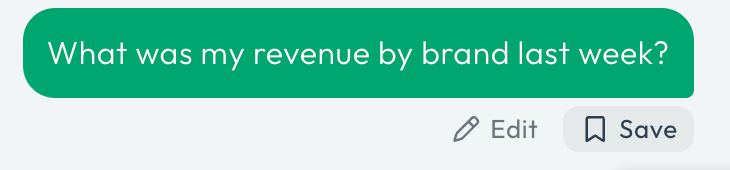
Hover over one of your own messages. The **Save** button (bookmark icon) appears next to the **Edit** button. Agent responses do not have a Save action.
Click **Save**.
The system automatically generates a short label for the prompt. You can edit the label and content before saving.
 To save text the agent generated, copy it into one of your own messages first, then save that message.
The prompt is saved to your personal collection and available from the Prompt Gallery.
### Ask the agent
You can also ask the agent to manage prompts for you in plain language — for example:
* "Save this as a prompt called *Weekly sales recap*."
* "Share my *Weekly sales recap* prompt with the team."
* "Rename *Untitled* to *Promo lift check*."
* "Delete the *Old inventory check* prompt."
* "List my saved prompts."
The agent can save, list, rename, edit, and delete prompts you own. It can only act on prompts in your own collection.
When the agent saves or updates prompts during a conversation, the Prompt Gallery refreshes automatically — you don't need to reload the page to see the changes.
## Prompt Gallery
The Prompt Gallery is a side panel that opens from the right edge of the session page. Press `⌘⇧B` (or `Ctrl+Shift+B`) to toggle it. It has three tabs:
### My Prompts
Your personal prompt library. Here you can:
* **Reorder** prompts by dragging and dropping.
* **Edit** a prompt's label or content by clicking the edit icon.
* **Delete** prompts you no longer need.
### Gallery
A curated collection of prompt templates organized by retail workflow category. These cover common use cases like:
* Sales trend analysis
* Inventory health checks
* Promotional lift measurement
* Category performance reviews
* Distribution gap analysis
Browse by category, search by keyword, or scroll through the full list. Category tabs wrap neatly even at narrow viewport widths.
## Using a saved prompt
Click any prompt in the gallery to view its full content. Then:
* **Use prompt** — Inserts the prompt text into the chat input so you can send it (or edit it first). On mobile, the gallery closes automatically after you select **Use prompt** so you only need one tap.
* **Copy prompt** — Copies the text to your clipboard.
To save text the agent generated, copy it into one of your own messages first, then save that message.
The prompt is saved to your personal collection and available from the Prompt Gallery.
### Ask the agent
You can also ask the agent to manage prompts for you in plain language — for example:
* "Save this as a prompt called *Weekly sales recap*."
* "Share my *Weekly sales recap* prompt with the team."
* "Rename *Untitled* to *Promo lift check*."
* "Delete the *Old inventory check* prompt."
* "List my saved prompts."
The agent can save, list, rename, edit, and delete prompts you own. It can only act on prompts in your own collection.
When the agent saves or updates prompts during a conversation, the Prompt Gallery refreshes automatically — you don't need to reload the page to see the changes.
## Prompt Gallery
The Prompt Gallery is a side panel that opens from the right edge of the session page. Press `⌘⇧B` (or `Ctrl+Shift+B`) to toggle it. It has three tabs:
### My Prompts
Your personal prompt library. Here you can:
* **Reorder** prompts by dragging and dropping.
* **Edit** a prompt's label or content by clicking the edit icon.
* **Delete** prompts you no longer need.
### Gallery
A curated collection of prompt templates organized by retail workflow category. These cover common use cases like:
* Sales trend analysis
* Inventory health checks
* Promotional lift measurement
* Category performance reviews
* Distribution gap analysis
Browse by category, search by keyword, or scroll through the full list. Category tabs wrap neatly even at narrow viewport widths.
## Using a saved prompt
Click any prompt in the gallery to view its full content. Then:
* **Use prompt** — Inserts the prompt text into the chat input so you can send it (or edit it first). On mobile, the gallery closes automatically after you select **Use prompt** so you only need one tap.
* **Copy prompt** — Copies the text to your clipboard.