> ## Documentation Index
> Fetch the complete documentation index at: https://docs.gocrisp.com/llms.txt
> Use this file to discover all available pages before exploring further.
# Files
> Browse, upload, edit, and manage files in the virtual file system. Reference files in chat with @ mentions.
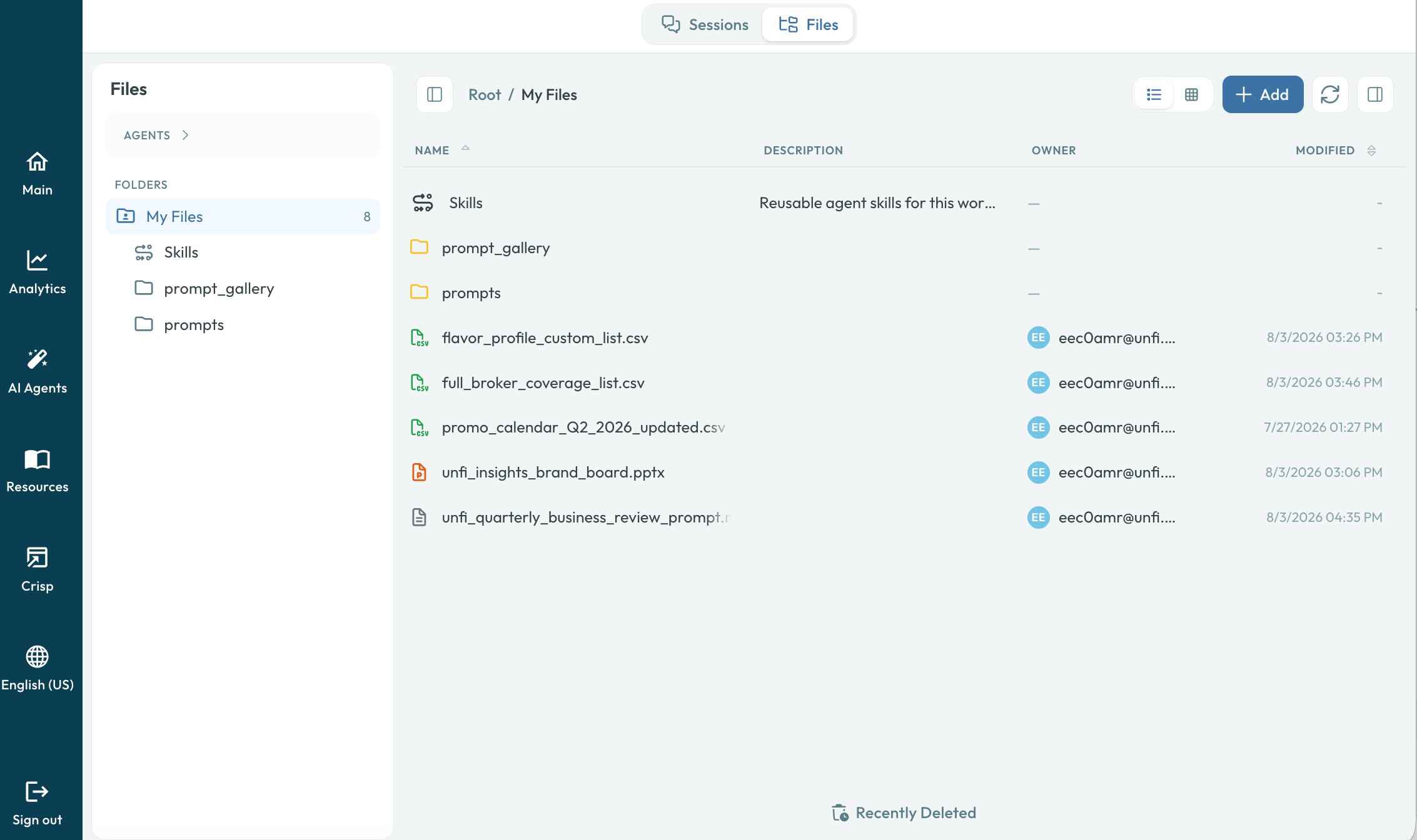
Every account has a virtual file system (VFS) where agents store the artifacts they create — CSV exports, charts, markdown reports, PowerPoint decks, and more. The **Files** page lets you browse, preview, edit, and manage these files alongside anything you upload yourself.
 ## File scopes
Files are organized into three scopes:
| Scope | Path | Description |
| -------------------- | ----------------------- | ------------------------------------------------------------------------------------------------------------------------------------------------------------------ |
| **My Files** | `/mnt/user/` | Private to you. Only you can see and edit these files. |
| **Session** | `/mnt/current_session/` | Scoped to the active session. Agents create most artifacts here during a conversation. |
| **External sources** | — | Mounted folders from outside the workspace — **OneDrive** or **SharePoint**, **Google Drive**, or a **local folder on your computer**. Preview feature, see below. |
## Browsing files
The file explorer has three panels:
* **Folder tree** (left) — Navigate the directory structure. On mobile this slides in from the left edge.
* **File list** (center) — Shows files in the selected folder, including an **Owner** column for shared items. Click a file to preview it. The preview refreshes automatically when the file is saved.
* **File info** (right) — Displays metadata, a preview, and version history for the selected file. On mobile this slides in from the right edge.
### Keyboard shortcuts
| Shortcut | Action |
| ----------------------- | -------------------------------------- |
| `Enter` | Open selected file or folder |
| `Backspace` | Navigate up one level |
| `Delete` | Delete selected items |
| `F2` | Rename selected file |
| `Ctrl+A` / `⌘A` | Select all files in the current folder |
| `⌘Enter` / `Ctrl+Enter` | Save and close the editor |
### Context menu
Right-click (or long-press on mobile) any file or folder for an actions menu with **Edit**, **Download**, **Copy file path**, **Share**, **Upload**, **Rename**, **Copy to folder**, and **Delete**. Deleting a folder correctly removes it from the tree sidebar.
**Copy file path** copies the file's VFS path (for example, `/mnt/shared/reports/q4-summary.md`) to your clipboard, so you can paste it directly into a skill, a persona's agent statement, or a chat message. A toast confirms the copy.
## Recently Deleted
If you delete a file or folder from **My Files** and need it back, open **Recently Deleted** from the file explorer toolbar. The view lists items deleted from the folder you're currently viewing and lets you restore them in place.
Recently Deleted is scoped to your current location. The dialog header shows the folder path (for example, `My Files / reports`) so you know which trash you're looking at.
A dialog opens with deleted files and folders, when they were removed, and their size.
The item is restored to its original path. Folders restore the full nested tree. If a file already exists at the original path, the restore is skipped so it does not overwrite current content.
Recently Deleted is only available for **My Files**. It does not apply to **Session** files or **External sources** (OneDrive, SharePoint, Google Drive, or local folders) — those are managed by the upstream provider.
## Uploading files
You can upload files in several ways:
* **Drag and drop** onto the file list.
* Click **Upload** in the toolbar.
* In chat, click the **paperclip** icon next to the message input and pick **Upload file**.
The file explorer and chat share a single upload allowlist, so anything you can drag into the **Files** page also works as a chat attachment. Each message's combined upload size is capped at **25 MB**.
Supported formats include PDFs, Word documents (`.doc`, `.docx`, `.docm`, `.odt`, `.rtf`), spreadsheets (`.xls`, `.xlsx`, `.xlsm`, `.ods`, CSV, TSV), presentations (`.ppt`, `.pptx`, `.pptm`, `.odp`), images (PNG, JPEG, WebP, GIF, SVG), text and markdown (`.txt`, `.md`, `.mdx`, `.log`), data and config files (JSON, JSON Lines, YAML, XML, TOML, `.env`), and common source code (Python, JavaScript/TypeScript, SQL, HTML/CSS, shell, Ruby, Java, C/C++, Go, Rust, PHP). See [Supported file formats](/unfi-ai-agents/sessions#supported-file-formats) for the full list.
### Copy and overwrite
When you copy a file into a folder that already has a file with the same name, a confirmation dialog asks whether to overwrite. Long file names wrap neatly in the warning text.
## Creating folders
Click **New Folder** in the toolbar to create a folder inside the current directory. Drag files between folders to reorganize.
## File previews
## File scopes
Files are organized into three scopes:
| Scope | Path | Description |
| -------------------- | ----------------------- | ------------------------------------------------------------------------------------------------------------------------------------------------------------------ |
| **My Files** | `/mnt/user/` | Private to you. Only you can see and edit these files. |
| **Session** | `/mnt/current_session/` | Scoped to the active session. Agents create most artifacts here during a conversation. |
| **External sources** | — | Mounted folders from outside the workspace — **OneDrive** or **SharePoint**, **Google Drive**, or a **local folder on your computer**. Preview feature, see below. |
## Browsing files
The file explorer has three panels:
* **Folder tree** (left) — Navigate the directory structure. On mobile this slides in from the left edge.
* **File list** (center) — Shows files in the selected folder, including an **Owner** column for shared items. Click a file to preview it. The preview refreshes automatically when the file is saved.
* **File info** (right) — Displays metadata, a preview, and version history for the selected file. On mobile this slides in from the right edge.
### Keyboard shortcuts
| Shortcut | Action |
| ----------------------- | -------------------------------------- |
| `Enter` | Open selected file or folder |
| `Backspace` | Navigate up one level |
| `Delete` | Delete selected items |
| `F2` | Rename selected file |
| `Ctrl+A` / `⌘A` | Select all files in the current folder |
| `⌘Enter` / `Ctrl+Enter` | Save and close the editor |
### Context menu
Right-click (or long-press on mobile) any file or folder for an actions menu with **Edit**, **Download**, **Copy file path**, **Share**, **Upload**, **Rename**, **Copy to folder**, and **Delete**. Deleting a folder correctly removes it from the tree sidebar.
**Copy file path** copies the file's VFS path (for example, `/mnt/shared/reports/q4-summary.md`) to your clipboard, so you can paste it directly into a skill, a persona's agent statement, or a chat message. A toast confirms the copy.
## Recently Deleted
If you delete a file or folder from **My Files** and need it back, open **Recently Deleted** from the file explorer toolbar. The view lists items deleted from the folder you're currently viewing and lets you restore them in place.
Recently Deleted is scoped to your current location. The dialog header shows the folder path (for example, `My Files / reports`) so you know which trash you're looking at.
A dialog opens with deleted files and folders, when they were removed, and their size.
The item is restored to its original path. Folders restore the full nested tree. If a file already exists at the original path, the restore is skipped so it does not overwrite current content.
Recently Deleted is only available for **My Files**. It does not apply to **Session** files or **External sources** (OneDrive, SharePoint, Google Drive, or local folders) — those are managed by the upstream provider.
## Uploading files
You can upload files in several ways:
* **Drag and drop** onto the file list.
* Click **Upload** in the toolbar.
* In chat, click the **paperclip** icon next to the message input and pick **Upload file**.
The file explorer and chat share a single upload allowlist, so anything you can drag into the **Files** page also works as a chat attachment. Each message's combined upload size is capped at **25 MB**.
Supported formats include PDFs, Word documents (`.doc`, `.docx`, `.docm`, `.odt`, `.rtf`), spreadsheets (`.xls`, `.xlsx`, `.xlsm`, `.ods`, CSV, TSV), presentations (`.ppt`, `.pptx`, `.pptm`, `.odp`), images (PNG, JPEG, WebP, GIF, SVG), text and markdown (`.txt`, `.md`, `.mdx`, `.log`), data and config files (JSON, JSON Lines, YAML, XML, TOML, `.env`), and common source code (Python, JavaScript/TypeScript, SQL, HTML/CSS, shell, Ruby, Java, C/C++, Go, Rust, PHP). See [Supported file formats](/unfi-ai-agents/sessions#supported-file-formats) for the full list.
### Copy and overwrite
When you copy a file into a folder that already has a file with the same name, a confirmation dialog asks whether to overwrite. Long file names wrap neatly in the warning text.
## Creating folders
Click **New Folder** in the toolbar to create a folder inside the current directory. Drag files between folders to reorganize.
## File previews
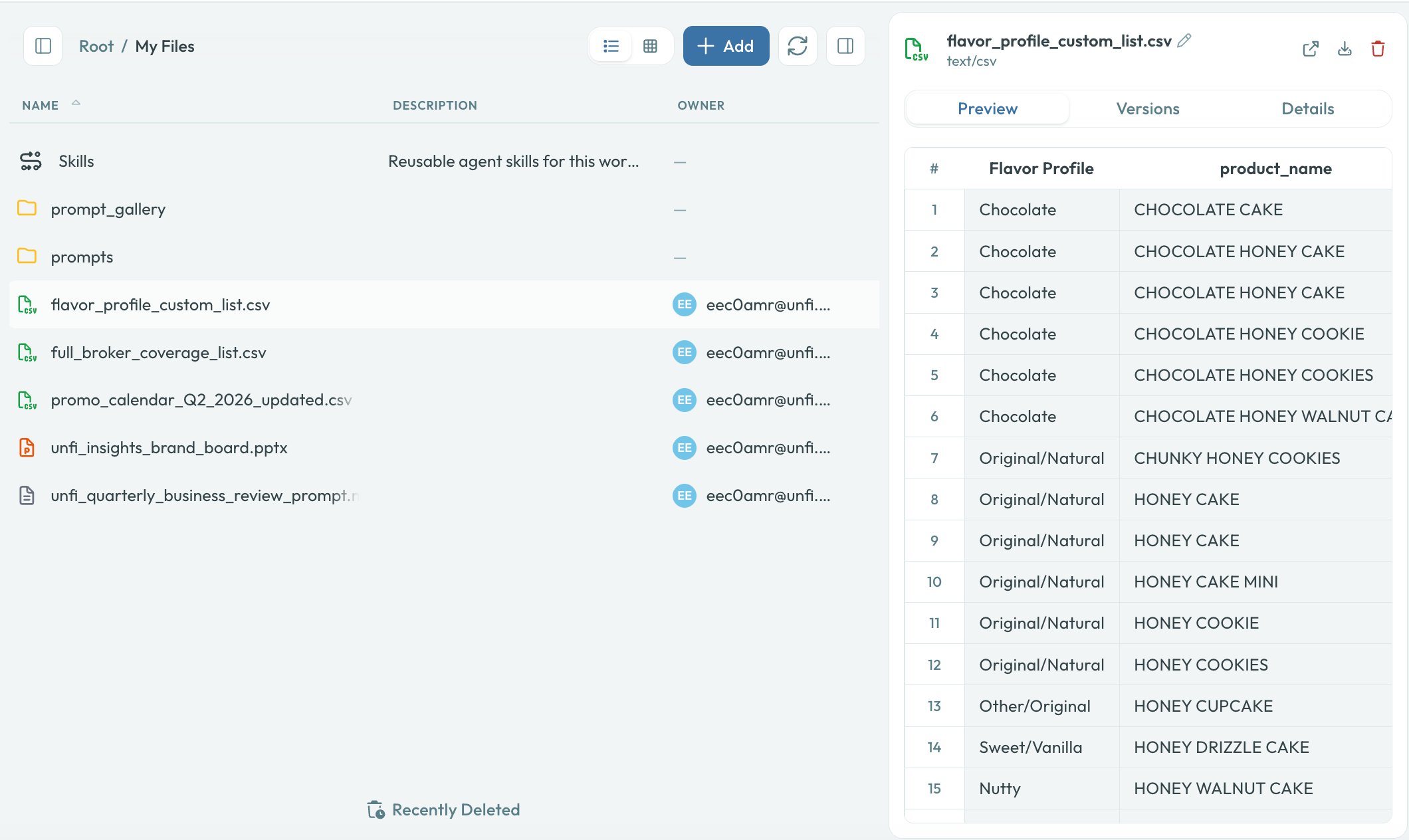 The file explorer renders previews for most common formats:
* **Markdown** — Rendered with full formatting, including LaTeX math, VFS links, file cards, and inline images. YAML front matter is stripped before preview.
* **CSV** — A lightweight read-only table (`CsvTable`) for quick inspection, capped at 100 rows for large files. Download for the full dataset.
* **Code files** — Syntax-highlighted for JSON, Python, TypeScript, SQL, XML, CSS, Markdown, YAML, and more.
* **Images** — Displayed inline.
* **PDF** — Rendered in-browser.
* **Large files** (over 100 KB) — Opened in a read-only preview with a truncation notice.
## Version history
Each file tracks its version history. Open the file info panel and scroll to **Versions** to see when the file was created or modified, and by whom.
### Reverting to a previous version
From the Versions list, click **Revert** on any past version. A confirmation dialog asks you to confirm; after accepting, the file contents are restored to that version and a new version entry is added.
## Editing files
Click **Edit** in the file info panel to open the built-in editor. Code files show syntax highlighting. Press `⌘Enter` / `Ctrl+Enter` to save and close.
### AI-assisted markdown editing
For markdown files, click **Edit with AI** to open a chat-based editing interface. Describe the changes you want in natural language and the agent applies them. A **track-changes preview** highlights exactly what was added, modified, or removed with color-coded diffs before you accept. The track-changes view uses theme-aware colors so it stays legible in dark mode.
## Agent-driven file editing
Agents can read, search, edit, and compare files during a conversation:
| Tool | What it does |
| ------------- | ---------------------------------------------------------------------------------------------------------------- |
| `edit_file` | Targeted search-and-replace edits to an existing file (instead of rewriting the whole file) |
| `search_file` | Search for text within a file and see matching lines with surrounding context |
| `diff_files` | Compare two files and return a unified diff |
| `move_file` | Move a single file to a new path. Fails if the destination already exists or the destination mount is read-only. |
| `copy_file` | Copy a single file to a new path. Fails if the destination already exists or the destination mount is read-only. |
Moves and copies follow the same rules as file explorer actions: agents can write into **My Files**, **Shared**, the active **Session**, and **Local folder** mounts, but not into read-only OneDrive, SharePoint, or Google Drive mounts. Folders are not supported — agents move or copy one file at a time.
When an agent edits a file, the chat shows an **inline diff card** with syntax-colored added/removed lines, the file icon, and a link to open the full file.
## @ file mentions in chat
You can reference any file in a chat message by typing `@` in the message input.
After a space or at the beginning of a line, type the `@` character. A dropdown appears.
Start typing the file name. The dropdown uses fuzzy search across My Files, Shared, and Session files, and prioritizes recent and relevant matches. Files with auto-generated UUID/GUID names are hidden to keep the list readable.
Click the file or press Enter. The file's VFS reference is inserted into your message and rendered as a clickable pill.
The agent receives the file reference and can read, analyze, edit, or transform the file as part of its response.
File mentions appear as clickable pills in your messages. Click a pill in chat to download the referenced file or open it in the file explorer.
The `@` dropdown never clips the first row when the list is taller than the viewport, and its rendering is optimized so the list stays smooth even with hundreds of files.
## File references in agent responses
When an agent creates or references a file, the path appears as a clickable link or a file card in the chat. Clicking it opens the file in the file explorer. Agents use the same VFS path format (`/mnt/current_session/chart.svg`, `/mnt/shared/report.csv`) so you always know where a file lives.
The file explorer renders previews for most common formats:
* **Markdown** — Rendered with full formatting, including LaTeX math, VFS links, file cards, and inline images. YAML front matter is stripped before preview.
* **CSV** — A lightweight read-only table (`CsvTable`) for quick inspection, capped at 100 rows for large files. Download for the full dataset.
* **Code files** — Syntax-highlighted for JSON, Python, TypeScript, SQL, XML, CSS, Markdown, YAML, and more.
* **Images** — Displayed inline.
* **PDF** — Rendered in-browser.
* **Large files** (over 100 KB) — Opened in a read-only preview with a truncation notice.
## Version history
Each file tracks its version history. Open the file info panel and scroll to **Versions** to see when the file was created or modified, and by whom.
### Reverting to a previous version
From the Versions list, click **Revert** on any past version. A confirmation dialog asks you to confirm; after accepting, the file contents are restored to that version and a new version entry is added.
## Editing files
Click **Edit** in the file info panel to open the built-in editor. Code files show syntax highlighting. Press `⌘Enter` / `Ctrl+Enter` to save and close.
### AI-assisted markdown editing
For markdown files, click **Edit with AI** to open a chat-based editing interface. Describe the changes you want in natural language and the agent applies them. A **track-changes preview** highlights exactly what was added, modified, or removed with color-coded diffs before you accept. The track-changes view uses theme-aware colors so it stays legible in dark mode.
## Agent-driven file editing
Agents can read, search, edit, and compare files during a conversation:
| Tool | What it does |
| ------------- | ---------------------------------------------------------------------------------------------------------------- |
| `edit_file` | Targeted search-and-replace edits to an existing file (instead of rewriting the whole file) |
| `search_file` | Search for text within a file and see matching lines with surrounding context |
| `diff_files` | Compare two files and return a unified diff |
| `move_file` | Move a single file to a new path. Fails if the destination already exists or the destination mount is read-only. |
| `copy_file` | Copy a single file to a new path. Fails if the destination already exists or the destination mount is read-only. |
Moves and copies follow the same rules as file explorer actions: agents can write into **My Files**, **Shared**, the active **Session**, and **Local folder** mounts, but not into read-only OneDrive, SharePoint, or Google Drive mounts. Folders are not supported — agents move or copy one file at a time.
When an agent edits a file, the chat shows an **inline diff card** with syntax-colored added/removed lines, the file icon, and a link to open the full file.
## @ file mentions in chat
You can reference any file in a chat message by typing `@` in the message input.
After a space or at the beginning of a line, type the `@` character. A dropdown appears.
Start typing the file name. The dropdown uses fuzzy search across My Files, Shared, and Session files, and prioritizes recent and relevant matches. Files with auto-generated UUID/GUID names are hidden to keep the list readable.
Click the file or press Enter. The file's VFS reference is inserted into your message and rendered as a clickable pill.
The agent receives the file reference and can read, analyze, edit, or transform the file as part of its response.
File mentions appear as clickable pills in your messages. Click a pill in chat to download the referenced file or open it in the file explorer.
The `@` dropdown never clips the first row when the list is taller than the viewport, and its rendering is optimized so the list stays smooth even with hundreds of files.
## File references in agent responses
When an agent creates or references a file, the path appears as a clickable link or a file card in the chat. Clicking it opens the file in the file explorer. Agents use the same VFS path format (`/mnt/current_session/chart.svg`, `/mnt/shared/report.csv`) so you always know where a file lives.