> ## Documentation Index
> Fetch the complete documentation index at: https://docs.gocrisp.com/llms.txt
> Use this file to discover all available pages before exploring further.
# Saving and scheduling canned reports and scripts
> > 💡 For Monday delivery, schedule at 6AM or later to ensure the latest data has loaded into the system.
## Saving a Canned Report or Script
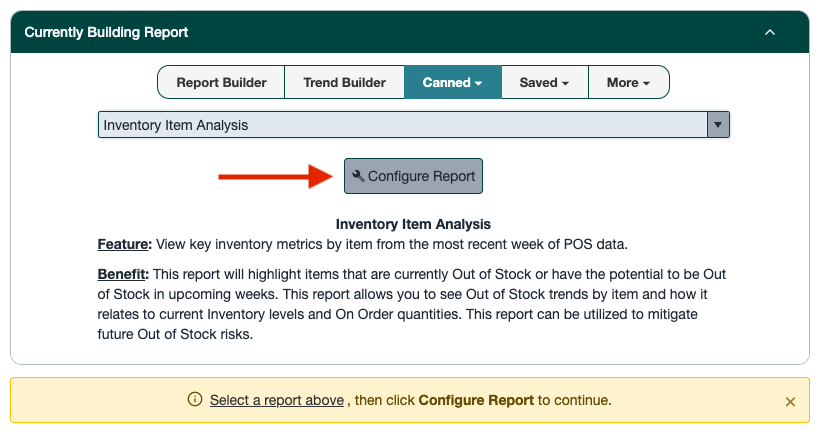
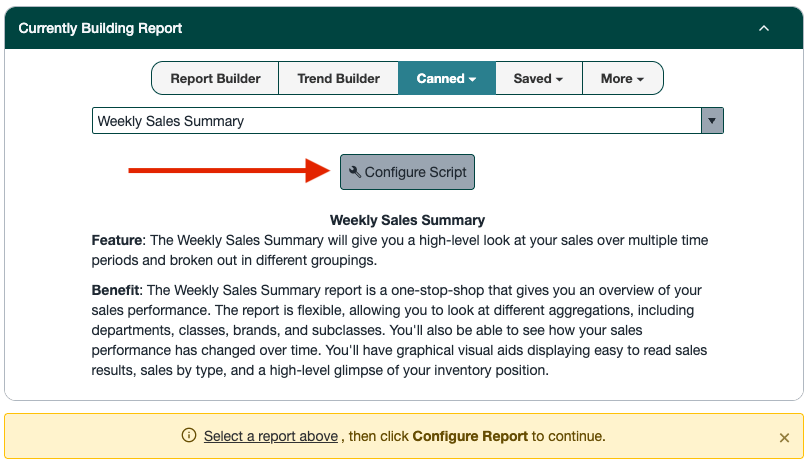
1. From **Report Builder**, select the **Canned Report** or **Canned Script** you want to save.
2. Click **Configure Report**.
3. Set your preferences:
* **Canned Reports:** Choose Time Period(s), Vendor(s), Product Set, Metrics, and Group By’s.
 * **Canned Scripts:** Choose Vendor(s) and Product Set.
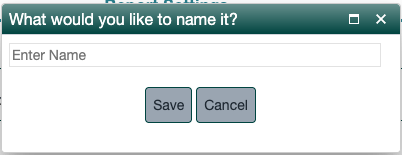
 4. Click **Create Saved Report**, name it, and click **Save Report**.
 ## Scheduling a Saved Report or Script
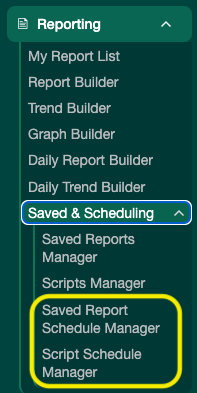
1. Go to **Reporting → Saved Report Schedule Manager** (for reports) or **Script Schedule Manager** (for scripts).
## Scheduling a Saved Report or Script
1. Go to **Reporting → Saved Report Schedule Manager** (for reports) or **Script Schedule Manager** (for scripts).
 2. Click **Add New Record**.
3. Select the saved report or script you want to schedule.
4. Choose the **day of the week** and **time of day**.
5. Optionally enter email addresses for distribution — separate multiple addresses with a **semicolon**. Leaving this blank is fine; the report will appear in your My Reports List instead.
6. Click **Save**. The report will now run automatically on your chosen schedule.
2. Click **Add New Record**.
3. Select the saved report or script you want to schedule.
4. Choose the **day of the week** and **time of day**.
5. Optionally enter email addresses for distribution — separate multiple addresses with a **semicolon**. Leaving this blank is fine; the report will appear in your My Reports List instead.
6. Click **Save**. The report will now run automatically on your chosen schedule.
 For Monday delivery, schedule at **6AM or later** to ensure the latest data has loaded into the system.
## Support
**Hours:** Monday – Friday, 8AM – 4PM
**Email:** [support@gocrisp.com](mailto:support@gocrisp.com)
For Monday delivery, schedule at **6AM or later** to ensure the latest data has loaded into the system.
## Support
**Hours:** Monday – Friday, 8AM – 4PM
**Email:** [support@gocrisp.com](mailto:support@gocrisp.com)