> ## Documentation Index
> Fetch the complete documentation index at: https://docs.gocrisp.com/llms.txt
> Use this file to discover all available pages before exploring further.
# Creating a script
> A Script combines multiple saved reports into one Excel file, with each report on its own tab.
A Script combines multiple saved reports into one Excel file, with each report on its own tab. Scripts can be scheduled to run weekly automatically.
## Creating a New Script
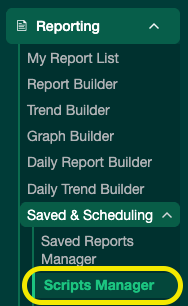
1. Go to **Reporting → Script Manager**.
 2. Click **Create New Script**.
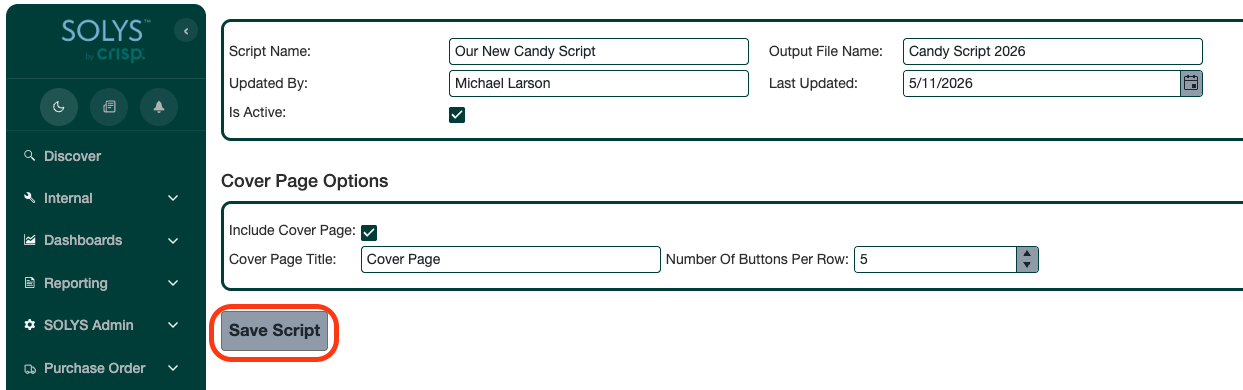
 3. Fill in:
* **Script Name:** Appears in the Script Manager list.
* **Output File Name:** The name of the exported Excel file. Avoid characters Excel doesn’t allow in file names (e.g., `/`).
4. Click **Create Script**.
3. Fill in:
* **Script Name:** Appears in the Script Manager list.
* **Output File Name:** The name of the exported Excel file. Avoid characters Excel doesn’t allow in file names (e.g., `/`).
4. Click **Create Script**.
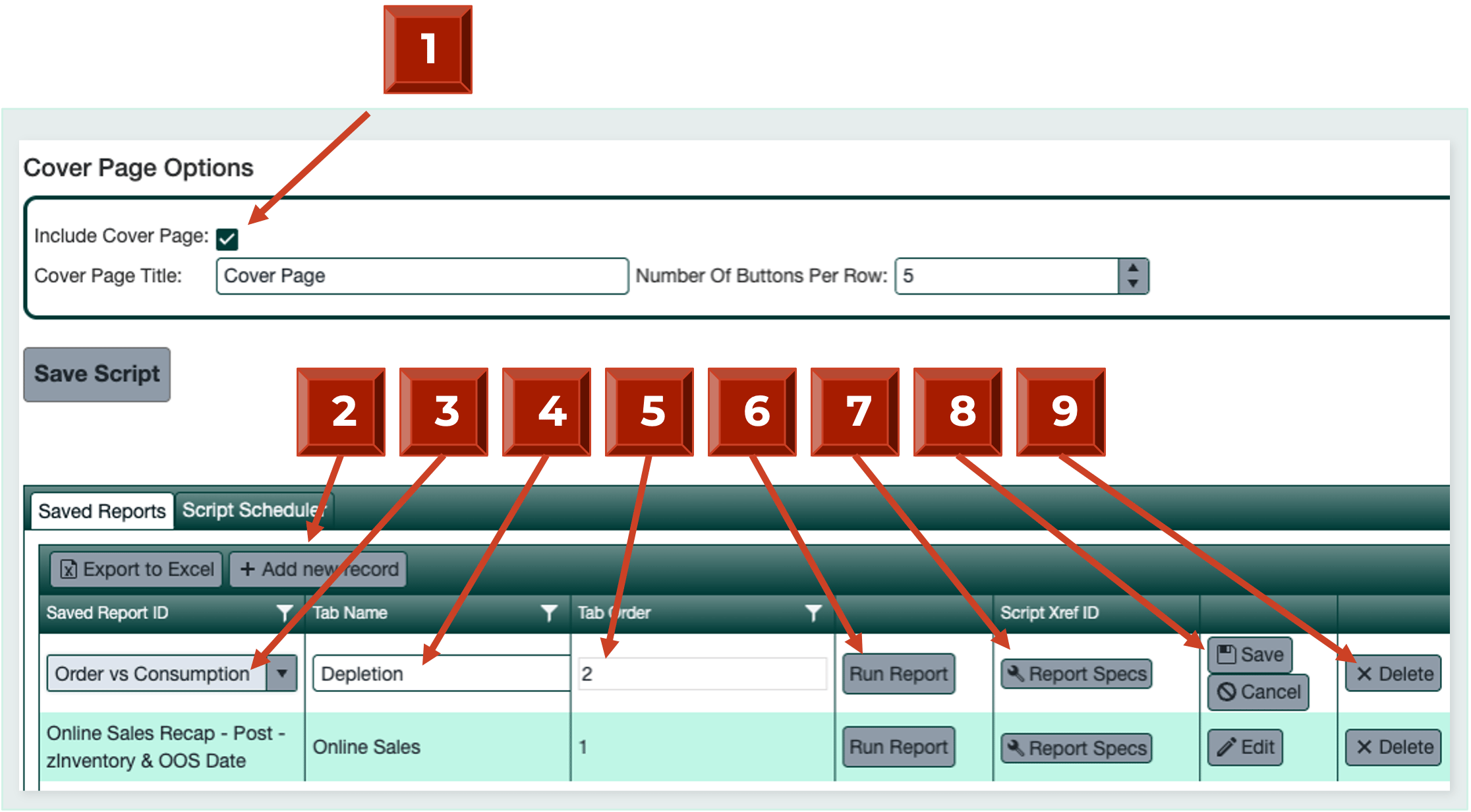
 The numbered callouts in the screenshots below correspond to the following:
1. **Include Cover Page** *(optional)*: Check this box to add a navigation cover page to your script. Give it a name and choose how many navigation buttons to display per row.
2. **Add New Record**: Click this button to start adding a report to your script.
3. **Choose Report**: Select the saved report you want to include. Use the search box to find it more easily.
4. **Tab Name**: Give this report a unique tab name. Do not use special characters. Tabs over 30 characters will be cut off due to Excel limitations.
5. **Tab Order**: Choose the order in which this report appears in the exported Excel file.
6. **Run**: Run the report from this screen to double-check that it's the right one to include.
7. **Report Specs**: Rebuild the report here if you'd like to make changes while keeping the same report name.
8. **Update**: Once you've completed callouts 3–7, click Update to add the report to your script. You can always click **Edit** afterward to adjust the report, tab name, or tab order.
9. **Delete**: Remove a report from your script entirely if it's no longer needed.
Repeat callouts 2–8 for each report you want to include. When all reports are added, click **Save Script**.
The numbered callouts in the screenshots below correspond to the following:
1. **Include Cover Page** *(optional)*: Check this box to add a navigation cover page to your script. Give it a name and choose how many navigation buttons to display per row.
2. **Add New Record**: Click this button to start adding a report to your script.
3. **Choose Report**: Select the saved report you want to include. Use the search box to find it more easily.
4. **Tab Name**: Give this report a unique tab name. Do not use special characters. Tabs over 30 characters will be cut off due to Excel limitations.
5. **Tab Order**: Choose the order in which this report appears in the exported Excel file.
6. **Run**: Run the report from this screen to double-check that it's the right one to include.
7. **Report Specs**: Rebuild the report here if you'd like to make changes while keeping the same report name.
8. **Update**: Once you've completed callouts 3–7, click Update to add the report to your script. You can always click **Edit** afterward to adjust the report, tab name, or tab order.
9. **Delete**: Remove a report from your script entirely if it's no longer needed.
Repeat callouts 2–8 for each report you want to include. When all reports are added, click **Save Script**.
 ## Editing an Existing Script
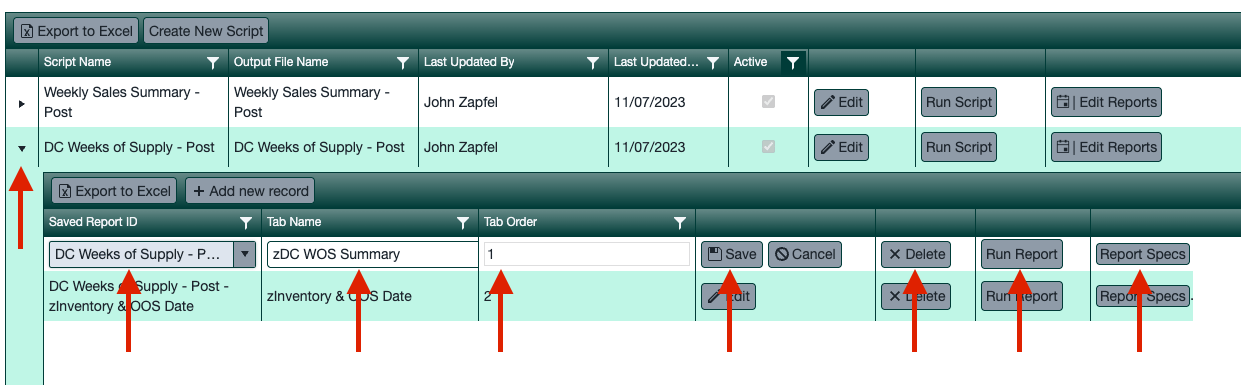
1. Go to **Reporting → Script Manager**.
2. Click the small **triangle** next to the script name to expand the reports list.
3. Click **Edit** next to any report to change the saved report, rename the tab, adjust tab order, delete the report, or run/rebuild it.
4. Click **Save** when done.
## Editing an Existing Script
1. Go to **Reporting → Script Manager**.
2. Click the small **triangle** next to the script name to expand the reports list.
3. Click **Edit** next to any report to change the saved report, rename the tab, adjust tab order, delete the report, or run/rebuild it.
4. Click **Save** when done.
 ## Support
**Hours:** Monday – Friday, 8AM – 4PM
**Email:** [support@gocrisp.com](mailto:support@gocrisp.com)
## Support
**Hours:** Monday – Friday, 8AM – 4PM
**Email:** [support@gocrisp.com](mailto:support@gocrisp.com)