> ## Documentation Index
> Fetch the complete documentation index at: https://docs.gocrisp.com/llms.txt
> Use this file to discover all available pages before exploring further.
# Creating and editing product sets
> A Product Set lets you define a standard group of products — vendor numbers, classes, Custom Item Groupings, etc.
A Product Set lets you define a standard group of products — vendor numbers, classes, Custom Item Groupings, etc. — that you pull regularly, so you don’t have to re-enter them every time you build a report.
## Creating a Product Set
1. In the **Report Builder** screen, go to the **Product Set** section and click the **+** button.
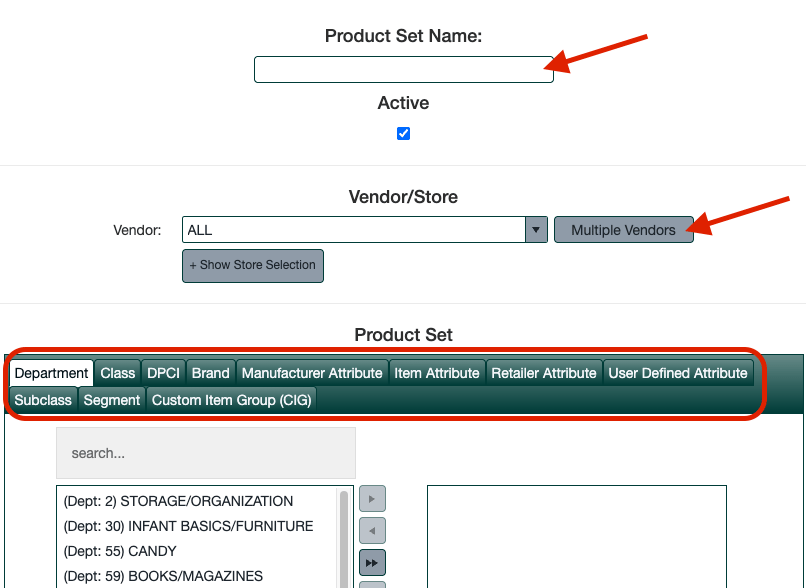
 2. In the popup, give your product set a clear, descriptive name.
3. Select the products you want to include — you can choose by vendor number, department, class, User Defined Attributes, Custom Item Groups, and more.
2. In the popup, give your product set a clear, descriptive name.
3. Select the products you want to include — you can choose by vendor number, department, class, User Defined Attributes, Custom Item Groups, and more.
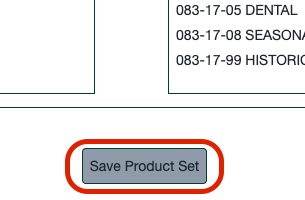
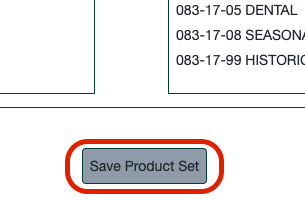
 4. Click **Save Product Set**.
 5. Back in Report Builder, click the Product Set dropdown and select your new set by name.
## Editing a Product Set
1. Navigate to **SOLYS Admin → Saved Product Set Admin**.
5. Back in Report Builder, click the Product Set dropdown and select your new set by name.
## Editing a Product Set
1. Navigate to **SOLYS Admin → Saved Product Set Admin**.
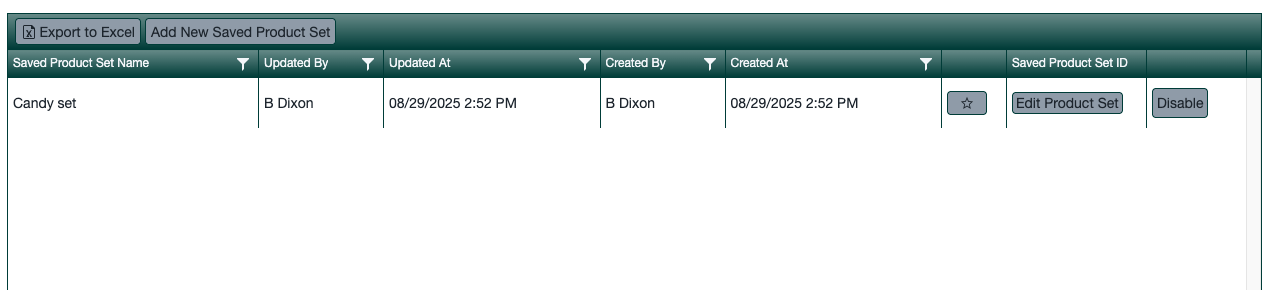
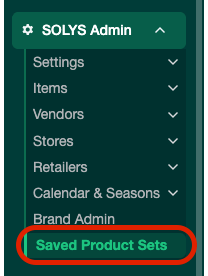 2. Find your product set and click **Edit Product Set**.
 3. Adjust your selections as needed.
4. Click **Save Product Set**.
3. Adjust your selections as needed.
4. Click **Save Product Set**.
 You can also:
* **Disable** a product set you no longer use.
* Click the **Star** icon to favorite it — it will appear at the top of the dropdown in Report Builder.
## Support
**Hours:** Monday – Friday, 8AM – 4PM
**Email:** [support@gocrisp.com](mailto:support@gocrisp.com)
You can also:
* **Disable** a product set you no longer use.
* Click the **Star** icon to favorite it — it will appear at the top of the dropdown in Report Builder.
## Support
**Hours:** Monday – Friday, 8AM – 4PM
**Email:** [support@gocrisp.com](mailto:support@gocrisp.com)