> ## Documentation Index
> Fetch the complete documentation index at: https://docs.gocrisp.com/llms.txt
> Use this file to discover all available pages before exploring further.
# Creating a season
> Seasons are custom time periods you define for recurring reporting windows — Christmas, Back to School, Planogram Transitions, fiscal quarters, and more.
Seasons are custom time periods you define for recurring reporting windows — Christmas, Back to School, Planogram Transitions, fiscal quarters, and more. Once created, they’re available in the **Timeframes** section of Report Builder and Trend Builder.
## Steps
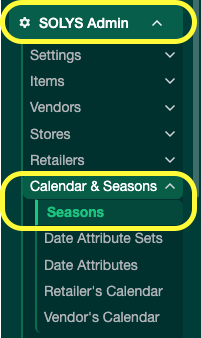
1. Click **SOLYS Admin**.
2. Go to **Calendar & Seasons → Seasons**.
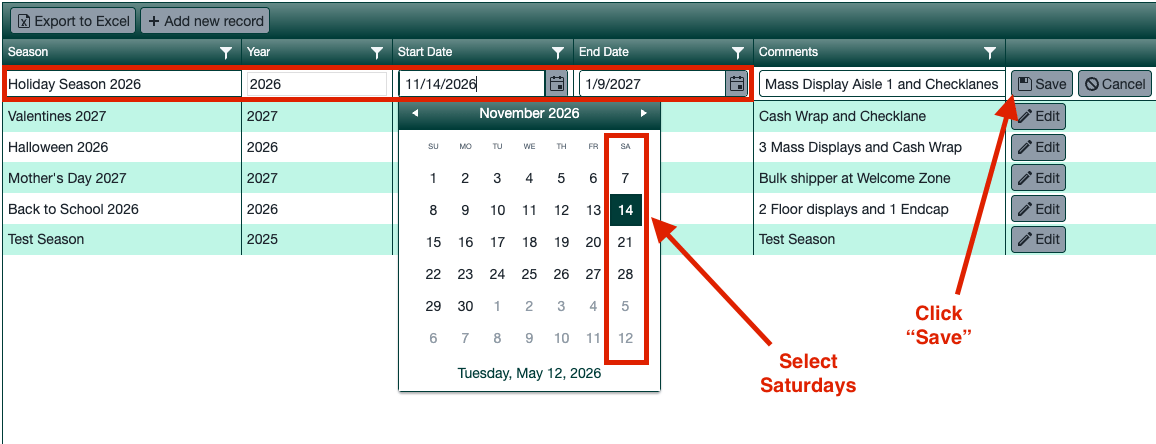
 3. Click **Add New Season** and fill in the fields:
* **Season Name**
* **Start Week** and **End Week** — always use **Saturdays** for the week-ending date.
4. Click **Save**.
3. Click **Add New Season** and fill in the fields:
* **Season Name**
* **Start Week** and **End Week** — always use **Saturdays** for the week-ending date.
4. Click **Save**.
 ## Support
**Hours:** Monday – Friday, 8AM – 4PM
**Email:** [support@gocrisp.com](mailto:support@gocrisp.com)
## Support
**Hours:** Monday – Friday, 8AM – 4PM
**Email:** [support@gocrisp.com](mailto:support@gocrisp.com)