> ## Documentation Index
> Fetch the complete documentation index at: https://docs.gocrisp.com/llms.txt
> Use this file to discover all available pages before exploring further.
# Logging in and changing your password
> Go to https://solys.lumidata.com in your browser.
Go to [https://solys.lumidata.com](https://solys.lumidata.com) in your browser.
## Logging In
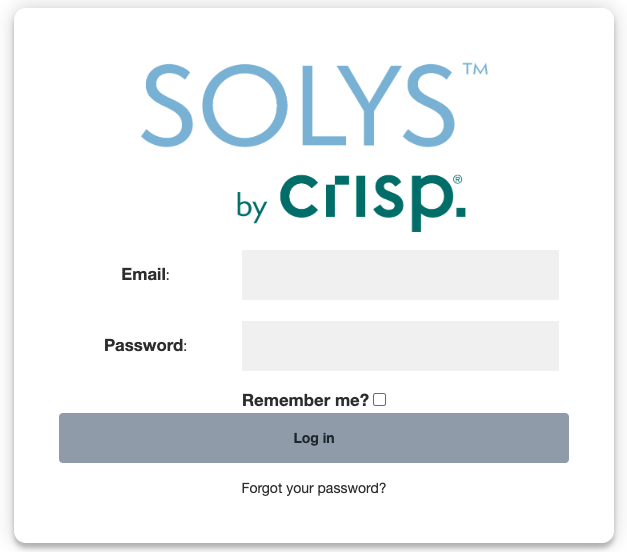
1. Enter your email address in the login field.
2. Enter your password.
3. Optionally check **Remember me?** — only do this on your personal computer, not a shared or public one.
4. Click **Log in**.
 ## First-Time Login or Forgotten Password
1. On the login screen, click **Forgot your password?**
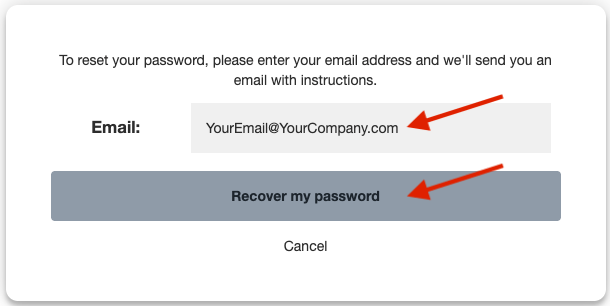
2. Enter your email address and click **Recover my password**.
## First-Time Login or Forgotten Password
1. On the login screen, click **Forgot your password?**
2. Enter your email address and click **Recover my password**.
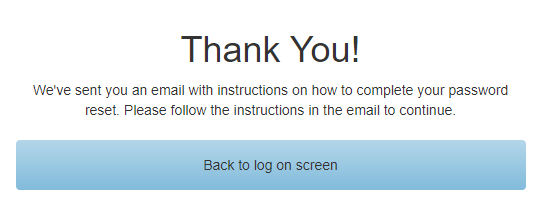
 3. You’ll see a “Thank You!” confirmation. Click **Back to log on screen**.
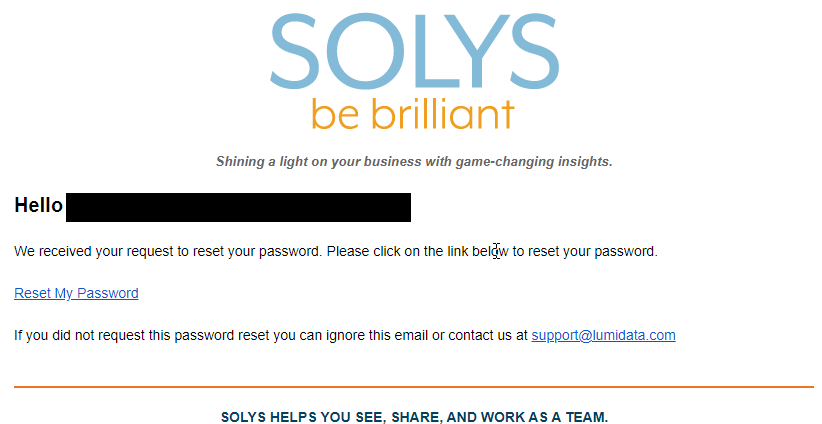
 4. Check your inbox for the password reset email and click **Reset My Password**.
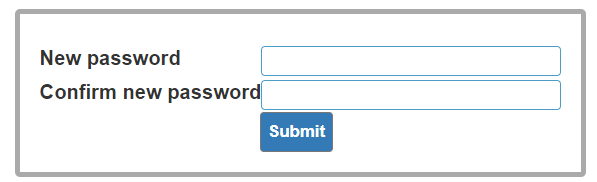
 5. Enter and confirm your new password, then click **Submit**.
 6. You'll be returned to the login screen. Log in with your new password.
If you don’t receive the reset email, check your spam/junk folder. If it’s not there, contact your IT department — a firewall may be blocking the email. Still having trouble? Email [**support@gocrisp.com**](mailto:support@gocrisp.com).
## Support
**Hours:** Monday – Friday, 8AM – 4PM
**Email:** [support@gocrisp.com](mailto:support@gocrisp.com)
6. You'll be returned to the login screen. Log in with your new password.
If you don’t receive the reset email, check your spam/junk folder. If it’s not there, contact your IT department — a firewall may be blocking the email. Still having trouble? Email [**support@gocrisp.com**](mailto:support@gocrisp.com).
## Support
**Hours:** Monday – Friday, 8AM – 4PM
**Email:** [support@gocrisp.com](mailto:support@gocrisp.com)