> ## Documentation Index
> Fetch the complete documentation index at: https://docs.gocrisp.com/llms.txt
> Use this file to discover all available pages before exploring further.
# How to enable macros
> Microsoft has added a security enhancement that blocks macros from running in Excel files downloaded from the internet.
Microsoft has added a security enhancement that blocks macros from running in Excel files downloaded from the internet. Your IT organization can configure this at the domain level — but if not, here are two workarounds.
## Option 1: Add a Trusted Location (Recommended)
1. Open Excel and click **File** → **Options**.
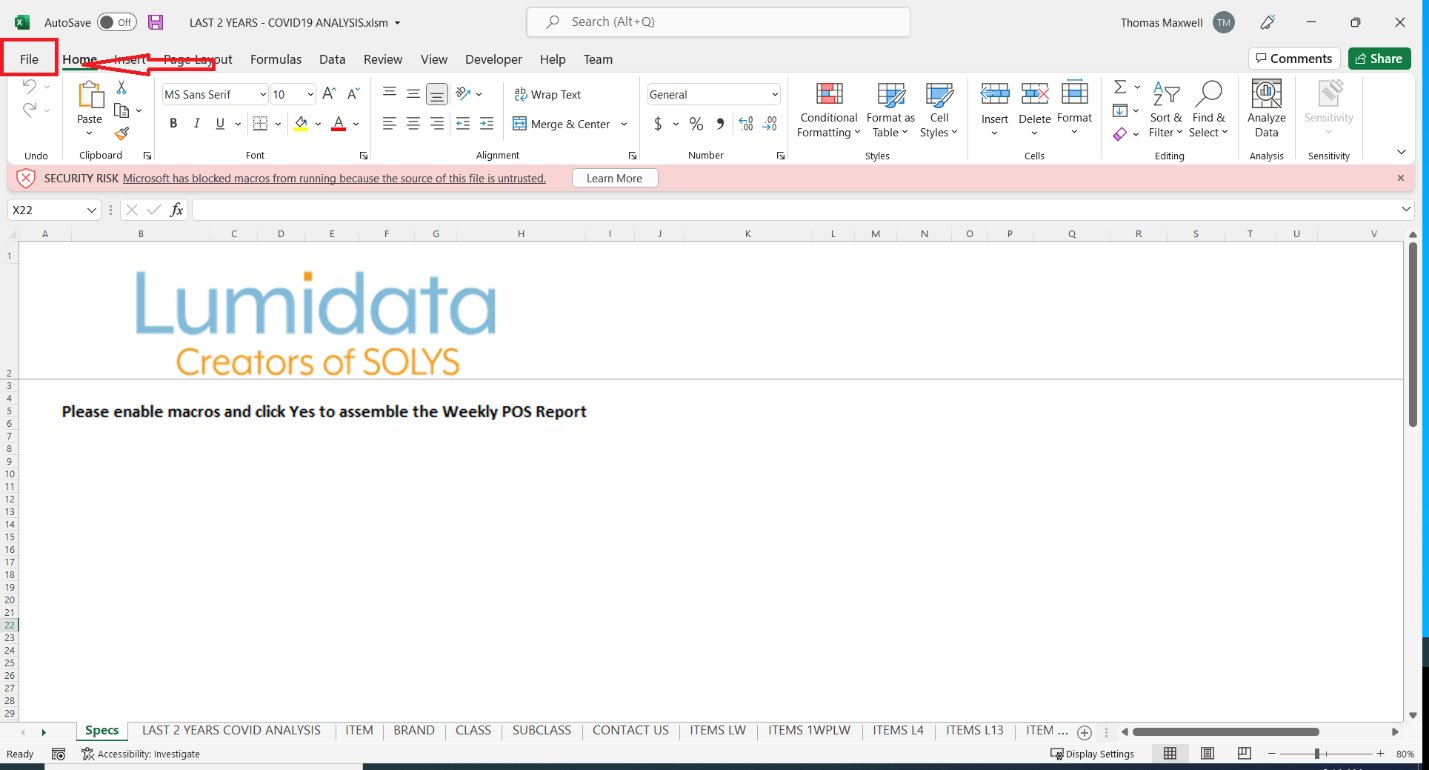
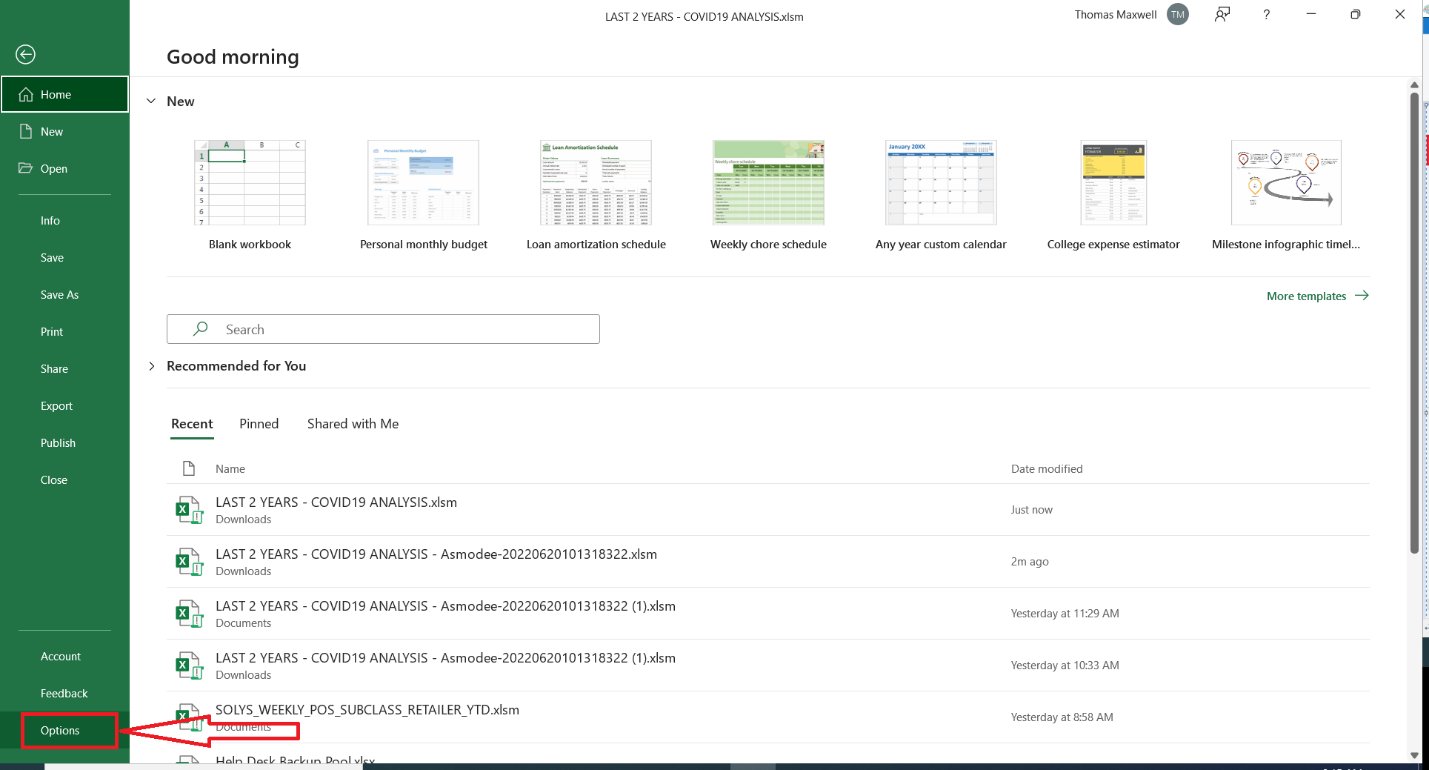 2. Select **Trust Center**, then click **Trust Center Settings**.
3. Click **Trusted Locations**, then **Add new location**.
2. Select **Trust Center**, then click **Trust Center Settings**.
3. Click **Trusted Locations**, then **Add new location**.
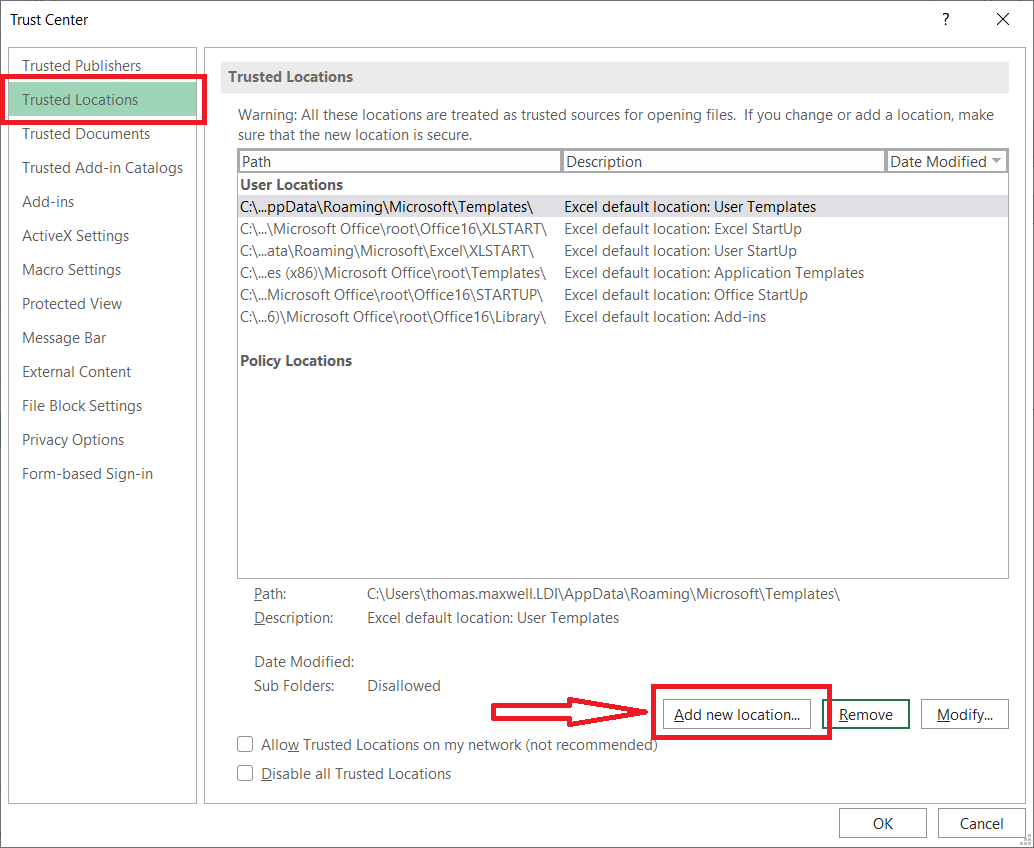 4. Click **Browse** and select the folder where you save SOLYS reports.
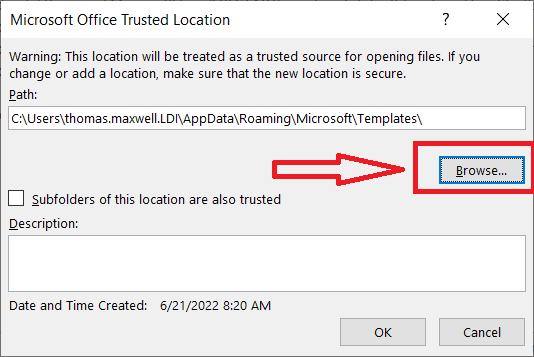
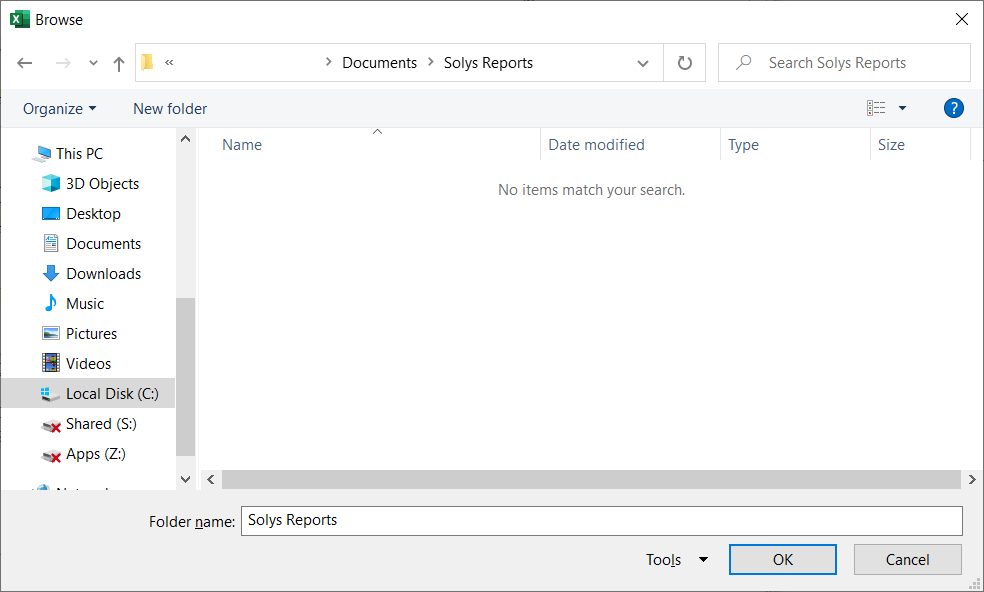 5. Click **OK** to confirm.
We recommend creating a dedicated **SOLYS Reports** folder in your Documents directory and saving all SOLYS reports there. This keeps things organized and ensures macros work automatically.
## Option 2: Enable VBA Macros (Less Recommended)
1. Open Excel and click **File** → **Options**.
2. Select **Trust Center**, then click **Trust Center Settings**.
3. Click **Macro Settings** and select **Enable VBA macros**.
4. Click **OK**.
5. Click **OK** to confirm.
We recommend creating a dedicated **SOLYS Reports** folder in your Documents directory and saving all SOLYS reports there. This keeps things organized and ensures macros work automatically.
## Option 2: Enable VBA Macros (Less Recommended)
1. Open Excel and click **File** → **Options**.
2. Select **Trust Center**, then click **Trust Center Settings**.
3. Click **Macro Settings** and select **Enable VBA macros**.
4. Click **OK**.
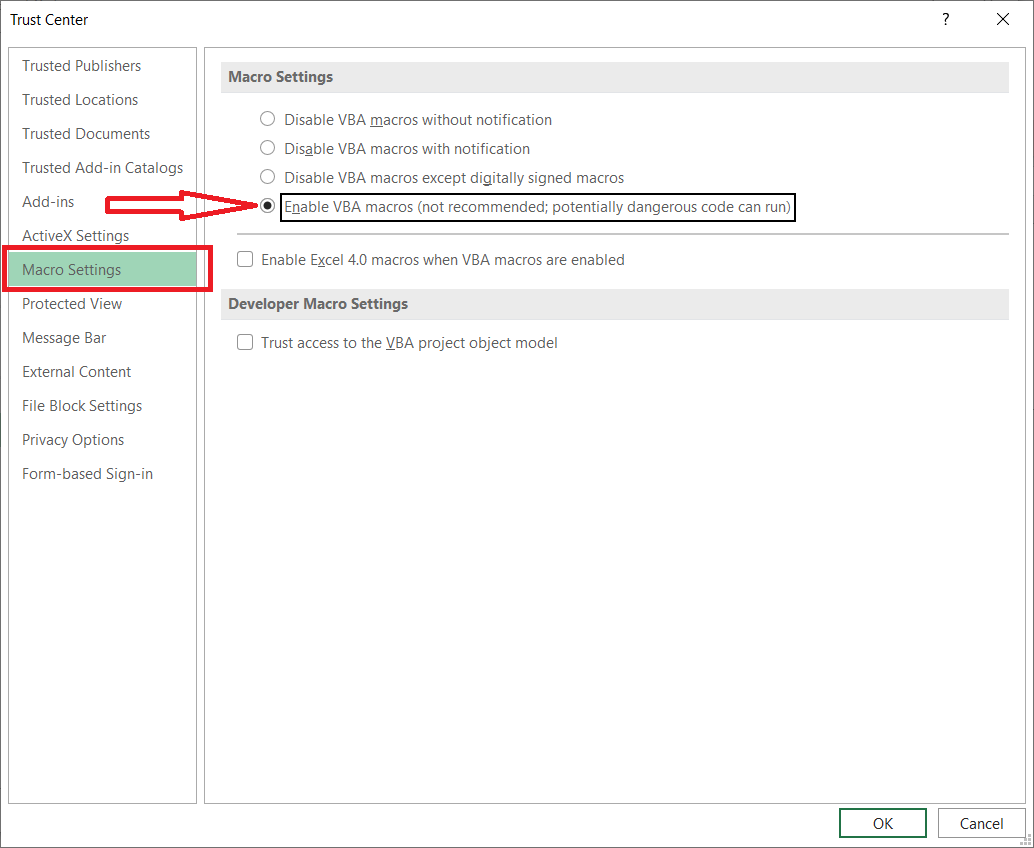 Enabling all VBA macros reduces your security protection. Option 1 is the safer choice.
## Support
**Hours:** Monday – Friday, 8AM – 4PM
**Email:** [support@gocrisp.com](mailto:support@gocrisp.com)
Enabling all VBA macros reduces your security protection. Option 1 is the safer choice.
## Support
**Hours:** Monday – Friday, 8AM – 4PM
**Email:** [support@gocrisp.com](mailto:support@gocrisp.com)