> ## Documentation Index
> Fetch the complete documentation index at: https://docs.gocrisp.com/llms.txt
> Use this file to discover all available pages before exploring further.
# Importing item attributes
> After submitting, you’ll be taken to the Import Queue & Log.
## Steps
1. Log in at [https://solys.lumidata.com](https://solys.lumidata.com).
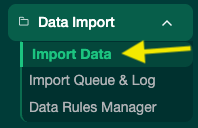
2. Go to **Data → Import Data**.
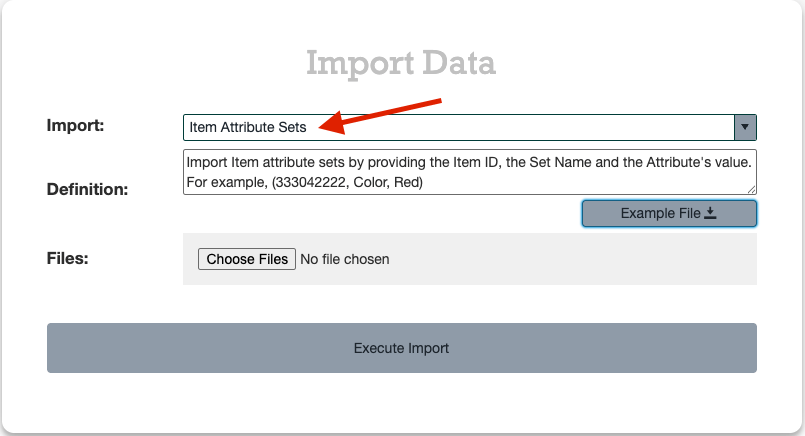
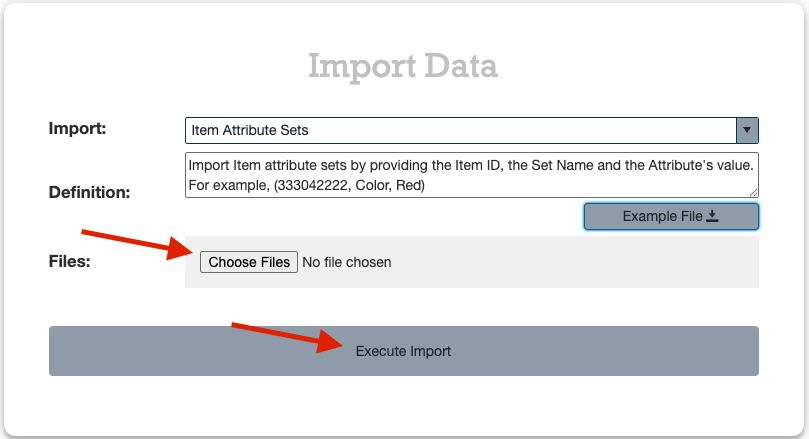
 3. In the Import dropdown, type **item at** and select **Item Attribute Sets**.
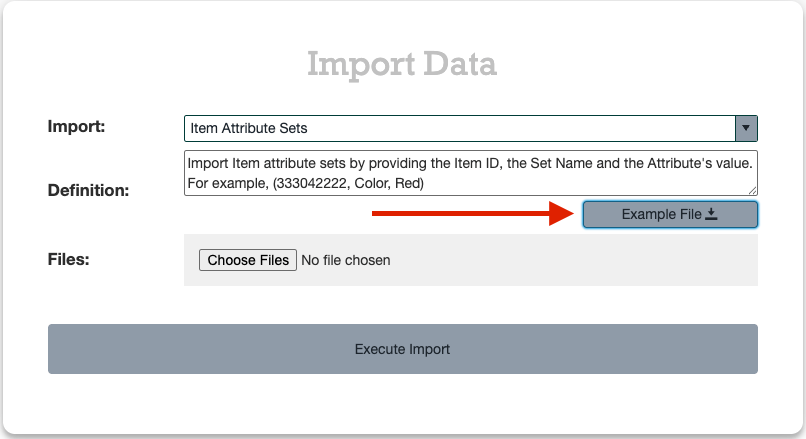
 4. Click **Example File** to download the import template.
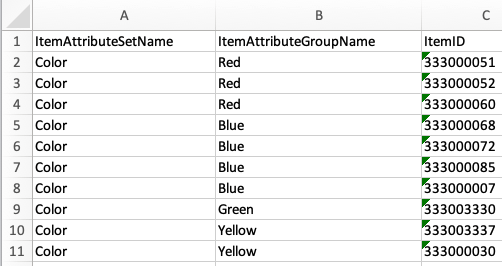
 5. Fill out the template:
* Do not change headers or column order.
* If pasting from another document, use **Paste Values** only — no formatting.
* No dashes in Item IDs. Make sure leading zeros are preserved.
5. Fill out the template:
* Do not change headers or column order.
* If pasting from another document, use **Paste Values** only — no formatting.
* No dashes in Item IDs. Make sure leading zeros are preserved.
 6. Click **Choose Files**, select your completed file, and click **Execute Import**.
 ## Tracking Your Import
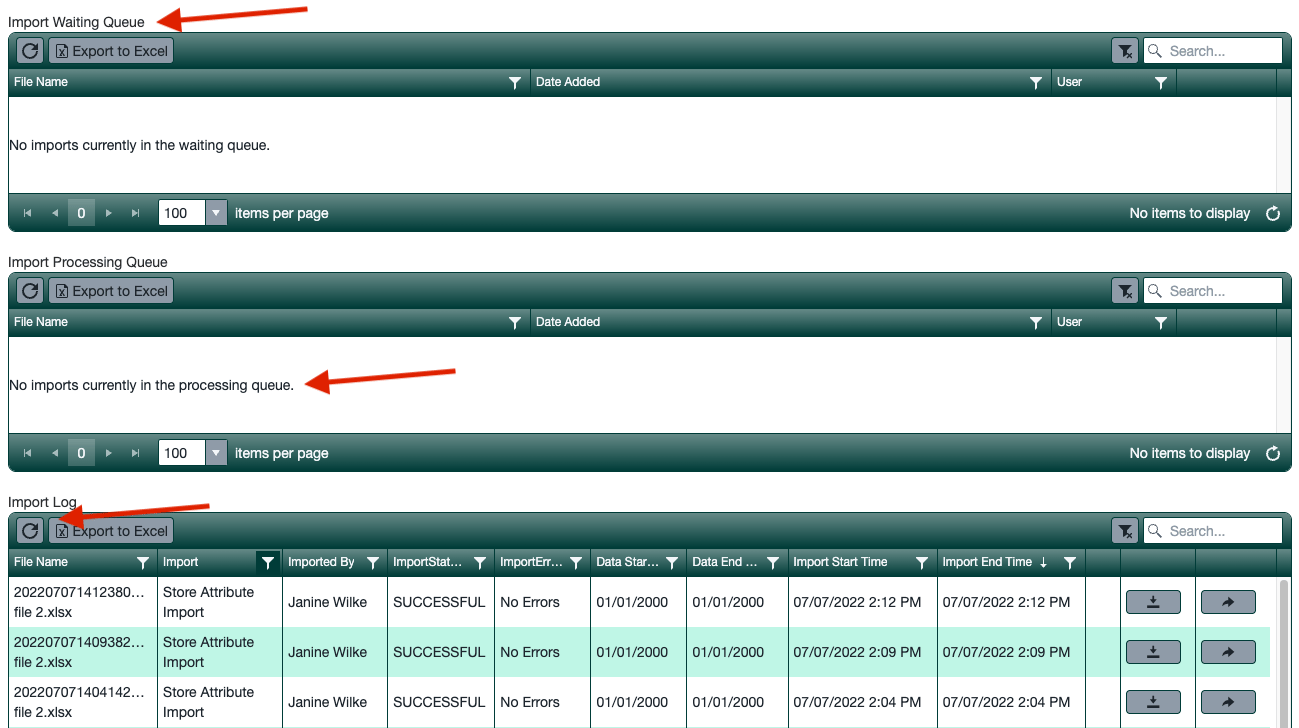
After submitting, you’ll be taken to the **Import Queue & Log**. Imports process every 30 seconds and move through three stages:
**Import Waiting Queue → Import Processing → Import Log**
## Tracking Your Import
After submitting, you’ll be taken to the **Import Queue & Log**. Imports process every 30 seconds and move through three stages:
**Import Waiting Queue → Import Processing → Import Log**
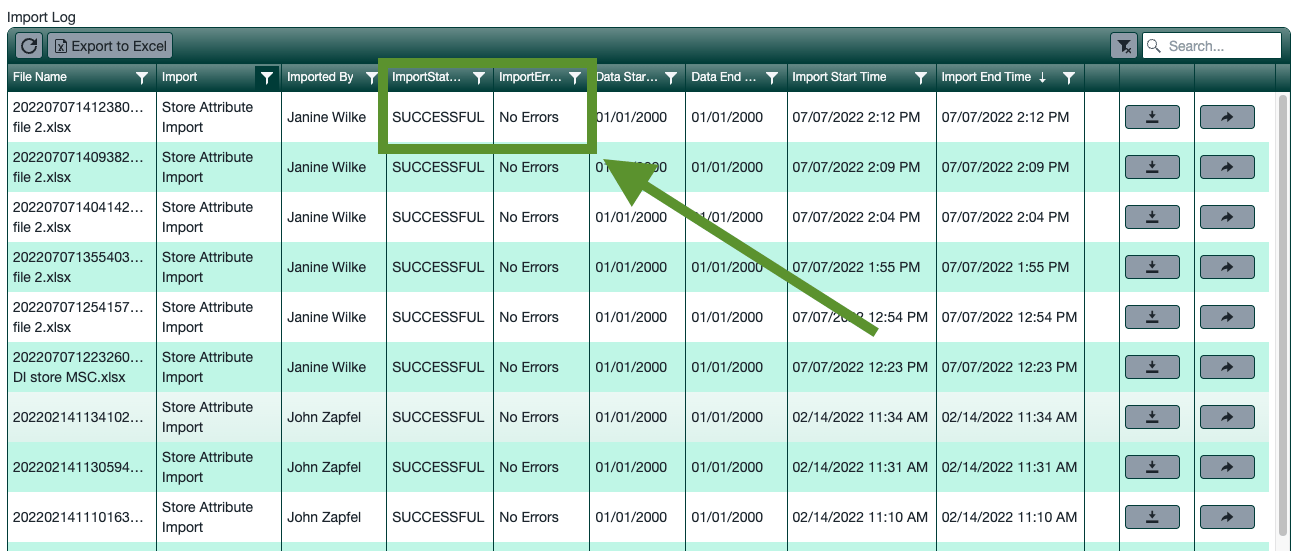
 A **SUCCESSFUL** status means your item attributes are now assigned in the system.
 ## Troubleshooting
If you see **FAILURE**, click the error icon for details. If the message is unclear, submit a ticket to [**support@gocrisp.com**](mailto:support@gocrisp.com).
## Support
**Hours:** Monday – Friday, 8AM – 4PM
**Email:** [support@gocrisp.com](mailto:support@gocrisp.com)
## Troubleshooting
If you see **FAILURE**, click the error icon for details. If the message is unclear, submit a ticket to [**support@gocrisp.com**](mailto:support@gocrisp.com).
## Support
**Hours:** Monday – Friday, 8AM – 4PM
**Email:** [support@gocrisp.com](mailto:support@gocrisp.com)