> ## Documentation Index
> Fetch the complete documentation index at: https://docs.gocrisp.com/llms.txt
> Use this file to discover all available pages before exploring further.
# Hy-Vee connector set up guide
Suppliers who sell through Hy-Vee have access to information about their accounts payable and inventory status through the Hy-Vee portal.
By setting up a connector between Crisp and this portal, you can analyze the data using Crisp's easy-to-use, actionable dashboards or feed that data into any [data destination](https://www.gocrisp.com/catalog/tag/outbound-connectors).
**To connect your Crisp account** :
1. [Log into your Crisp account.](https://platform.gocrisp.com)
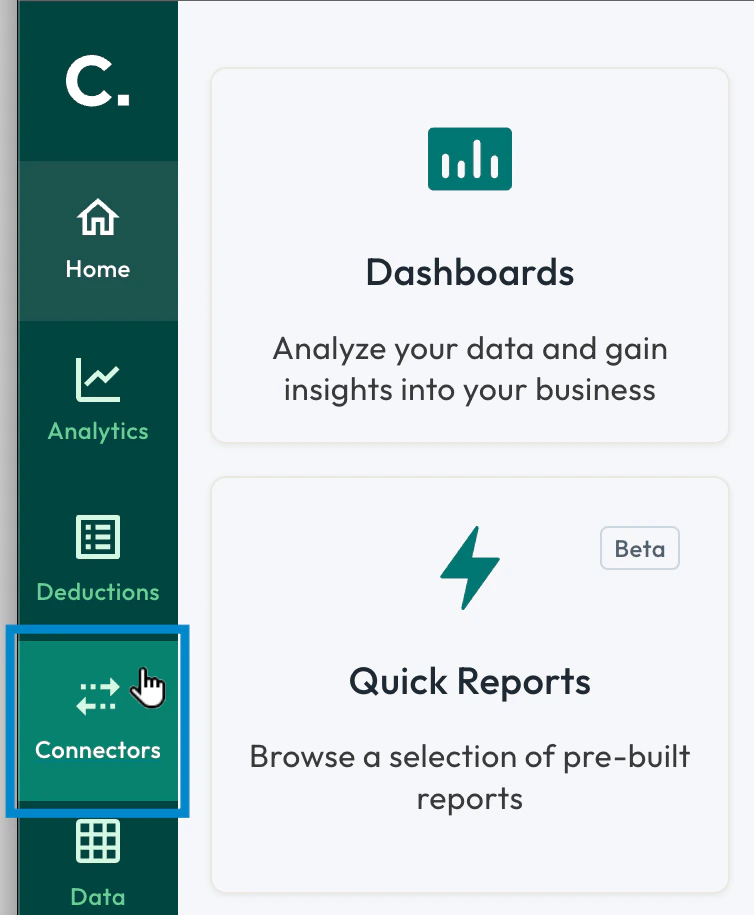
2. From the main menu on the left side of the screen, select \*\*\*\***Connectors**.\\
 3. Select the **Add connector** button.\\
 4. Select the Hy-Vee connector tile.
 5. If you want, update the name for your connector, then enter your username and password for the Hy-Vee portal.\\
 6. Select the **Save** button.\\
 A diagnostic checklist appears on the right side of the screen. Once all the items are complete, green check marks appear next to them and the connection is finalized.