Requirements
To create this connection you will need to meet the following requirements:- Have an Amazon Redshift account.
- Have a node type compatible with data sharing in Amazon Redshift. Currently, the minimum requirement is a single-node ra3.xplus cluster type, but for the latest requirements please refer to Amazon Redshift Documentation > Data sharing considerations in Amazon Redshift.
- Have an encrypted cluster version later than 1.0.38214. For more on encryption, see Amazon Redshift documentation > Changing cluster encryption.
Setting up the connection in Crisp
- Log into your Crisp account.
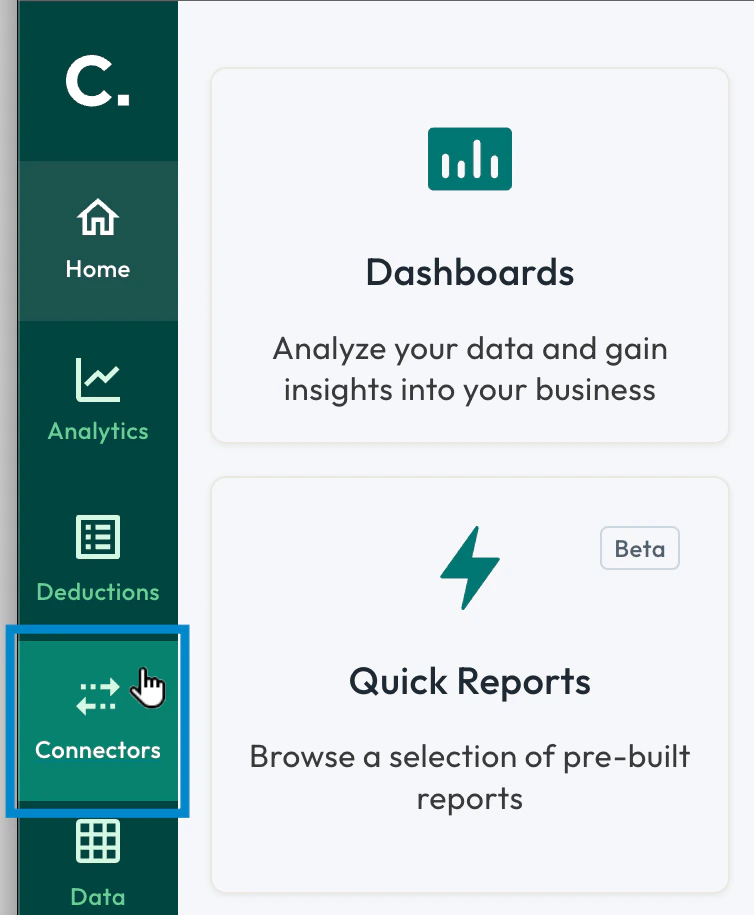
- From the main menu on the left side of the screen, select Connectors.
- Select the Add connector button.

- Select the Data Destinations tab, then select the Amazon Redshift connector tile.
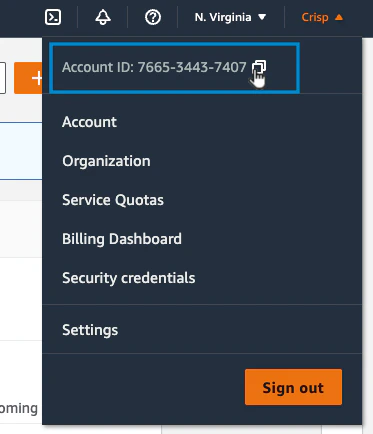
- You will need your Amazon Redshift account ID to set up the connection. If you need to get your account ID, log in to Amazon Redshift, then select your account name (e.g., Crisp ) at the top right corner. A menu appears with your account ID at the top. You can select the copy button to the right of the ID to copy it.
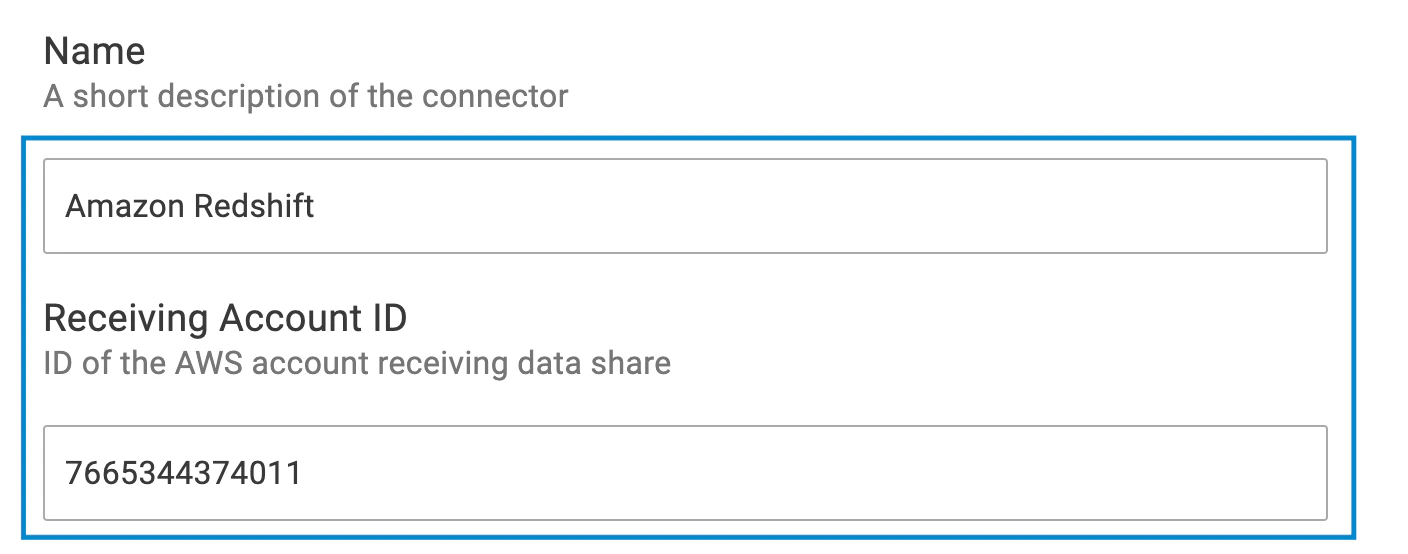
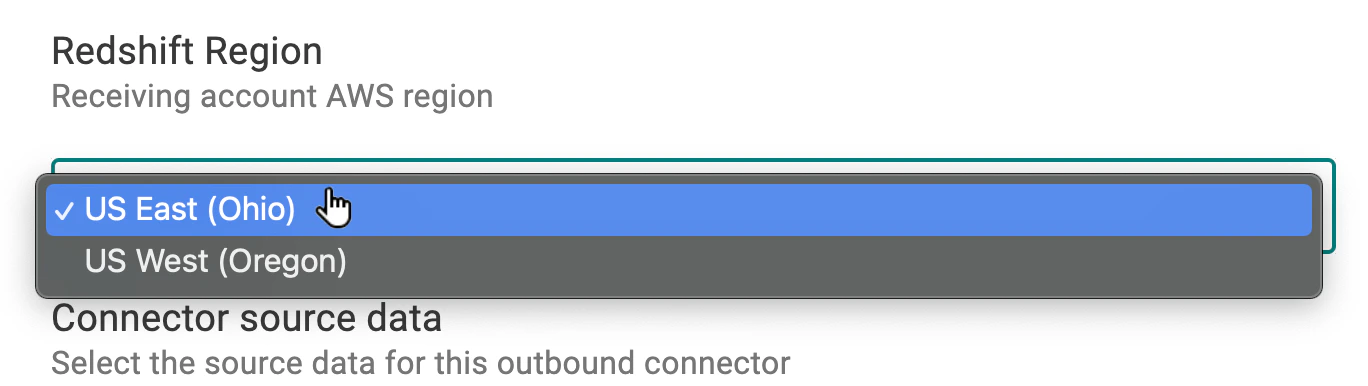
7. Select the cloud region, e.g., US East (Ohio), used for the Amazon Redshift account. If you need to look up the cloud region used for your account, you can log in to Amazon Redshift and see the cloud region at the top-right corner of the screen.\
-
In the Connector source data section, select the **Select **button.
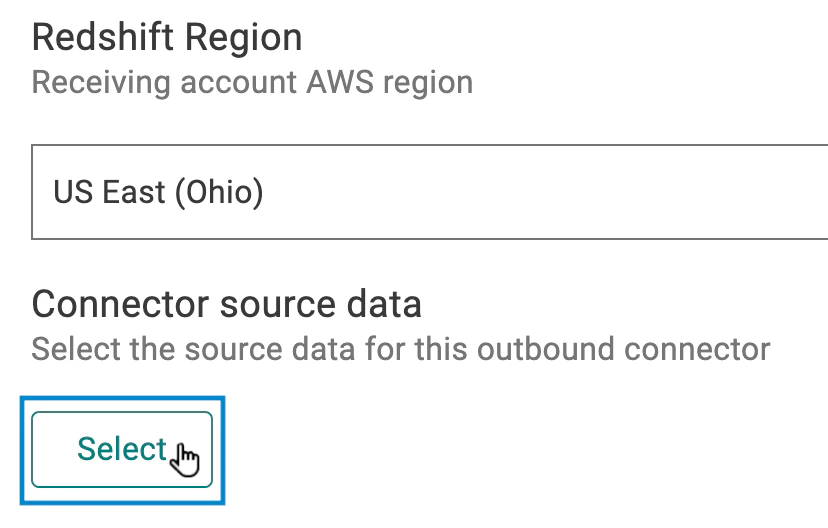
The Select source data screen appears. - Select the retailer(s) for which you want to export data (e.g., UNFI ), then choose which data tables and columns to include in the export. For detailed instructions on making your data feed selections, see Selecting Destination Data Sources.
- To complete your selections, select the Accept button.
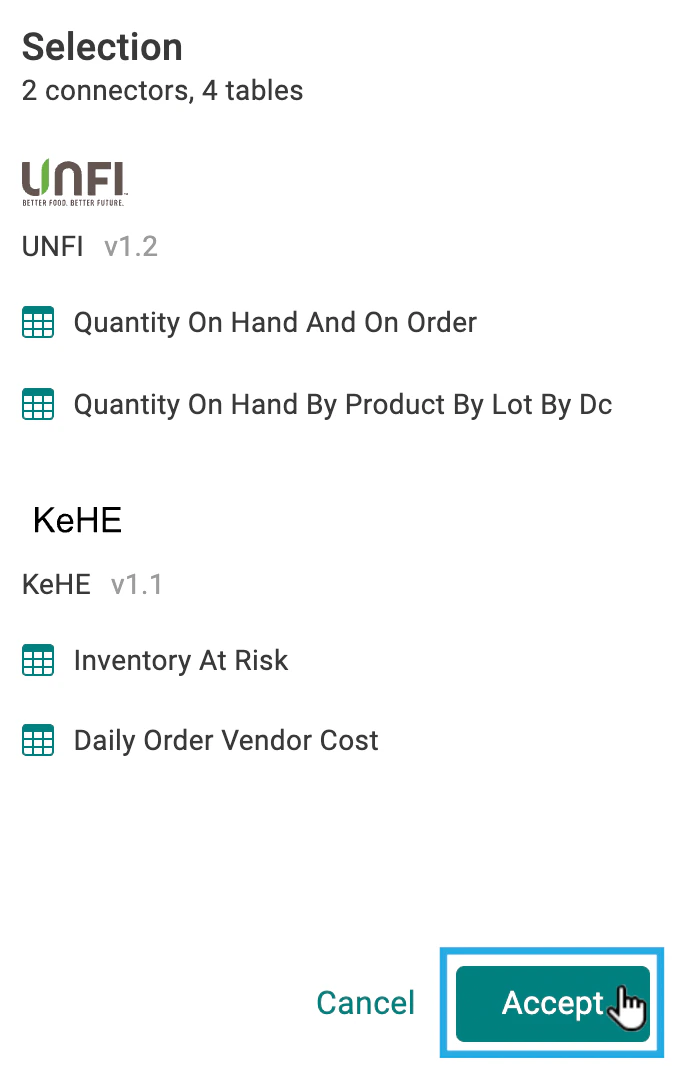
The window closes and you return to the connector setup screen.
- Choose additional columns to include in your export:
- If you want to include a column that identifies which source connector the data came from, select the Include Source Connector Configuration ID option.
Hint : This is useful if you have multiple connectors for the same retailer, such as one for U.S. sales and one for Canadian sales. - If you want to add a column that provides the date and time data was last sent from Crisp to the destination, select Include Last Exported Timestamp.
Note : Crisp retroactively ingests and re-exports data for a set period of time after the initial data capture, known as a lookback period, to account for changes from the source (such as missing register sales added later). You can use the last exported timestamp column to confirm if data was recently exported from Crisp to help troubleshoot issues or reduce costs by automating how often data flows from a destination to other systems at your organization. For more on retroactive data changes, see Data changes for destination connections.
- Select the Save button.