> ## Documentation Index
> Fetch the complete documentation index at: https://docs.gocrisp.com/llms.txt
> Use this file to discover all available pages before exploring further.
# Accessing UNFI Insights data in Crisp
You can see UNFI Insights dashboards that are powered by Crisp within the [myUNFI portal](https://www.myunfi.com/), but you can also access your UNFI Insights data directly within Crisp to take advantage of other Crisp features. Logging into or requesting a Crisp account allows you to access the following features at no cost:
* **Export your data into other tools** : You can add destination connectors, so you can analyze your UNFI data with tools used by your organization or access all the data fields available from UNFI (not just those that appear in dashboards). For a full list of available destination connectors, see [gocrisp.com > Data Destinations](https://www.gocrisp.com/data-destinations).
* **Customize how product names and groupings appear in Crisp** : You can use Crisp's Master data management tool (MDM) to view and edit product names, categories, and store groups. For more about MDM, see [Managing products and store groups with master data manager (MDM)](/docs/support/articles-Managing-products-and-store-groups-with-master-data-manager-MDM).
You can also purchase other Crisp data source connectors to analyze your UNFI Insights data alongside data from other retailers and distributors in our [Harmonized dashboards](/docs/support/articles-Harmonized-Sales-dashboards). For more information on available source connectors, see [gocrisp.com > Data Sources.](https://www.gocrisp.com/data-sources)
**To access your UNFI Insights data within Crisp:**
1. Before you begin, [contact Crisp support](mailto:support@gocrisp.com) and provide your vendor number(s). Then, our support team will initiate the connection and let you know when to proceed.
2. If you are accessing UNFI Insights data in Crisp for the first time, you need to set up an account or link an existing one by completing the following steps:
* Log in to the [myUNFI portal](https://www.myunfi.com/).
* From the **Supplier Reporting** section, select the **UNFI insights** tile.\
The main UNFI insights screen appears.
* From the side navigation panel, select the **Crisp** tile.\
A screen appears where you can request or link an existing account.
3. If you already have a Crisp account and you just want to link your UNFI Insights data to Crisp, complete the following steps.
* Select **Link an existing Crisp Account**.\\
 * From the Link an account screen that appears, enter the email address you use to log in to Crisp, then select the **Send Verification Email** button.\\
 * Check your email for the verification email and follow the instructions to verify your account.\
Your account is linked to UNFI Insights.
4. If you need to request a new Crisp account, complete the following steps:
* Check your email for the verification email and follow the instructions to verify your account.\
Your account is linked to UNFI Insights.
4. If you need to request a new Crisp account, complete the following steps:
 * Select **Request your Crisp Account**.\\
 * Enter your first and last name, company name, email address, and select the checkbox to agree to Crisp's terms of service and data policy.\
**Note** : If your organization has only one myUNFI login, you can also only have one Crisp login connected to myUNFI. You may want to set up a dedicated email address for your organization to use to create the connection to Crisp, such as [*myUNFI\_Crisp\_organization\_name@provider.com*](mailto:myUNFI_Crisp_organization_name@provider.com). If you are linking myUNFI to Crisp in order to access destination connectors (i.e., to pipe your data to another application), you may want to designate one person at your organization to manage the connection using their individual email address.\\
* Enter your first and last name, company name, email address, and select the checkbox to agree to Crisp's terms of service and data policy.\
**Note** : If your organization has only one myUNFI login, you can also only have one Crisp login connected to myUNFI. You may want to set up a dedicated email address for your organization to use to create the connection to Crisp, such as [*myUNFI\_Crisp\_organization\_name@provider.com*](mailto:myUNFI_Crisp_organization_name@provider.com). If you are linking myUNFI to Crisp in order to access destination connectors (i.e., to pipe your data to another application), you may want to designate one person at your organization to manage the connection using their individual email address.\\
 * Select the **Send Request** button.\
 \
Your request is sent and a Crisp account representative will reach out to you shortly to help finalize your setup.
5. If you want to use additional Crisp features, such as destination connectors, editing products with Master Data Manager (MDM), or viewing UNFI Insights data alongside data from other retailers/distributors in our harmonized dashboards, you will need to add a UNFI Insights source connector by completing the following steps:
* From the main menu on the left side of the screen, select **Connectors**.
* Select the **Add connector** button.\\
\
Your request is sent and a Crisp account representative will reach out to you shortly to help finalize your setup.
5. If you want to use additional Crisp features, such as destination connectors, editing products with Master Data Manager (MDM), or viewing UNFI Insights data alongside data from other retailers/distributors in our harmonized dashboards, you will need to add a UNFI Insights source connector by completing the following steps:
* From the main menu on the left side of the screen, select **Connectors**.
* Select the **Add connector** button.\\
 * Select the **UNFI Insights** tile.
* If you want, update the name for the connector, then select the **Save** button.\
* Select the **UNFI Insights** tile.
* If you want, update the name for the connector, then select the **Save** button.\
 \
Your myUNFI data is now connected to appear in our harmonized dashboards and be available in any destination connectors you have set up.
#### Exploring Crisp
Once you create or link your account and log in to Crisp, you can access the following Crisp tools that make analyzing and sharing data a snap.
1. To see your UNFI Insights dashboards, from the left navigation menu, select the **Analytics** menu.\
\
Your myUNFI data is now connected to appear in our harmonized dashboards and be available in any destination connectors you have set up.
#### Exploring Crisp
Once you create or link your account and log in to Crisp, you can access the following Crisp tools that make analyzing and sharing data a snap.
1. To see your UNFI Insights dashboards, from the left navigation menu, select the **Analytics** menu.\
 \
**Tip** : For information on how to use Crisp dashboards to meet common business goals like increasing velocity and distribution and keeping products in stock, see [CPG Data Basics](/docs/support/articles-UNFI-Insights-glossary).
2. Once you select a dashboard, you can apply filters to focus on specific time frames, products, chains, and more. For more: [Applying filters](/docs/support/articles-Applying-filters).
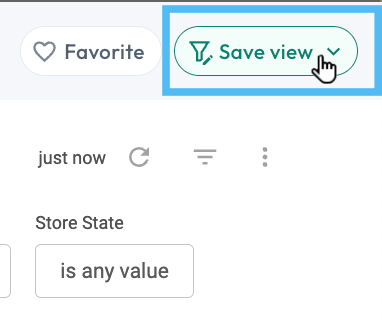
3. You can also save report views, so that you can set up your filters once and access them again with one click. For more, see [Saving reports for easy access](/docs/support/articles-Saving-reports-for-easy-access). You also share your reports with others (whether they are Crisp users or not), so you can easily share your data insights with internal stakeholders at your company, buyers, etc. For more: [Sharing saved reports](/docs/support/articles-Managing-saved-reports).\
\
**Tip** : For information on how to use Crisp dashboards to meet common business goals like increasing velocity and distribution and keeping products in stock, see [CPG Data Basics](/docs/support/articles-UNFI-Insights-glossary).
2. Once you select a dashboard, you can apply filters to focus on specific time frames, products, chains, and more. For more: [Applying filters](/docs/support/articles-Applying-filters).
3. You can also save report views, so that you can set up your filters once and access them again with one click. For more, see [Saving reports for easy access](/docs/support/articles-Saving-reports-for-easy-access). You also share your reports with others (whether they are Crisp users or not), so you can easily share your data insights with internal stakeholders at your company, buyers, etc. For more: [Sharing saved reports](/docs/support/articles-Managing-saved-reports).\
 \*\*\
\*\*
4. If you want to change how product names, categories, or subcategories appear in Crisp, you can select **MDM** from the left navigation menu.\
**Note** : Using MDM requires you to add the UNFI Insights connector.\\
\*\*\
\*\*
4. If you want to change how product names, categories, or subcategories appear in Crisp, you can select **MDM** from the left navigation menu.\
**Note** : Using MDM requires you to add the UNFI Insights connector.\\
 5. If you want to automate exporting your myUNFI data directly to a BI tool or cloud storage application, such as PowerBI or Google Cloud Storage, you can set up a destination connector by selecting **Connectors** from the side menu. For detailed instructions on setting up destination connectors, see [Exporting your data](/docs/support/articles-About-Crisp).\
**Note** : Using destination connectors requires you to add the UNFI Insights source connector.
5. If you want to automate exporting your myUNFI data directly to a BI tool or cloud storage application, such as PowerBI or Google Cloud Storage, you can set up a destination connector by selecting **Connectors** from the side menu. For detailed instructions on setting up destination connectors, see [Exporting your data](/docs/support/articles-About-Crisp).\
**Note** : Using destination connectors requires you to add the UNFI Insights source connector.
